
Question
- Can photos be moved between jobs in DASH™?
- How do I copy photos?
- Can I copy a photo album to another job?
- Copying photos from one claim to another
Answer
Securities
The ability to Move or Copy Photos requires proper security access. To grant access to this feature:
1. Hover over Administration and click on Employee/Security Settings
2. Click Security or Group Security. Select the employee's name (or title) in the upper-right hand corner.
3. Expand Slideboard > Expand Albums > Enable Copy Photo.
Franchise Disclaimer
Some Franchisors restrict the ability to move, copy, or merge job data between Admin Claims in Restore. If you have enabled the appropriate permissions at the profile level and the claim was dispatched by your corporate office, but you remain unable to move data, this is likely due to a mandatory corporate restriction.
You can transfer or copy photos between jobs following the directions below:
- Navigate to the job that you want to move the photos from.
- Open the Photos tab at the bottom of the job slideboard.

- Select Manage Photos and Albums.
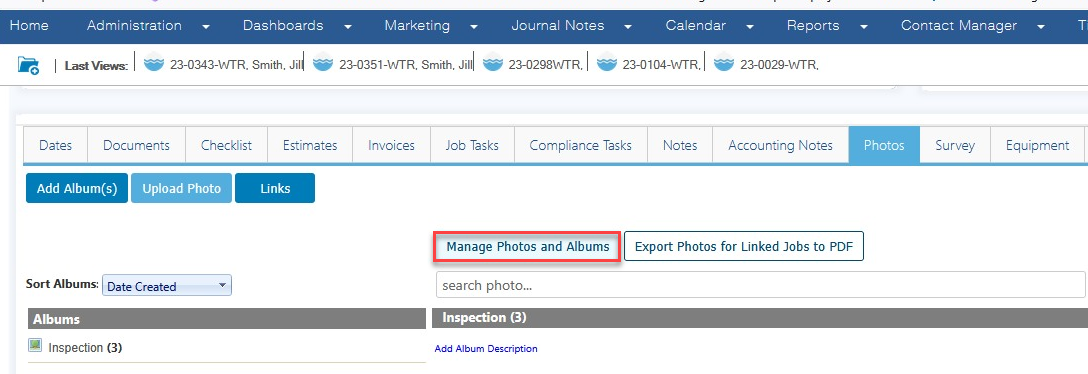
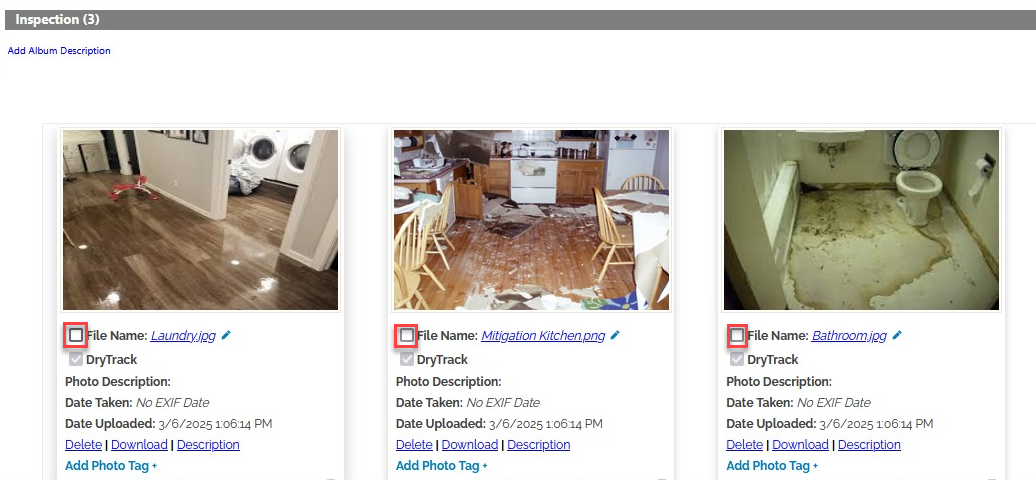
- Select the photos you want to move.
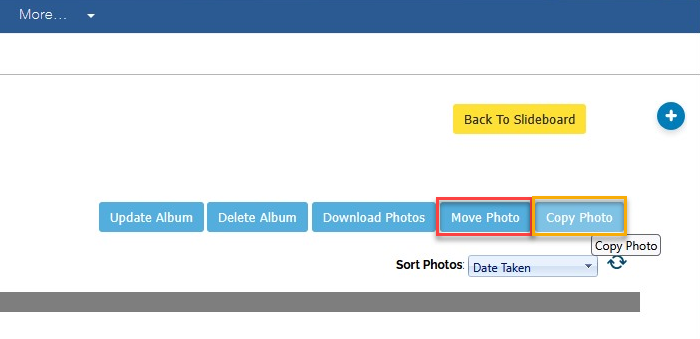
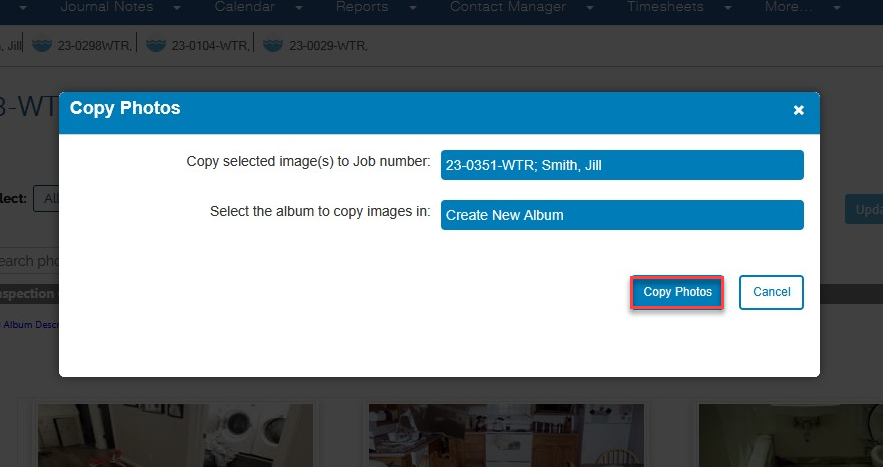
- Select Copy Photo or Move Photo. Copy Photo will allow you to take a copy from Job A and add it to Job B. Move Photo will move a photo from Job A to Job B.
- Select the job you want to move or copy photos to.
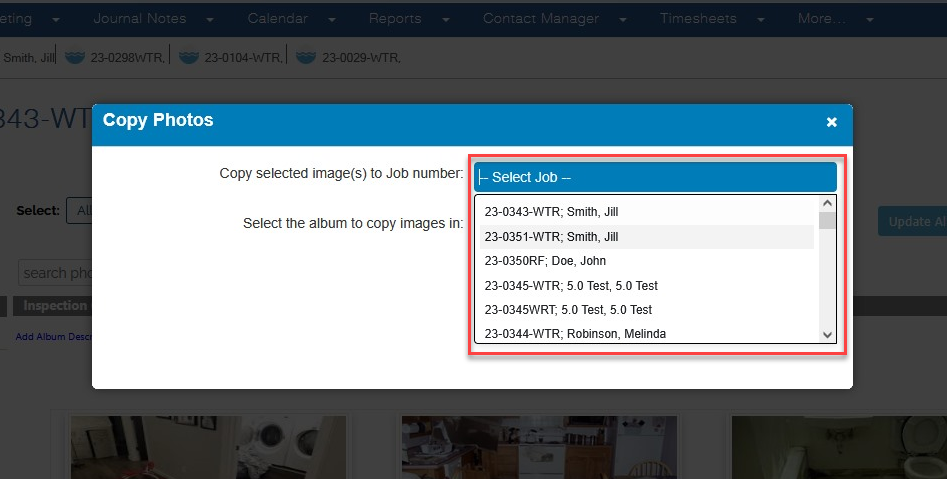
- Select the job you want to copy/move the photo to, choose an album on the job or chose to create a new album, and then chose the copy or move option.
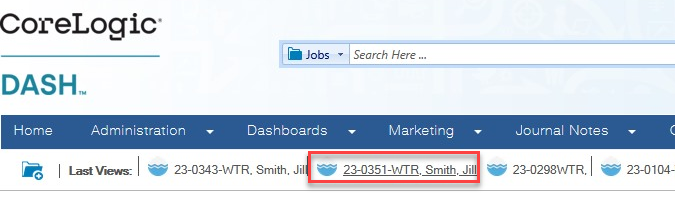
- Open the job you selected to copy or move photos to.
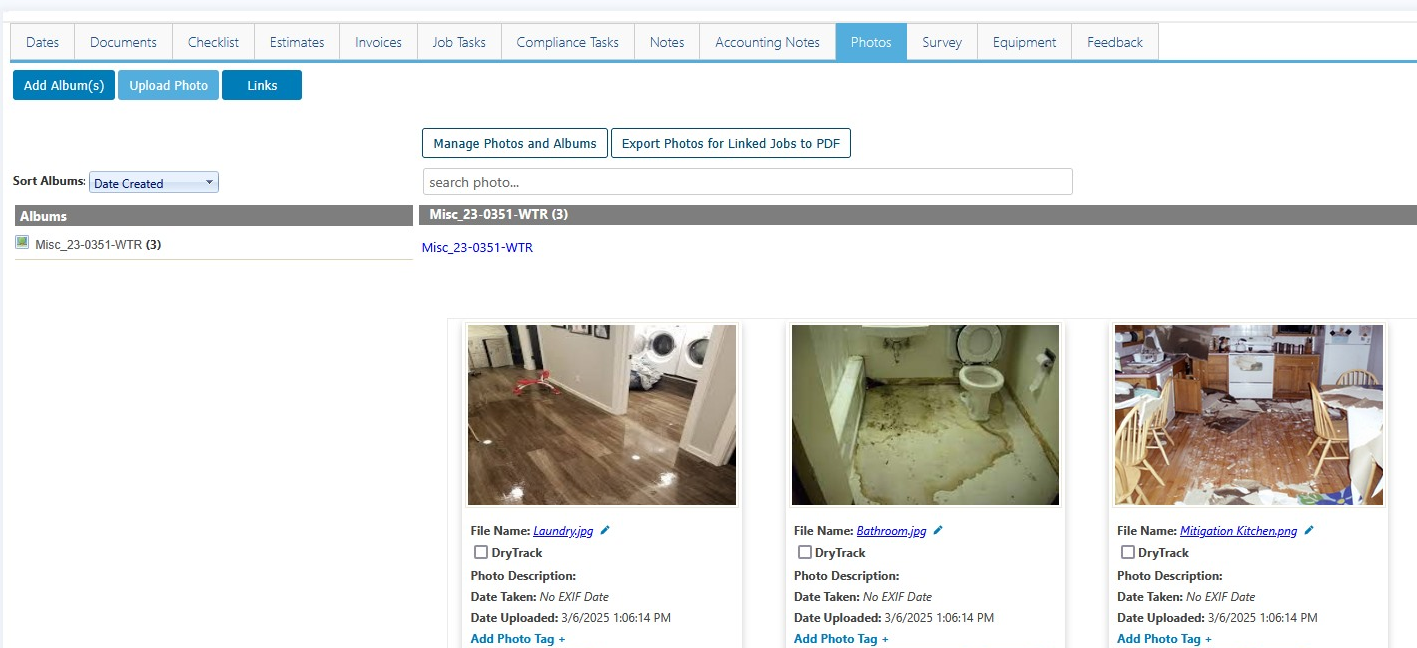
- The new photos that were moved or copied over should be visible in the Photos tab. In this case, the photos are in a default album because the option to Create New Album was chosen previously.
Questions? Contact Us!