
Question
- Can I email a work order?
- How do I send a work order to a vendor?
- Who can I email a work order to?
Answer
To email a Work Order or Purchase Order:
- Navigate to the Job page (Slideboard)
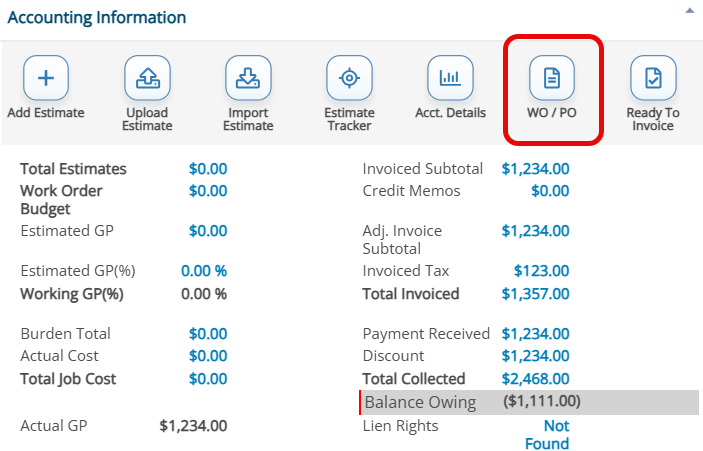
- From the Job Slideboard, click into the WO/PO section under the Accounting Information quadrant
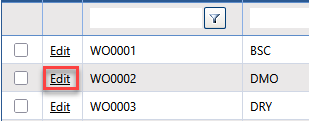
- Click Edit next to the Work Order / Purchase Order you want to Email
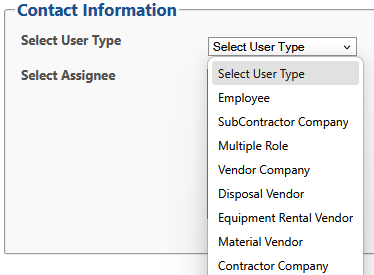
- Select a User Type.
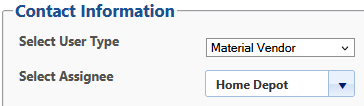
- Select the Assignees from the User Type selected.
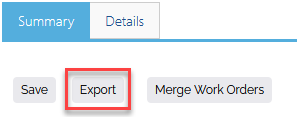
- Click Export.
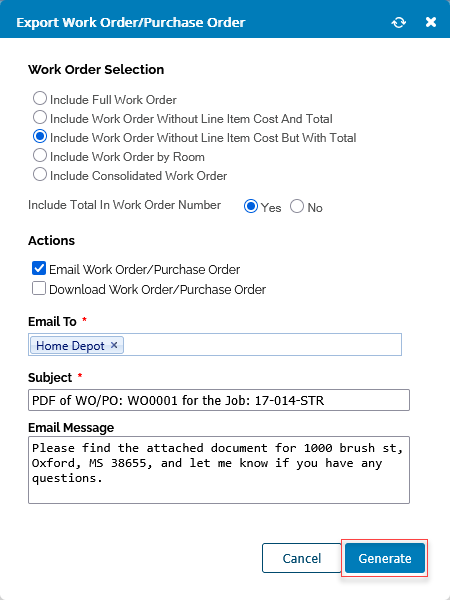
- Make your work order selection from the options listed below.
- Full Work Order: Shows each line item’s cost with a work order total at the bottom of the page.
- Without Line Item Cost and Total: Prints without each line item cost and without an ending total.
- Without Line Item Cost But With Total: Prints without each line item cost, but does print an ending total.
- By Room: Groups all line items by Room. If you chose this format, you will have the option to select one of the options listed above in the next step.
- Consolidated Work Order: Totals include Material, Labor, Equipment, and Adjustments consolidated into one line item view.
- Check the box for Email Work Order/Purchase Order.

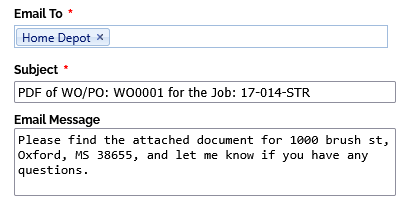
- The previously selected Assignee will prepopulate in the Email To field. Add or remove any other contacts you wish to email the work order to. Make sure that the subject line and email message are correct as well.
- Click Generate.
Questions? Contact Us!