Question
- How can I connect MICA™ and X1?
- Sending a Vendor Request in Xactimate Online
Answer
Note
Any scope data that you collect in Mitigate (fka MICA) can be transferred to Xactimate. This includes sketches, line items, and pictures. This works for claims that didn’t originate in XactAnalysis, therefore this integration works for self-pay or non-program jobs
Disclaimer
The sketch in MICA MUST be complete before initiating a vendor exchange request. Vendor Exchange will bring over all rooms, measurements, photos, and line items that have been sketched in MICA. This is a one-way push of info from MICA -> Xactimate.
This walk-thru outlines how to send a Vendor Request from Xactimate to MICA
Check out these resources as well:
- Training video - Xactimate & MICA Integration
- Manual - see a visual walk-thru here
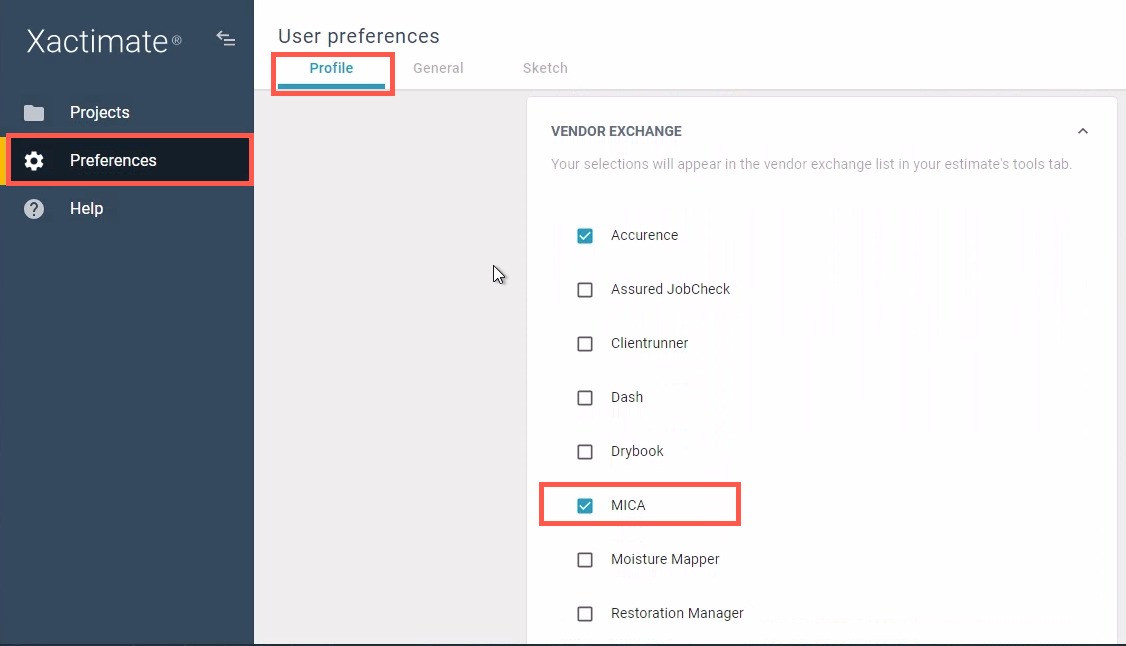
Confirm MICA is enabled
- Log into your Xactimate® account.
- Go to Preferences. Under Profile, ensure MICA is checked under Vendor Exchange.

Create a data request
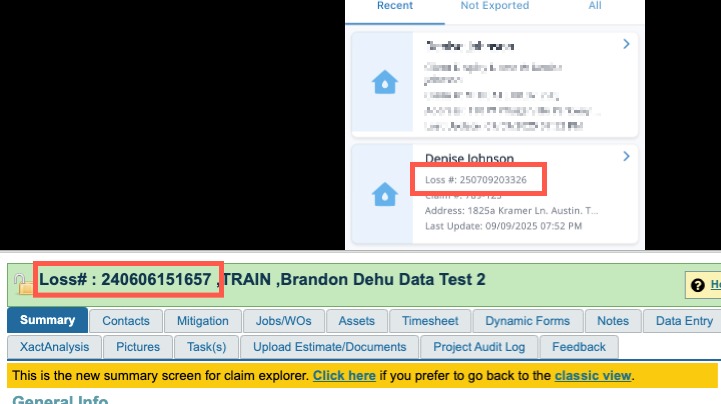
- Before you can submit the request, obtain the Loss ID inside the loss in MICA
- Classic view: open the loss and click How to Send to Xactimate. Copy
the Loss ID for that job.
- Beta view: open the loss and click Xactimate Help. Copy
the Loss ID for that job.
- Classic view: open the loss and click How to Send to Xactimate. Copy
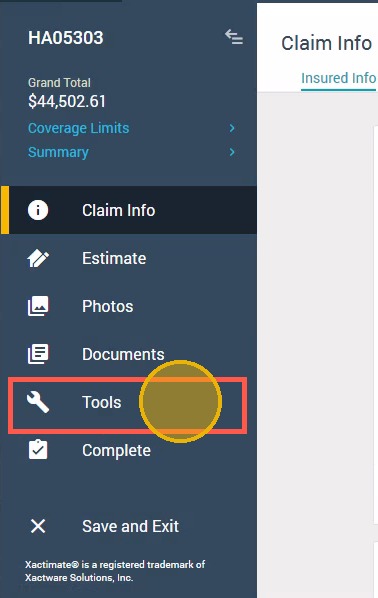
- Locate and open the claim in Xactimate
- Select Tools

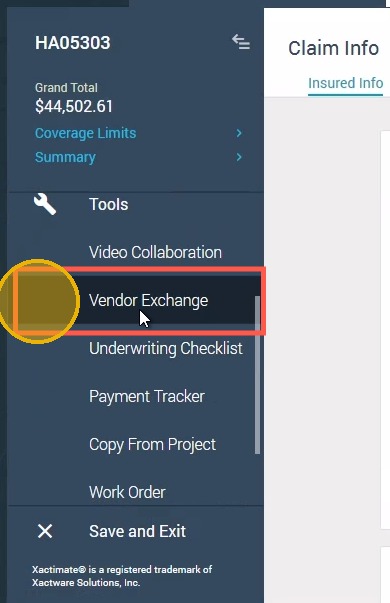
- Select Vendor Exchange

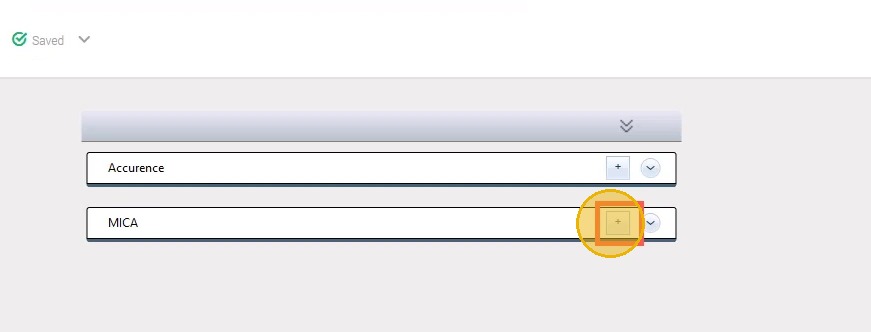
- Click the (+) plus sign to expand the MICA section

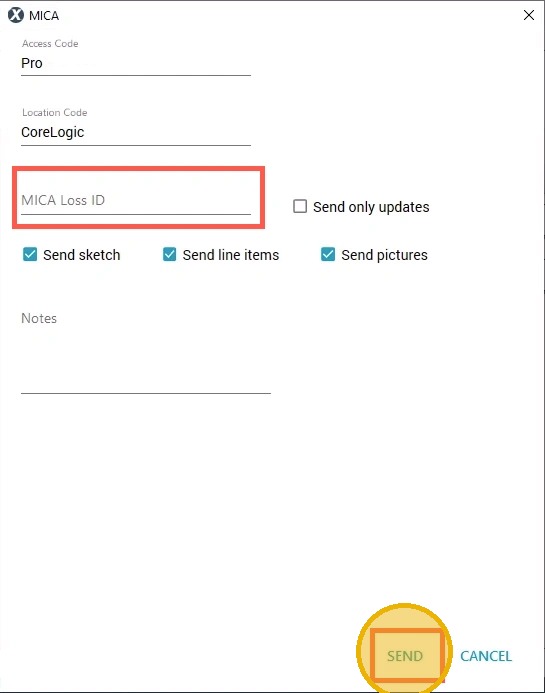
- Fill in the required information, including the MICA Loss ID and click Send

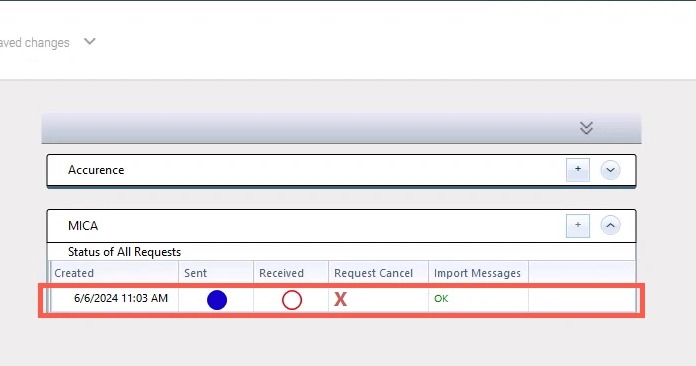
- The screen below indicates success and appears after clicking send from the Vendor Exchange Window.

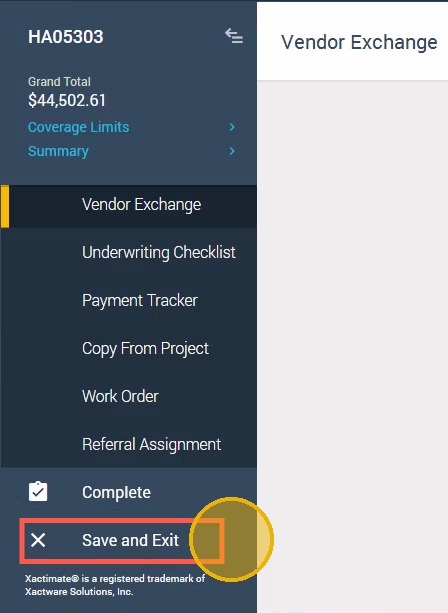
- Click Save and Exit
- Click the refresh icon on the top right of the screen.Wait for approximately 10 minutes.

Questions? Contact Us!