How do I enter the Job Complete date in Mitigate™?
How do I export my job when it's finished in Mitigate™?
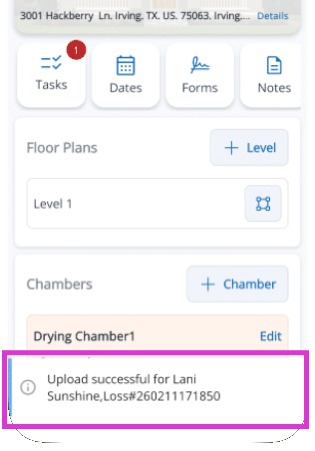
How do I know my data was exported in Mitigate™?
Answer
>
Mitigate™: Finalize and Export the Job
Follow these steps to ensure your job data is properly finalized, securely uploaded, and managed efficiently. This process helps maintain data integrity and optimizes storage usage.
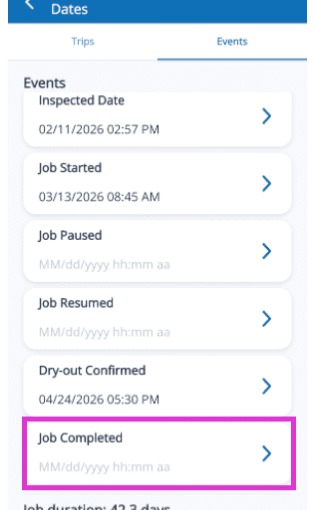
1. Enter the Job Complete Date
From the Dates tab:
Select Events at the top
Enter the Job Completed date
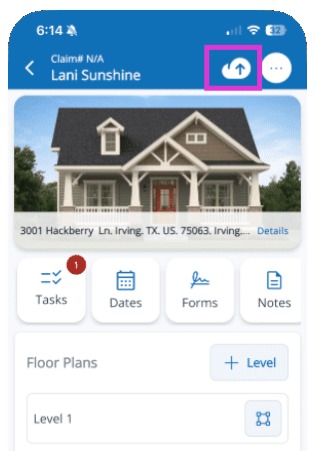
2. Initiate Final Export
Tap the Cloudicon in the top right corner.
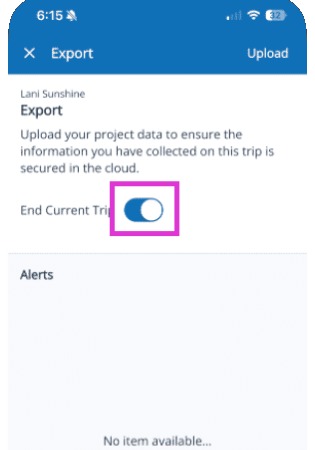
3. Mark End of Trip
Tap the toggle button to indicate End Current Trip.
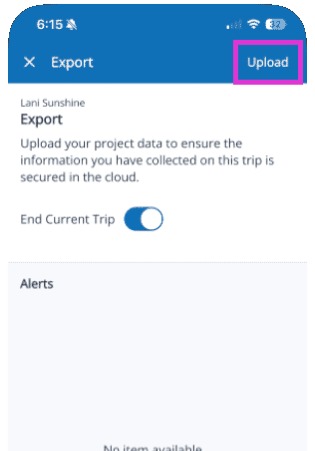
4. Tap Upload in the top right.
5. Wait for Confirmation
Do not close the app or navigate away until you receive the "Upload successful" confirmation. This ensures that every reading, equipment stop-time, and the final COS signature are securely uploaded.
Tip: This concludes the process to finalize and export the job.