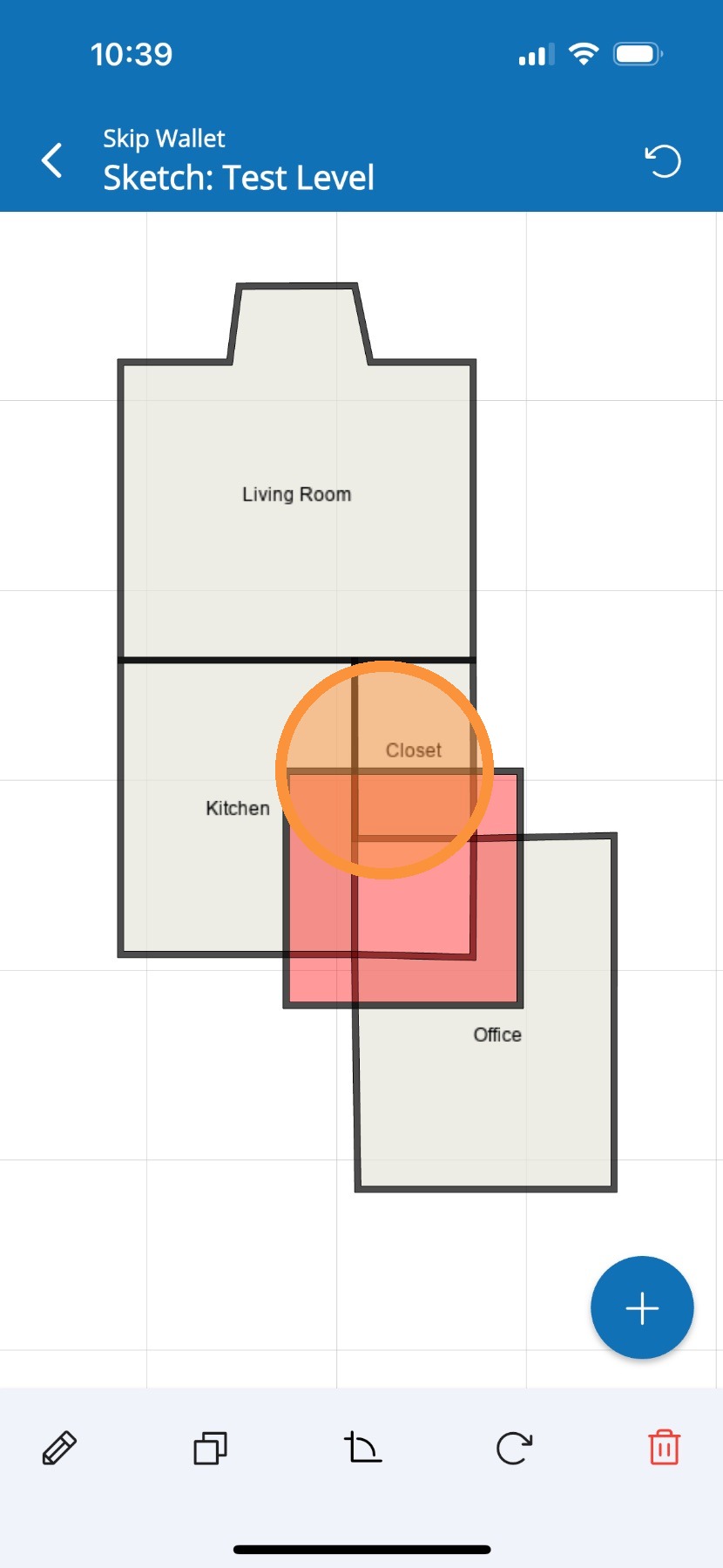
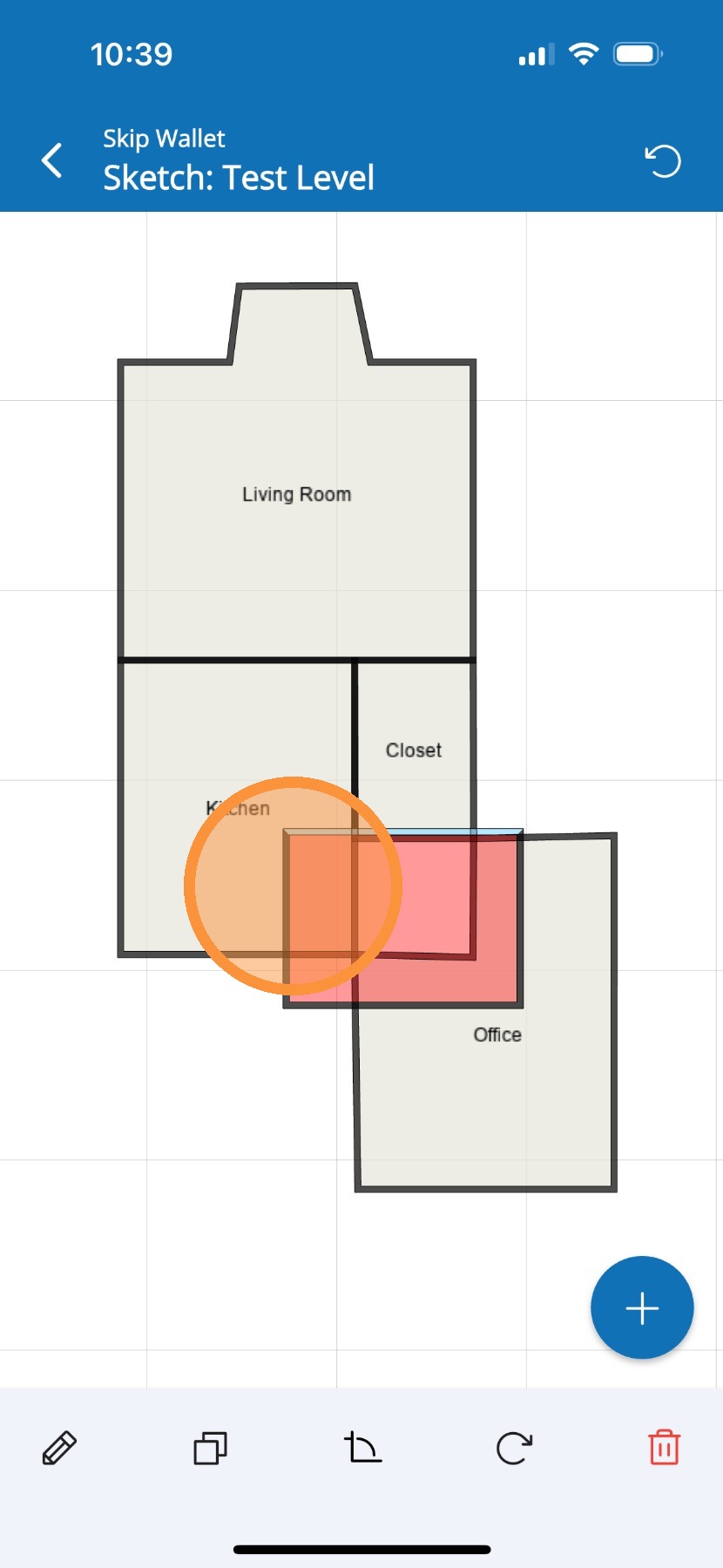
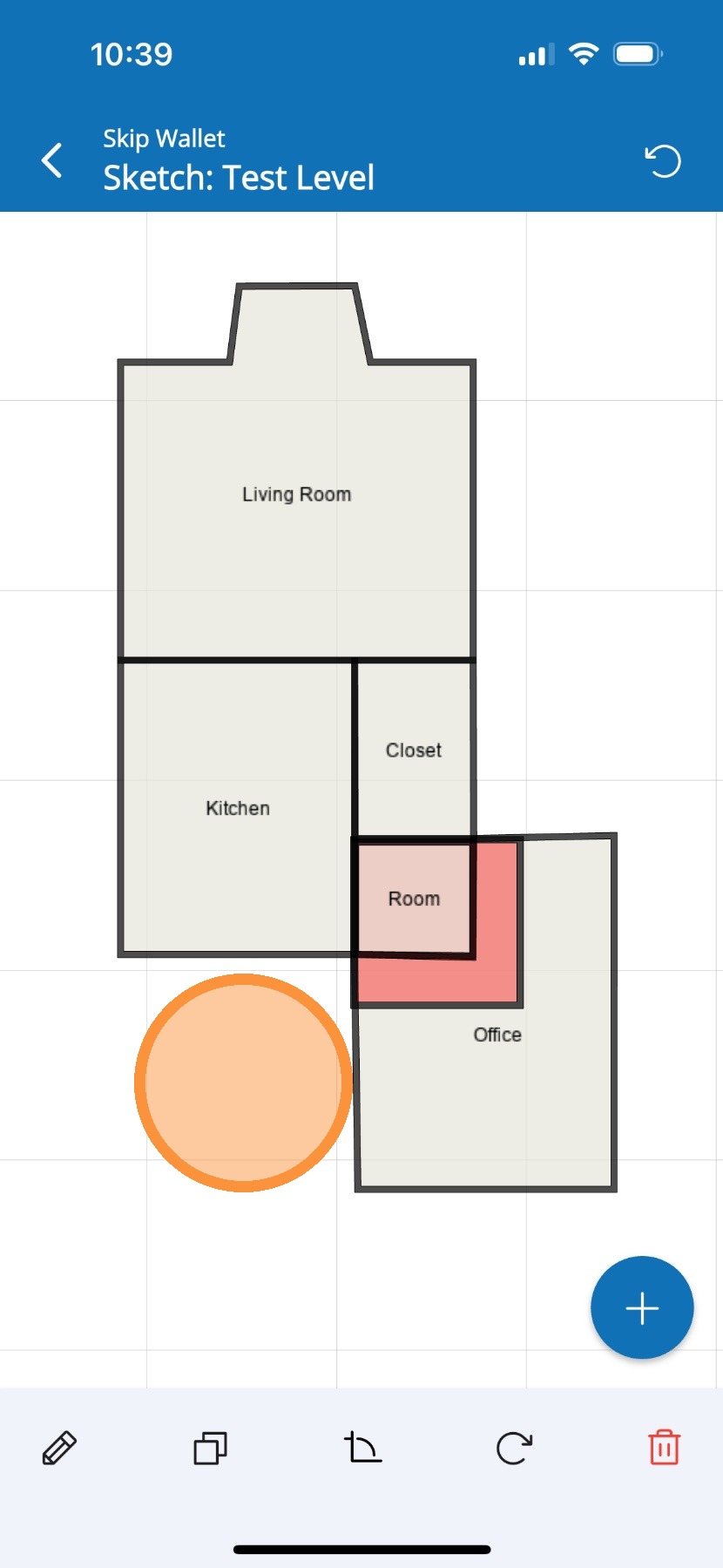
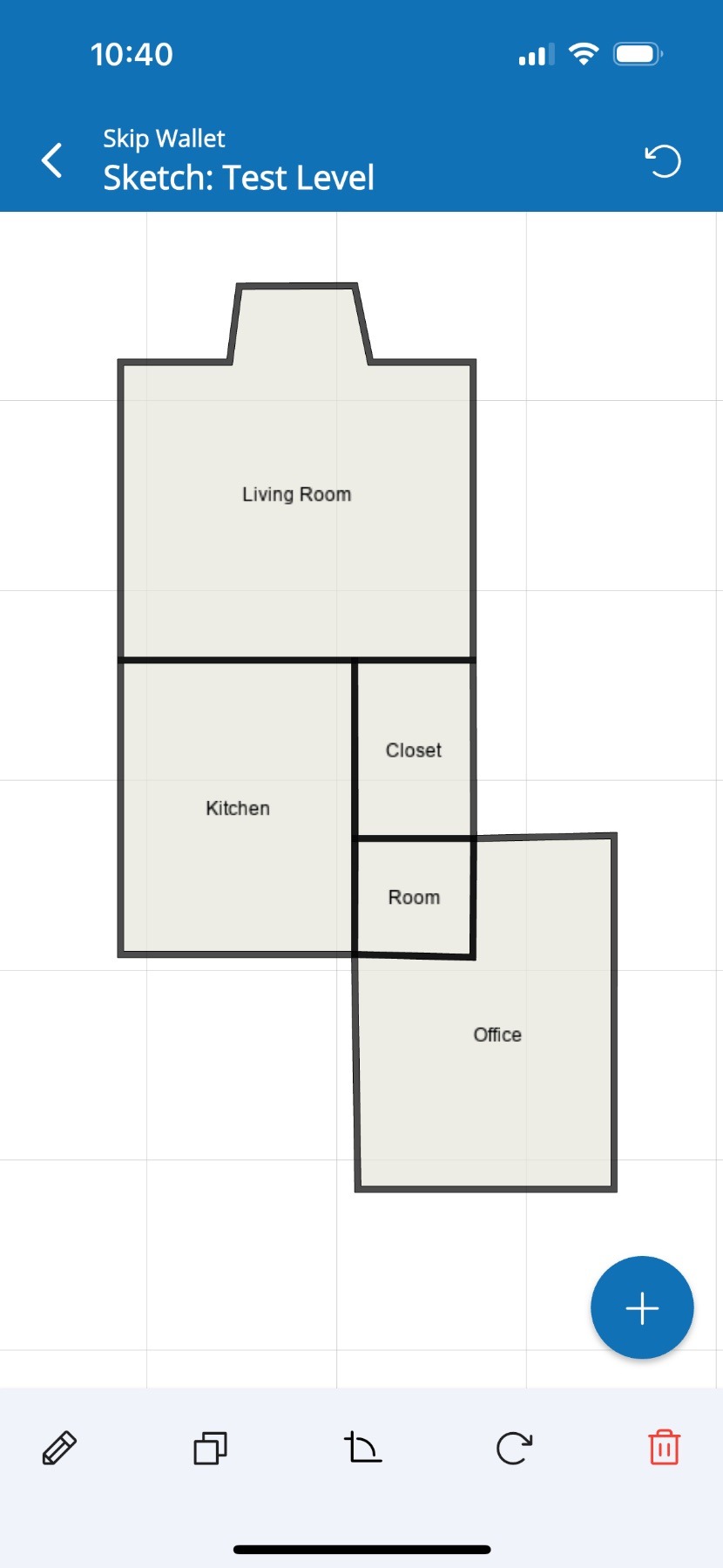
How to create smaller rooms that are difficult to scan or sketch.
Answer
Mitigate™ Sketching: Adding a Filler Room
Use this guide to learn how to effectively use filler rooms to fill gaps between spaces. This method helps you create smaller rooms that are difficult to scan or sketch accurately, ensuring your floor plans are clear and well-organized.
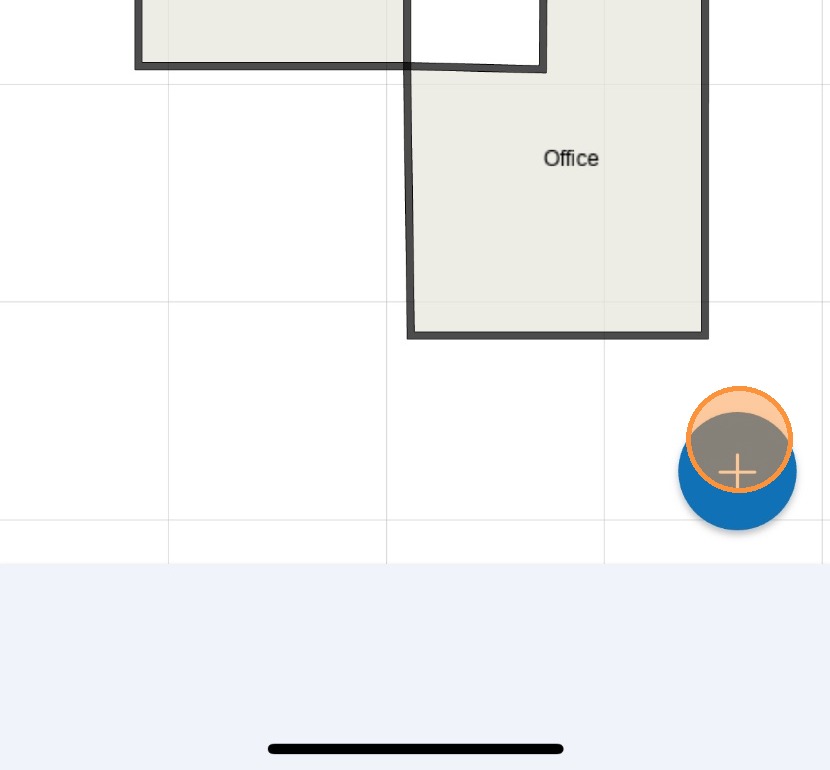
1. Open the diagram and tap the Blue + icon in the lower right corner.
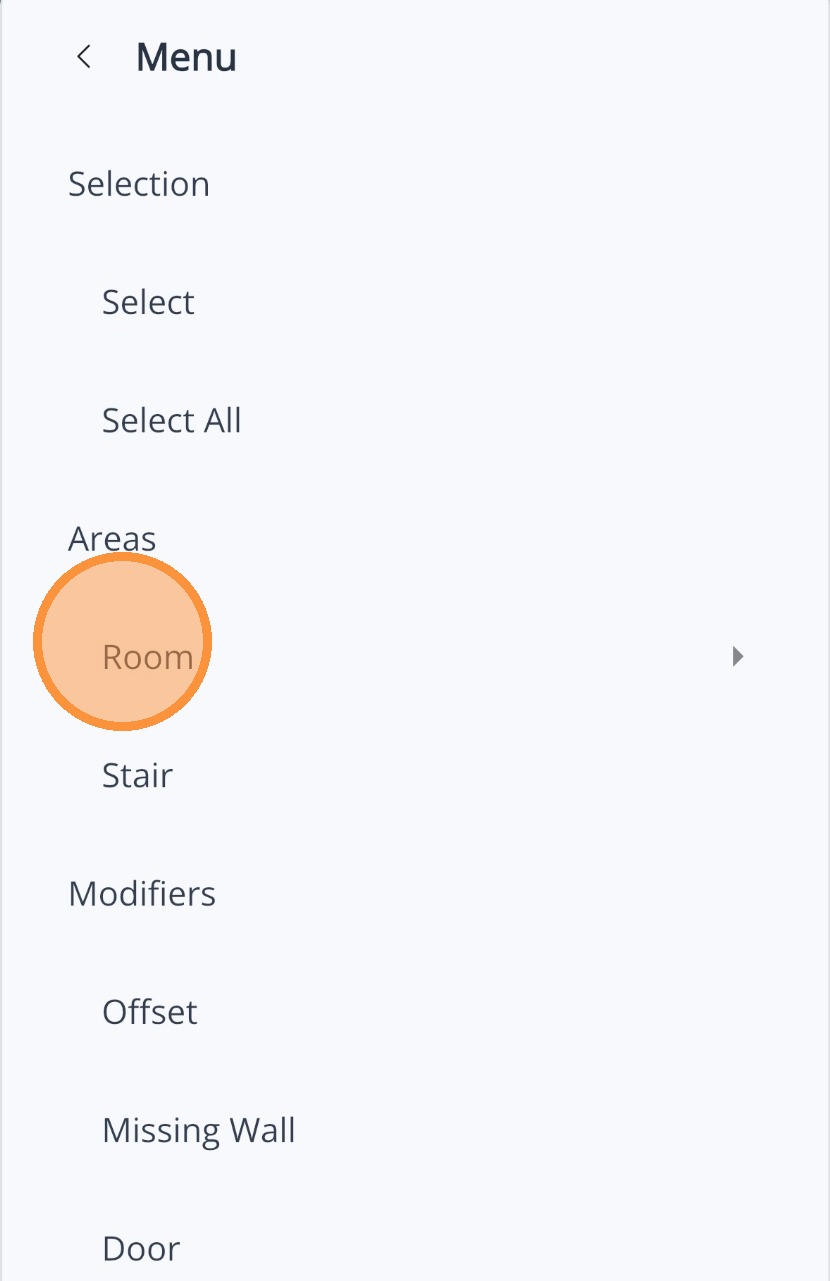
2. In the menu, go to Areas and tap Room.
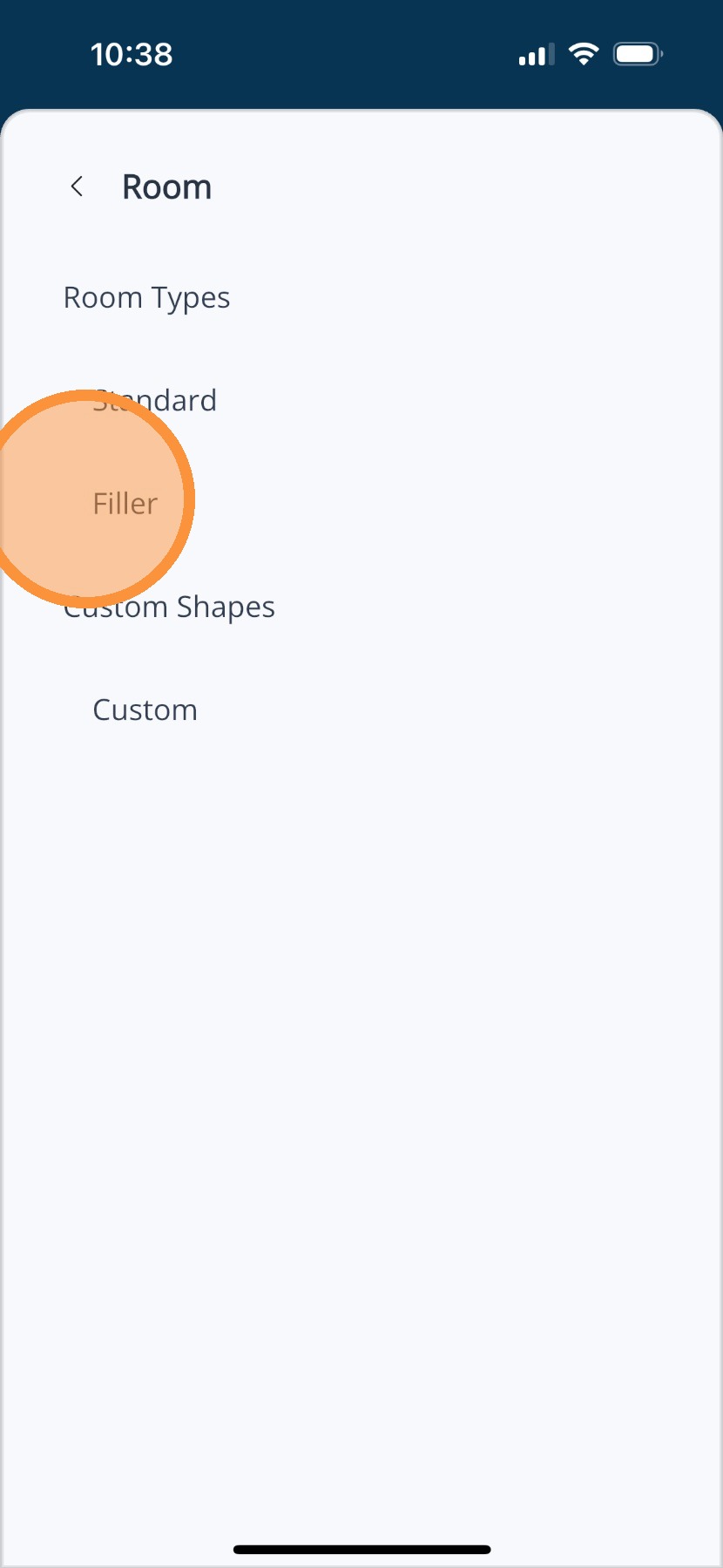
3. Tap Filler from the options.
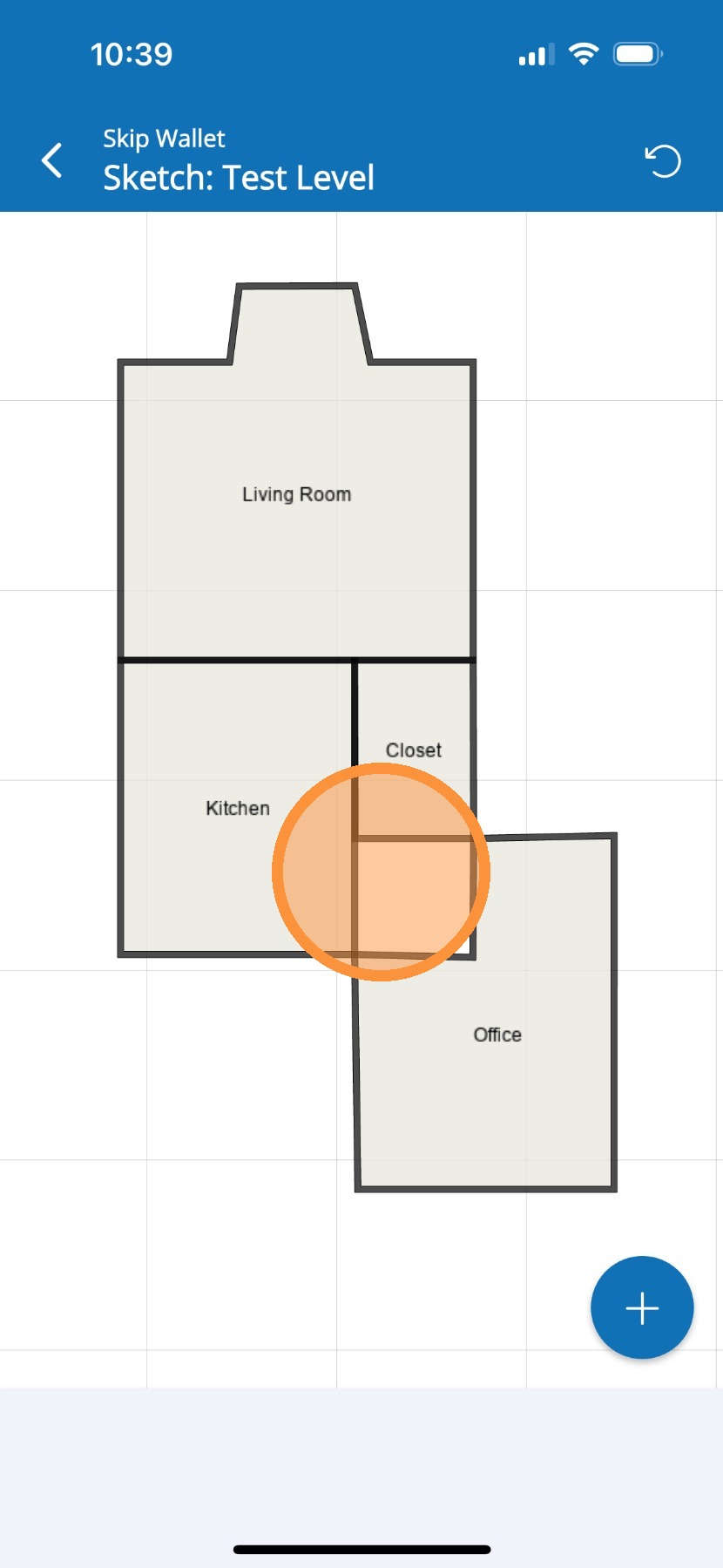
4. Next, choose the specific section on your diagram where you'd like to add the filler room.
5. Tap the north side of the filler room to modify the dimensions.
6. Tap west side of the room to modify its dimensions.
7. Once the room is created, tap outside the diagram to delete any remaining filler.
8. You’ve successfully completed the filler room. Great work!
Alert: This ends the process for adding filler rooms.