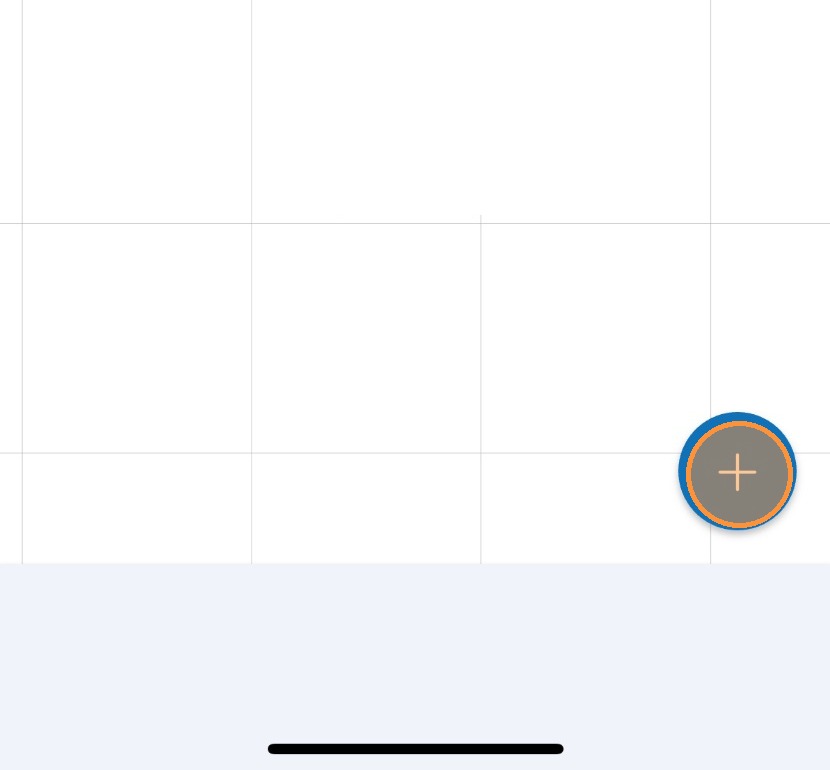
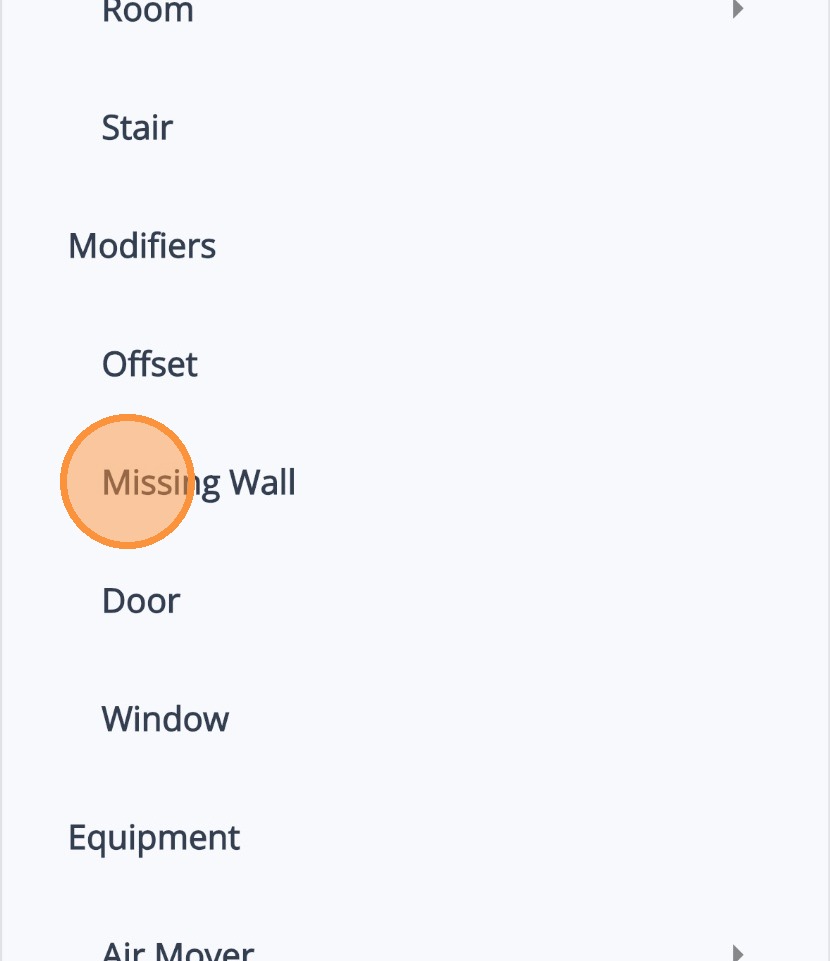
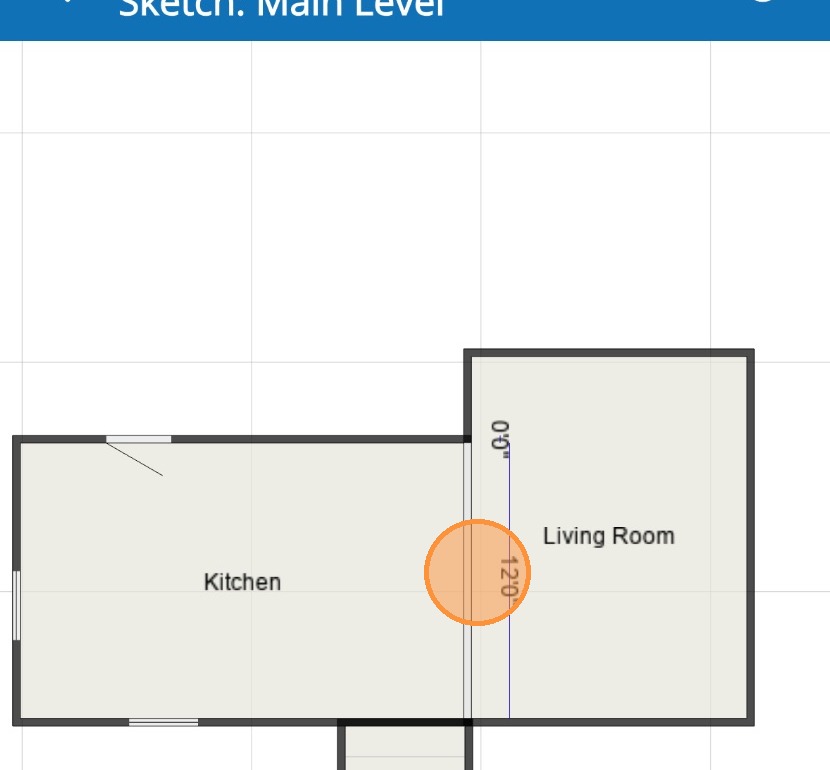
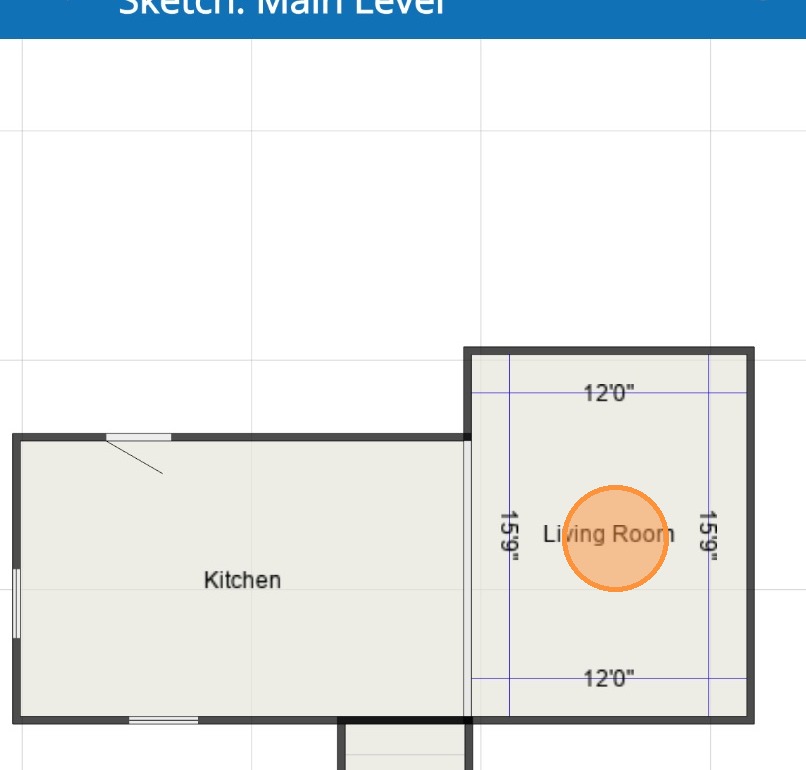
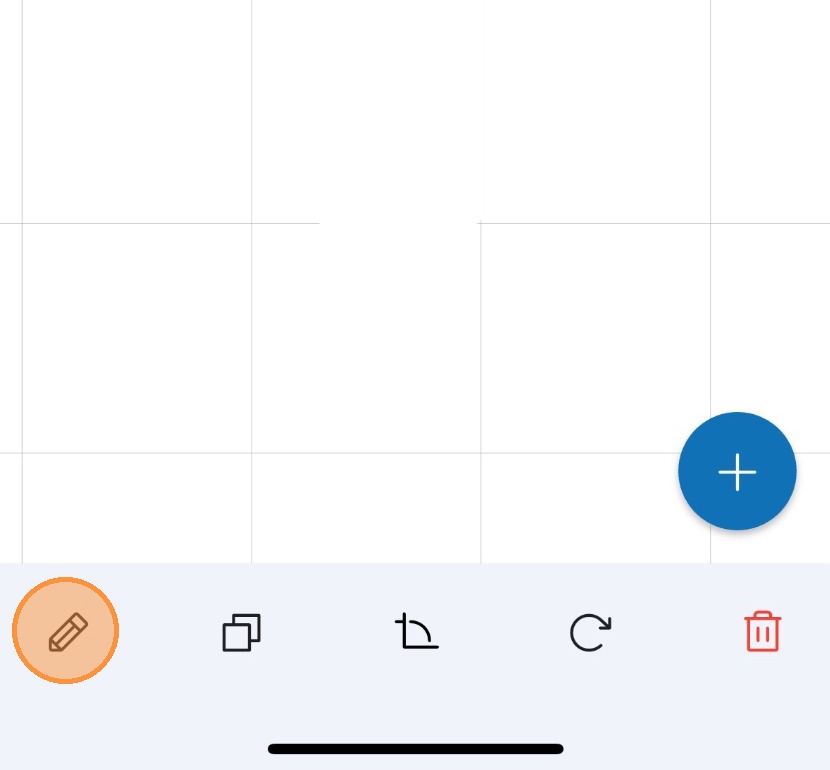
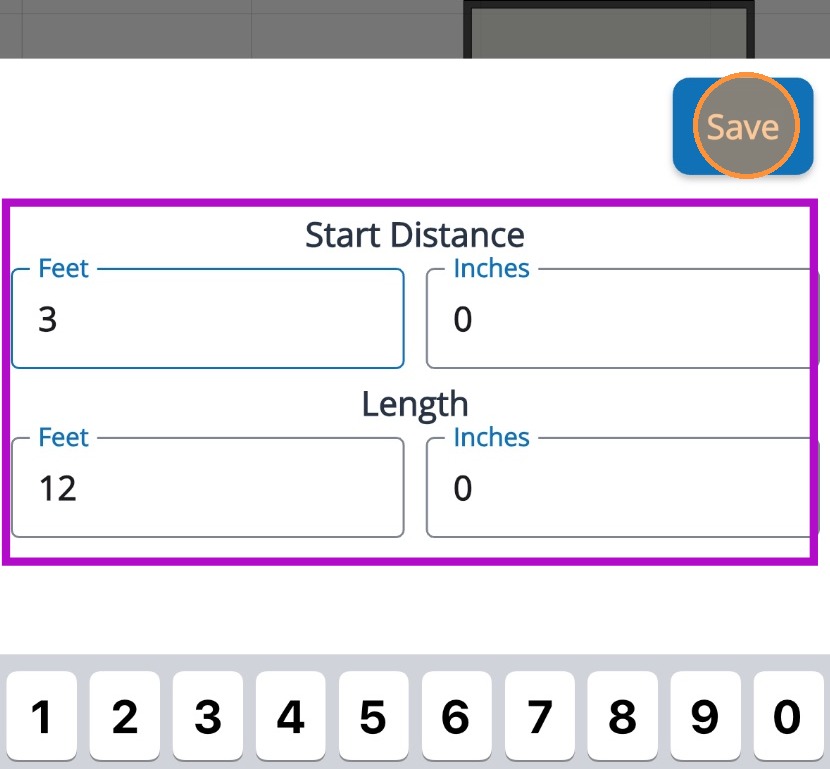
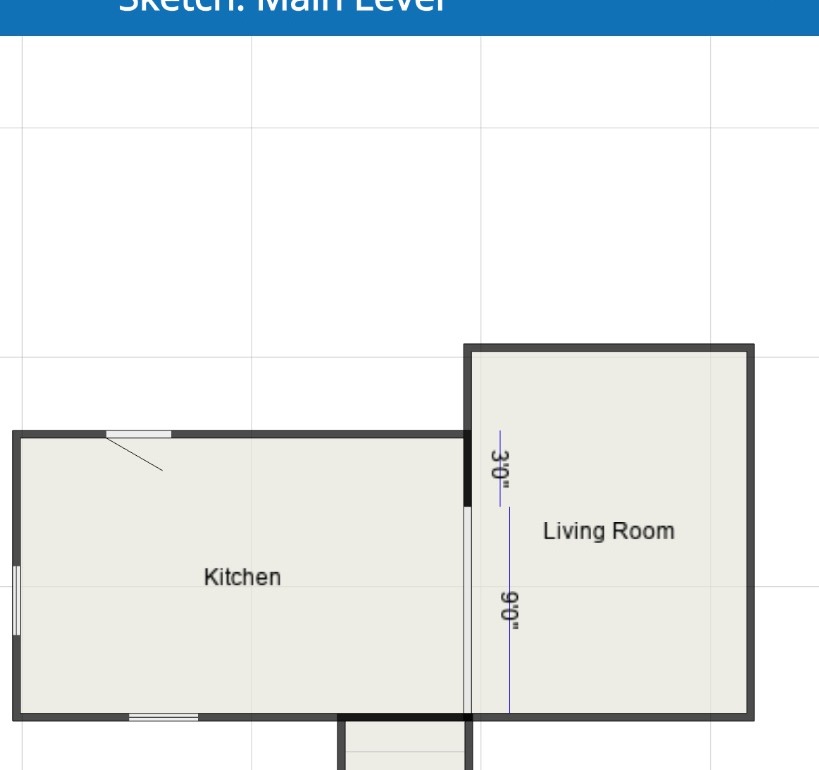
Adding an opening on a wall in Mitigate™ Modified on: Thu, 26 Mar, 2026 at 3:03 PM QuestionHow to add a missing wallHow to create an opening on a wall between roomsAnswerMitigate™ Sketching: Adding a Missing WallIf you need to add a missing wall or create an opening on a wall between rooms, follow these steps to update your sketch in Mitigate.1. Tap the Blue (+) icon at the bottom right of the sketch view to access the menu for adding a missing wall.2. Scroll down then select Missing Wall under the Modifiers category.3. Tap the wall that you want to make missing.4. Sslect the room where you want the missing wall.5. To resize the missing wall opening, select the pencil icon.6. Enter the new start distance in feet and inches. Then tap Save to update the wall dimensions.7. You now have the final view with a resized missing wall.Alert: This ends the process for adding a missing wall.Questions? Contact Us!