
Question
- How to manage which Activity Types are included in the "# of Days Since Last Activity"
- How to make an activity count towards Days Since Last Activity
- Why isn't my activity counting?
Answer
Disclaimer
This area of CRM™ is restricted by Admin access. If you do not have access to the Admin area of CRM, please reach out to your administrator for further assistance.
- Select your username in the top right-hand corner of the screen
- Select Admin Settings
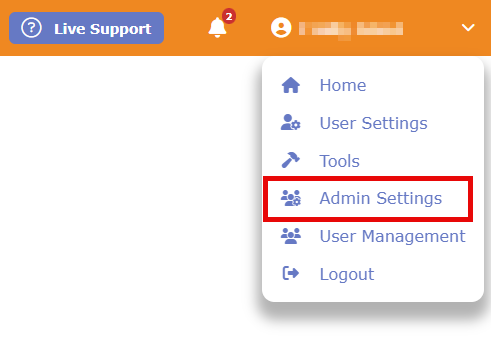
- Select Activity Settings
- Select the category of Activity Type you need to adjust (i.e. Jobs, Contacts, Companies or Opportunities)
- Activity Types Included In # of Days Since Last Activity (Contacts)
- Activity Types Included In # of Days Since Last Activity (Companies)
- Activity Types Included In # of Days Since Last Activity (Opportunities)
- Activity Types Included In # of Days Since Last Activity (Jobs)
- Check the boxes next to the specific Activity Types you want to count as an activity. For example you may
- Add Missing Activities (If Needed): If you want to track a new Activity that isn't already listed here, you must first create it in the Activity Types & KPI Management area before it will appear on this list to be checked or unchecked.
Questions? Contact Us
This article is meant to serve as a reference only and is not a substitute for training. If you are interested, feel free to check out our weekly Q&A sessions hosted by our CRM experts.