
Overview
Disclaimer
This area of CRM™ is restricted by Admin access. If you do not have access to the Admin area of CRM, please reach out to your administrator for further assistance.
This guide explains how to create, edit, and manage Activity Types and their associated Key Performance Indicators (KPIs) within your CRM system. Activity Types are used to track interactions with clients, such as calls, emails, and meetings, on Contacts, Jobs, Opportunities, and more.
Managing Activity Types
- Select your username in the top right-hand corner of the screen
- Select Admin Settings
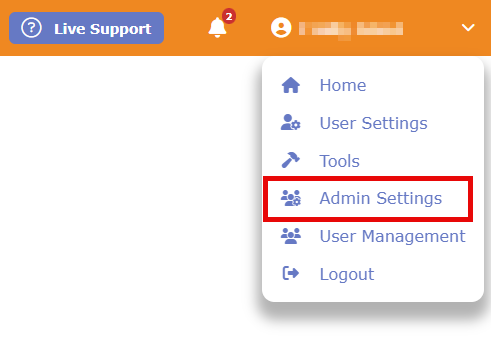
- Select Activity Settings
- Select Activity Types & KPI Management
- From this page you can add, delete or edit Activity Types
- Add a New Activity Type: Click the Add New button in the top-left corner of this section. Here you can fill out the name, choose whether it counts towards a KPI, whether to include it automatically in a creation or completion of a CRM entry.
- Edit an Activity Type: Click directly on the name of the Activity Type you wish to change.
- Delete an Activity Type: Check the box next to the activity, then click the Delete button at the top of the page.
Set Up Auto-Activities
You can configure the system to automatically log activities using the Apply To and Included In fields when creating or editing an Activity Type.
- Select an Activity Type from your Activity Types list to open it
- Choose an option from the Included In list, then set whether the activity auto-logs upon creation or completion of that entry
- Example 1: "Included In" to "Contact" and "Apply To" to "Creation" will automatically log an activity the moment a new contact is created.
- Example 1: "Included In" to "Task" and "Apply To" to "Completion" will automatically log an activity the moment a new task is completed.
- Note: Some values will default to creation or completion.
- Click Save to save changes
Manage KPIs
On the Activity Type creation or edit screen, you can designate an activity as a KPI and set its tracking frequency (weekly, monthly, quarterly, or yearly).
- Select an Activity Type from your Activity Types list to open it (or create new)
- Select a time measurement from the KPI dropdown
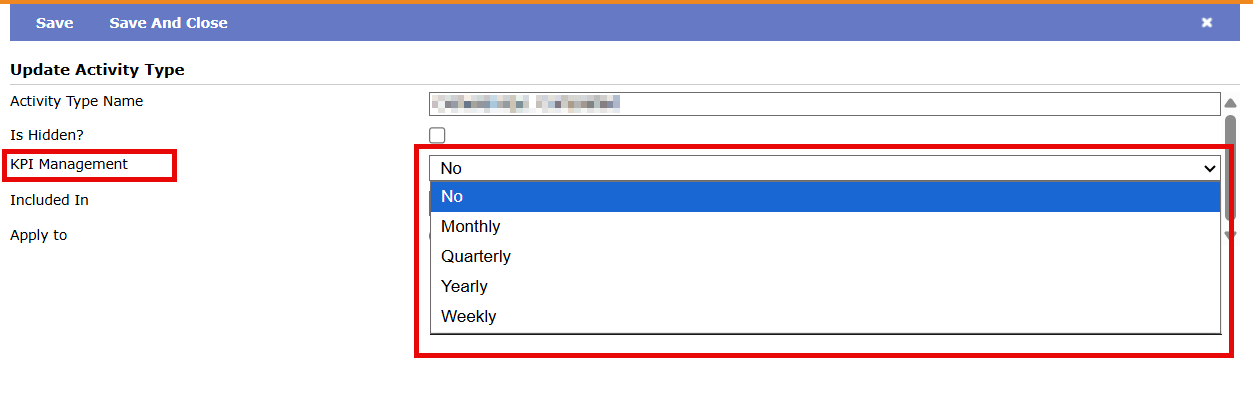
- Select Save to save changes
- If you set an Activity as a KPI, it will automatically populate on every employee's User Profile for further customization. For step-by-step guidance, please refer to our article on Understanding KPIs and Sales Targets
Questions? Contact Us
This article is meant to serve as a reference only and is not a substitute for training. If you are interested, feel free to check out our weekly Q&A sessions hosted by our CRM experts.