How to attach a new room to an existing one in sketch?
Answer
Mitigate™ Sketching: Duplicating and Attaching Rooms in a Floor Plan
Learn how to efficiently add and attach a new room to an existing one using Cotality™ Mitigate™. Follow these steps for each room you need to add to your Floor Plan.
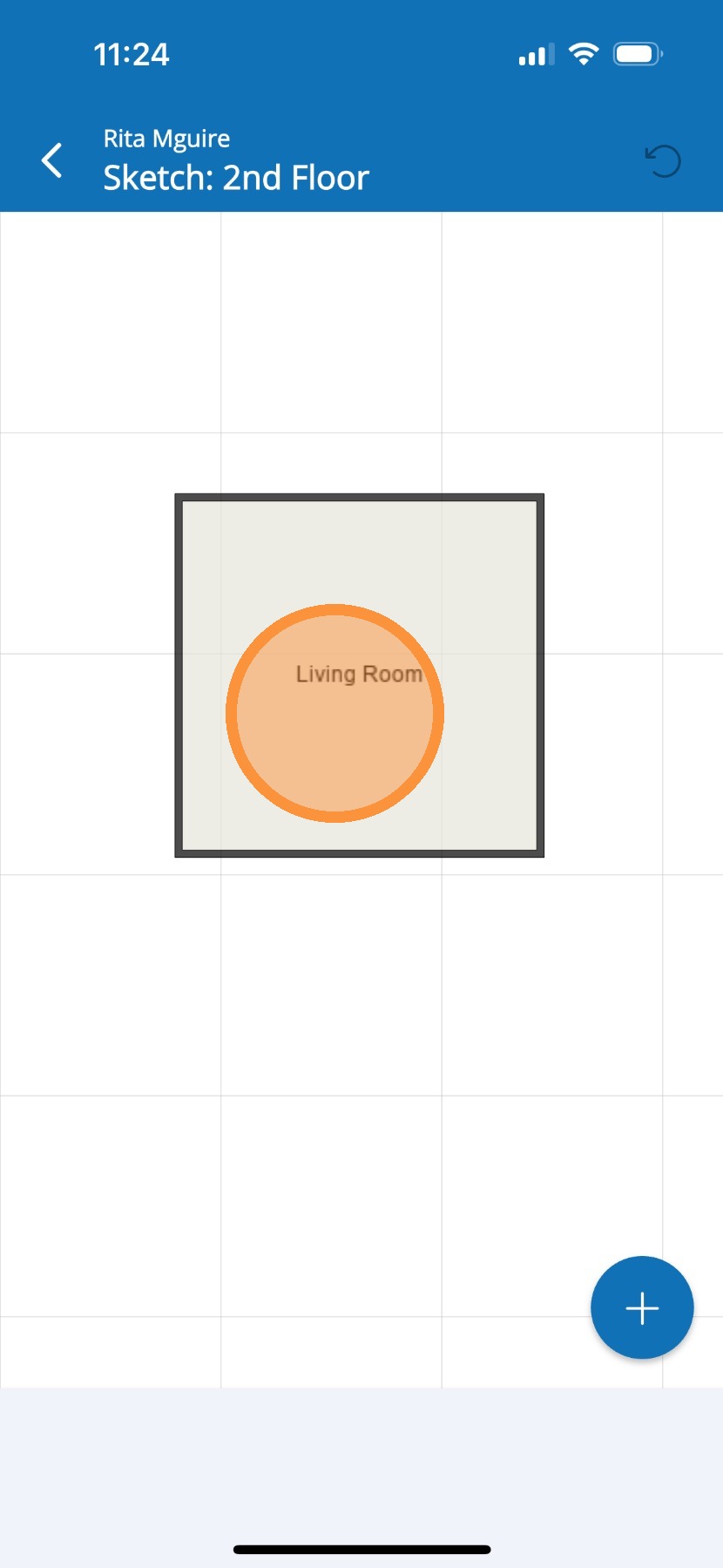
1. Tap the existing room.
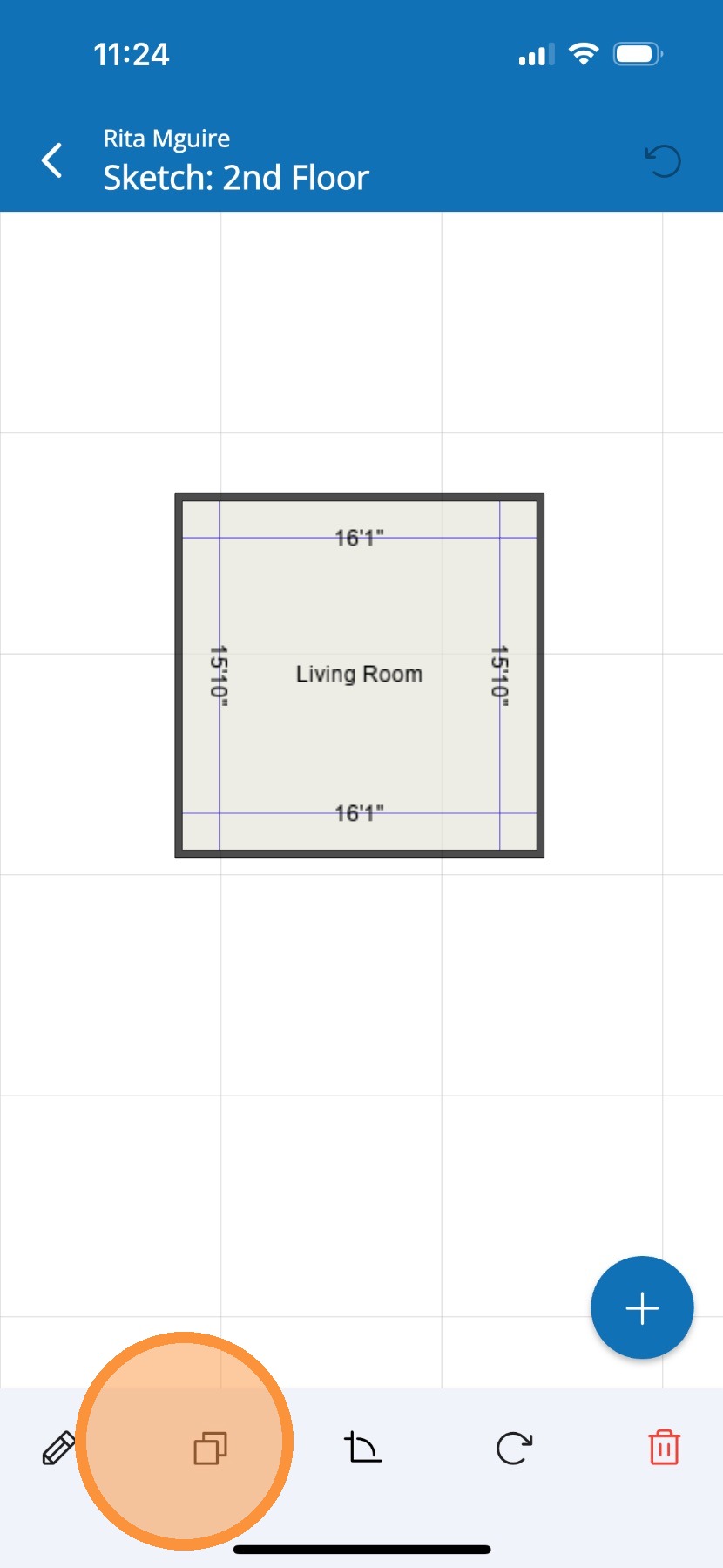
2. Tap the Duplicate icon at the bottom of screen to copy the selected room.
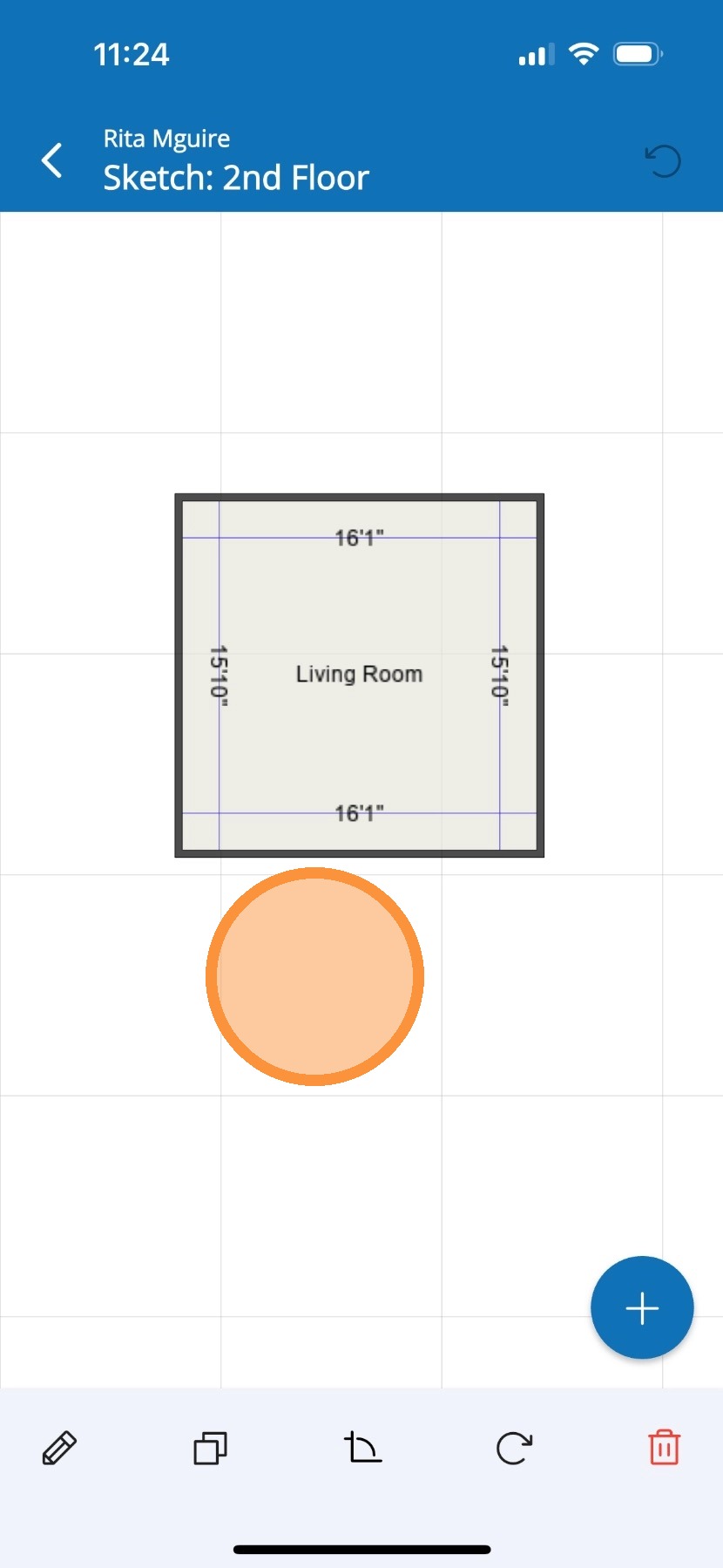
3. Tap the Canvas to place the copied room to the canvas.
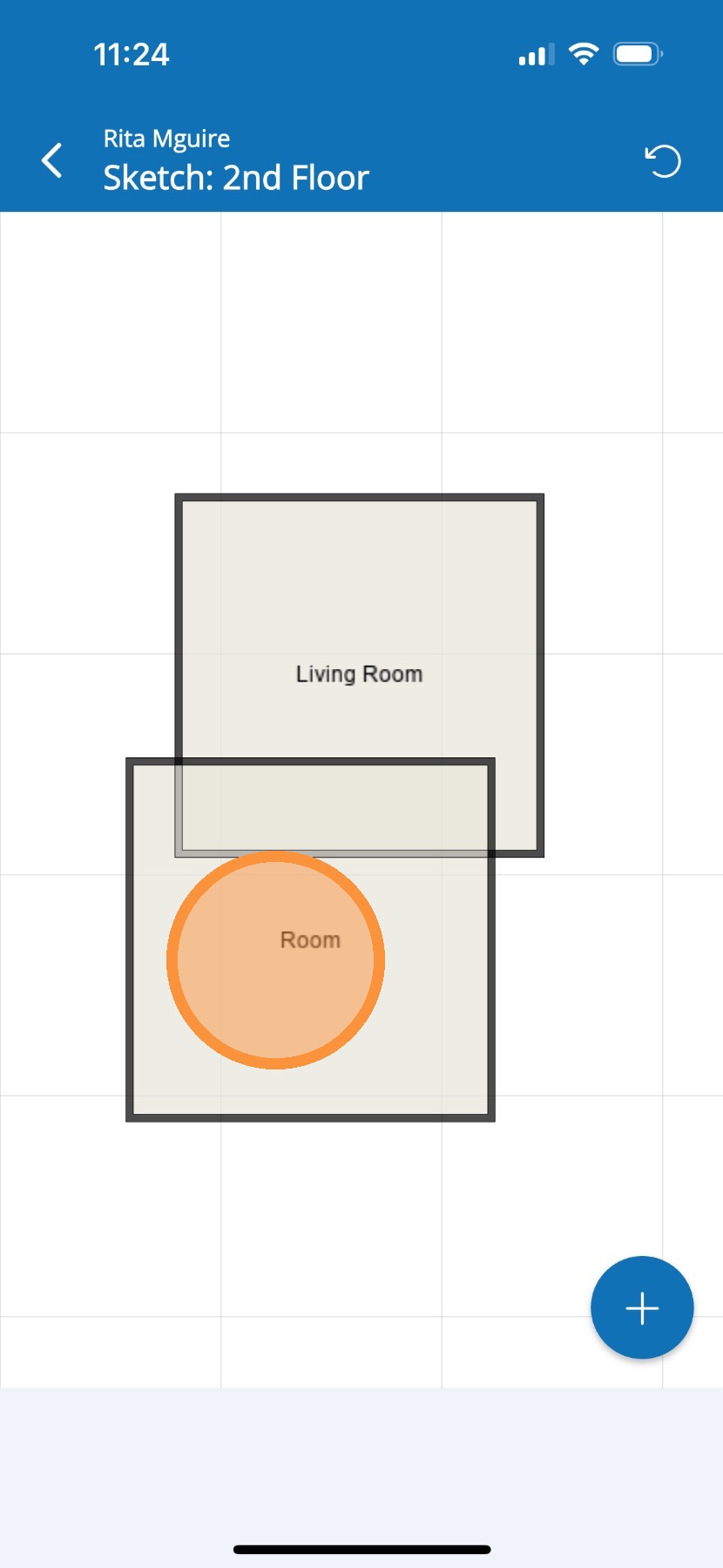
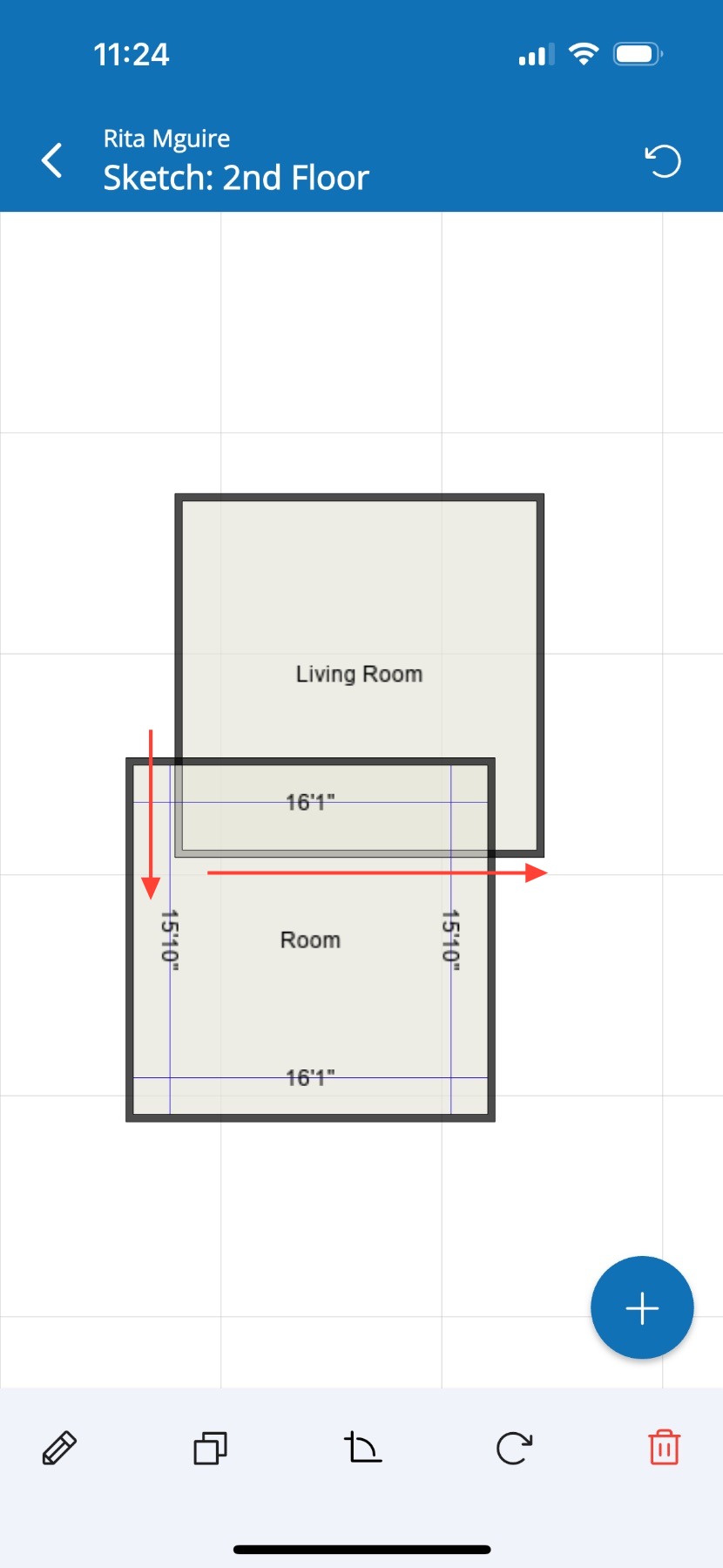
4. Tap the new room to move it, adjust the dimensions, and rename it.
5. Move the room by holding down and dragging it to the new position.
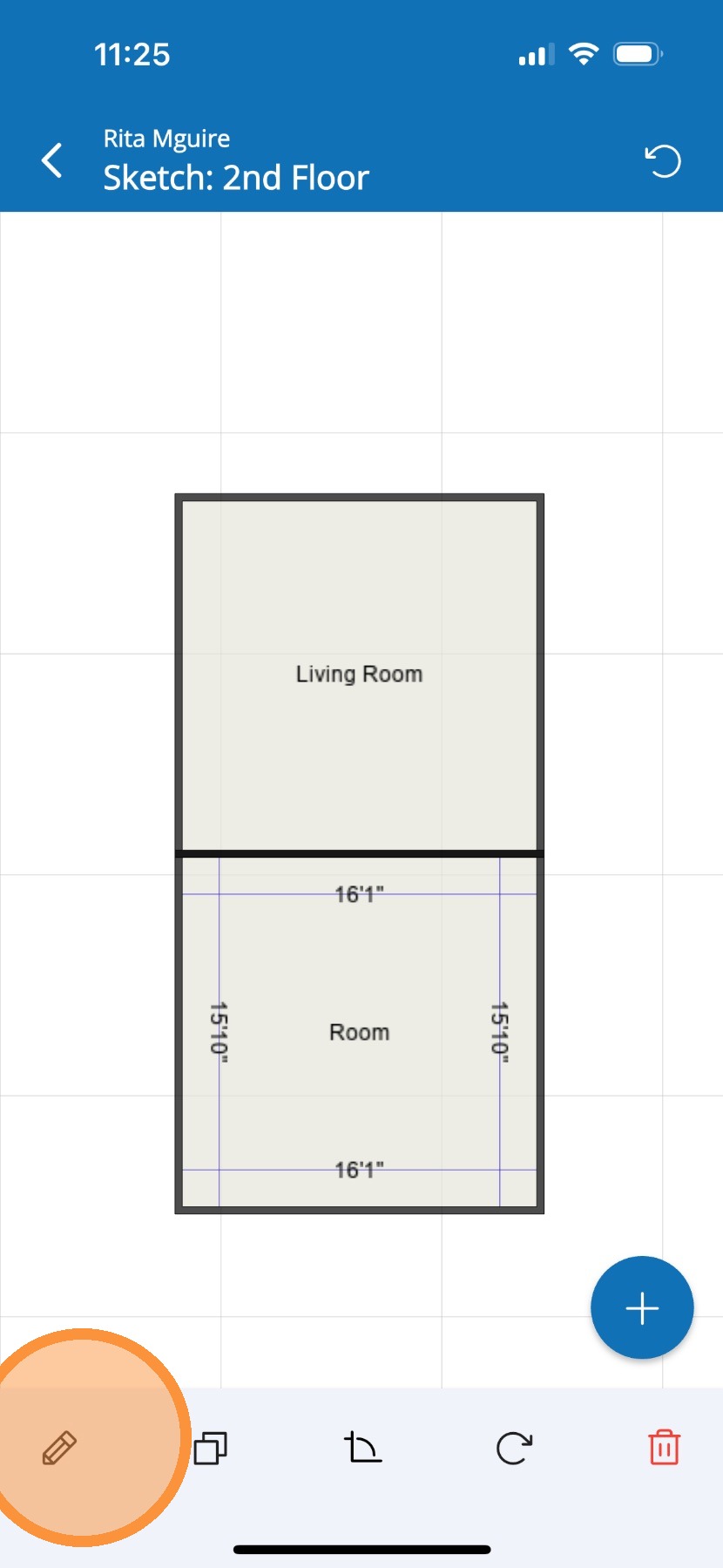
6. Change the name by tapping the pencil icon at the bottom of the screen.
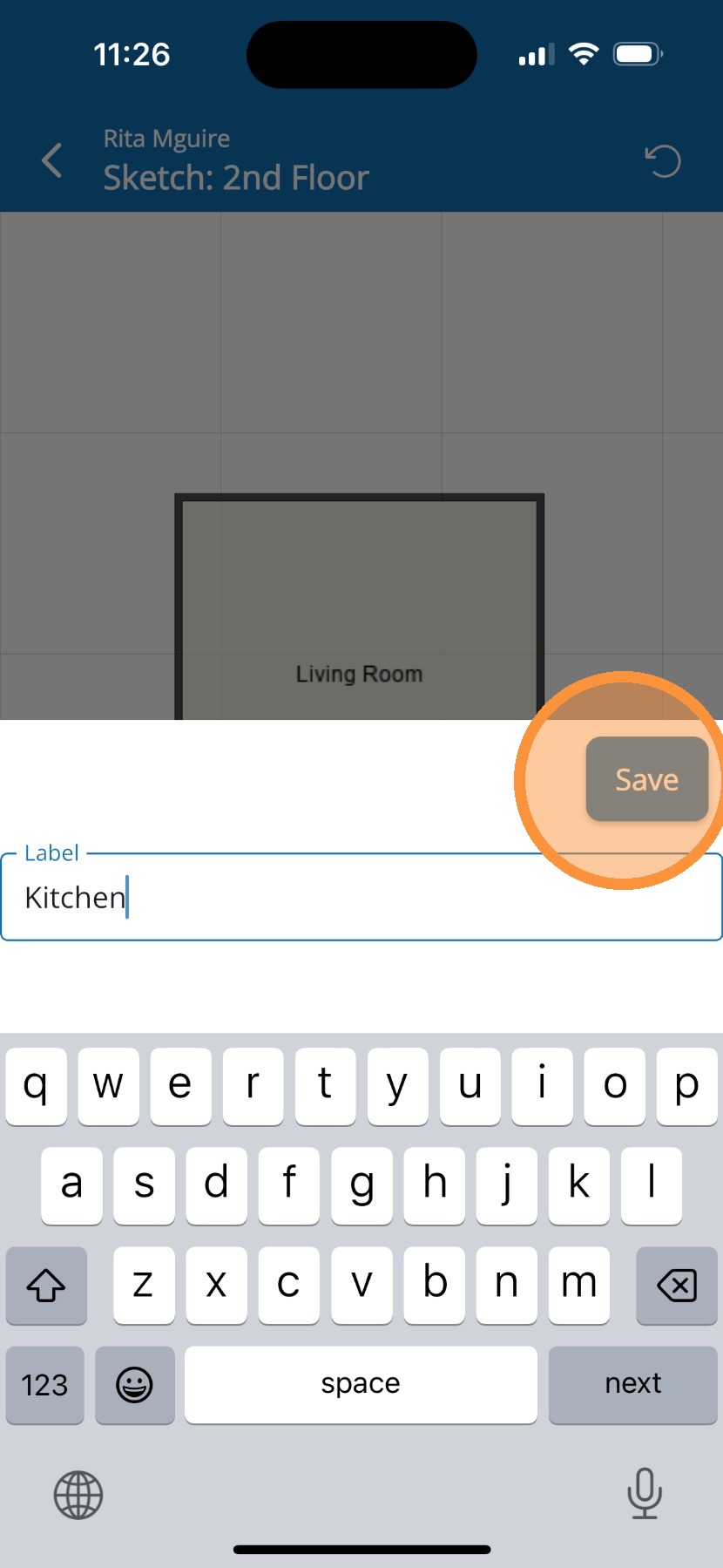
7. Type new Name and tap Save.
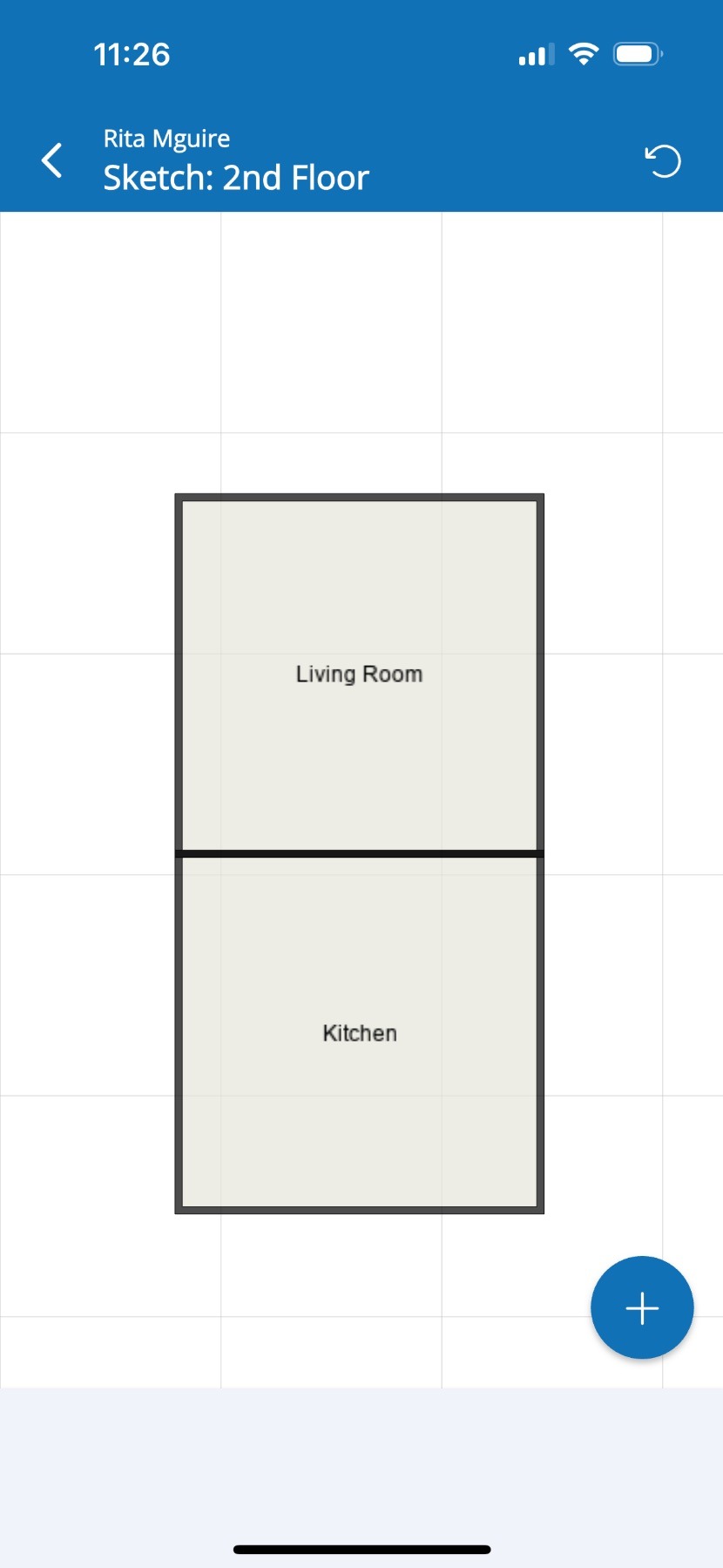
8. You've successfully Copied and Attached your new room to an existing room.
Alert: This is the end of the process for duplicating and attaching a new room.