
Question
- How to add arrows to sketch?
- How to add text to sketch?
- How to annotate the sketch floor plan in Mitigate™?
Answer
Mitigate™ Sketching: Adding & Modifying Annotations
Let's learn how to add and modify arrows and text used as annotations to enhance your floor plan.
Getting Started
1. Tap the Blue + Button to access the Menu.
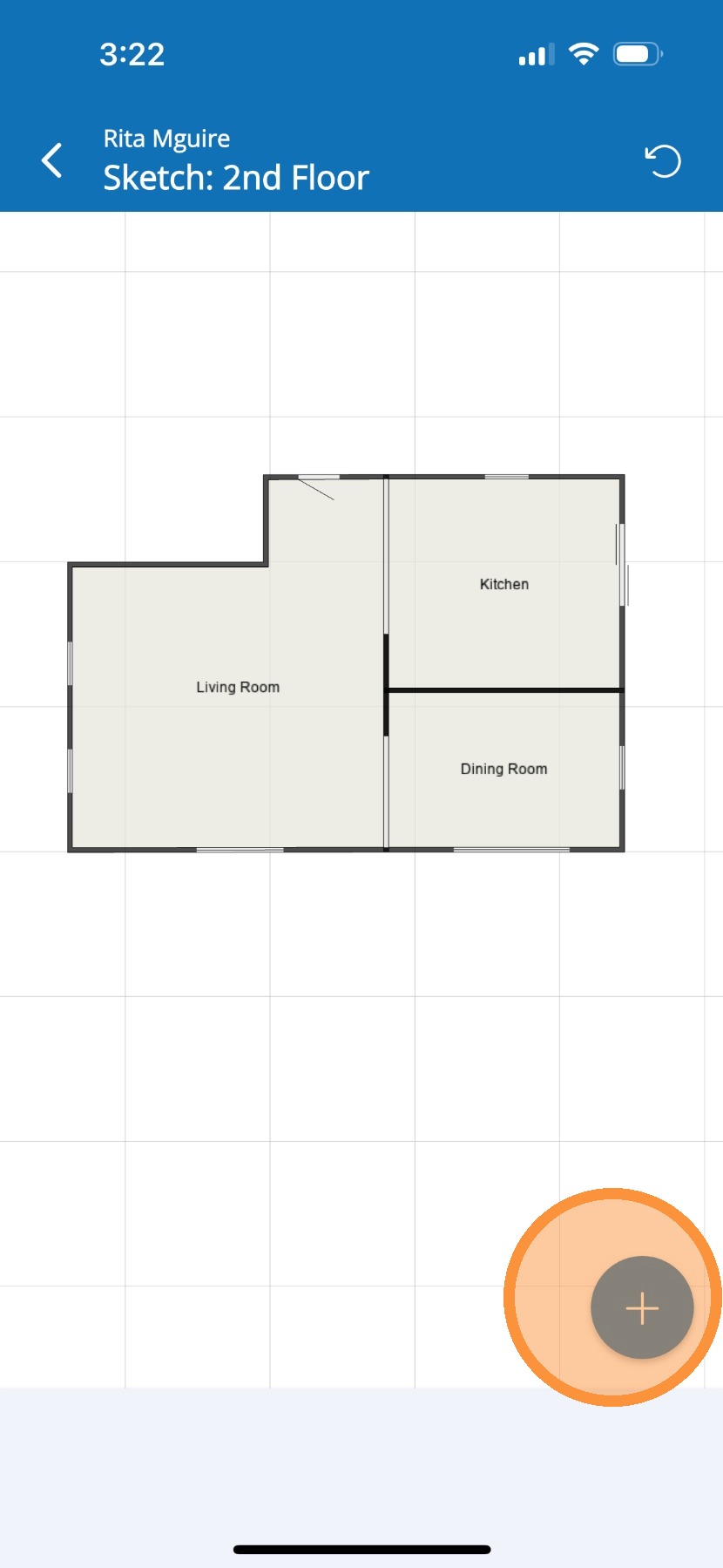
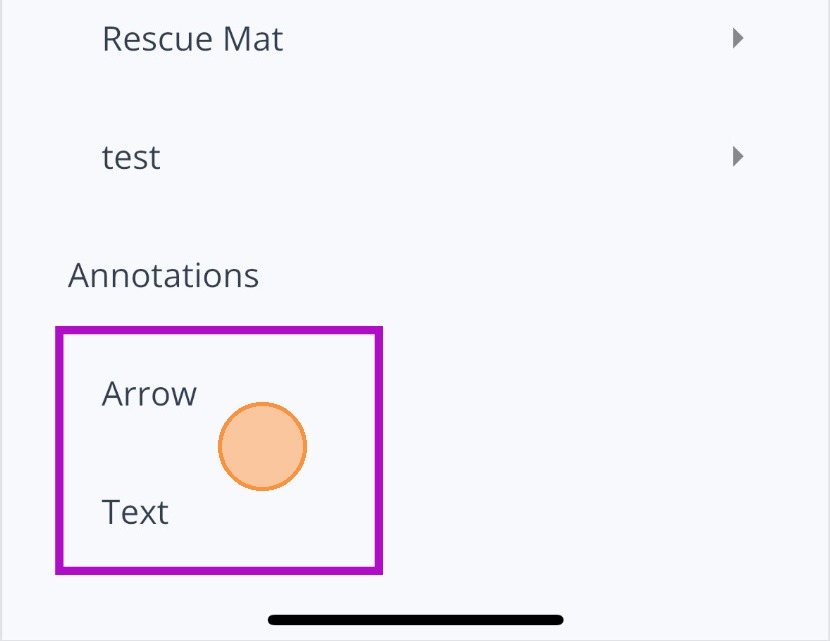
2. Tap Arrow or Text to add an Annotation. You may need to scroll down the Menu and look under Annotations.
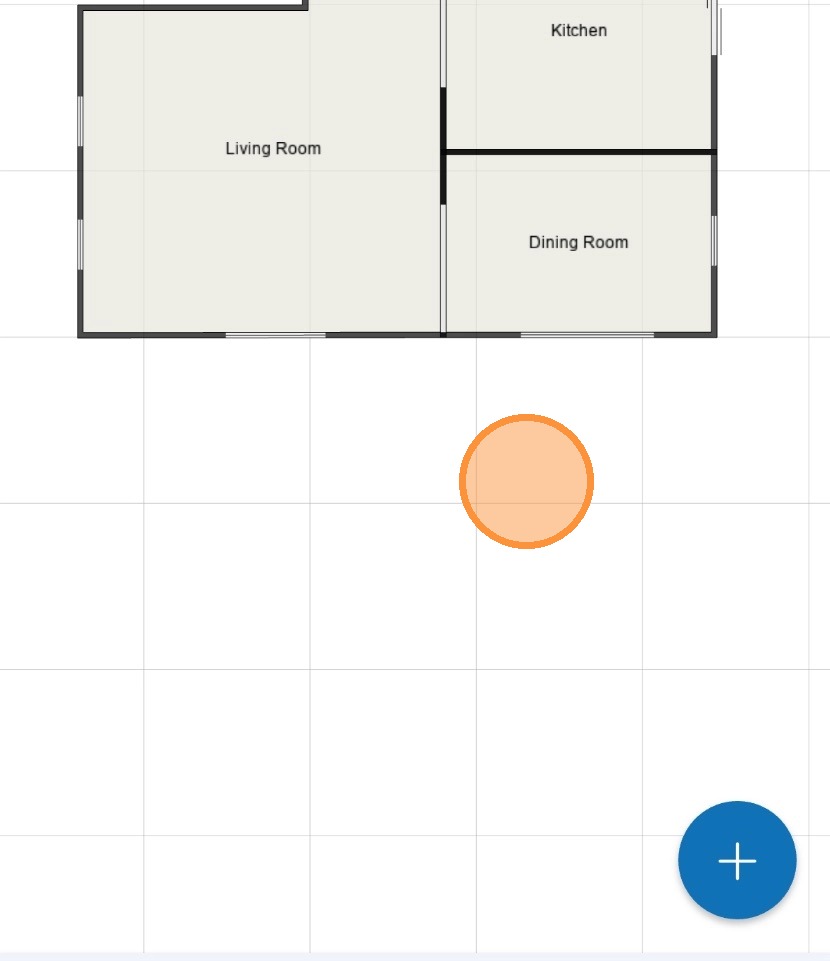
3. Tap the Canvas to drop the Arrow or Text box.
Arrows
4. Touch and hold the Arrow to drag it in the direction and the length you would like it to point. Red is the visual indicator that you are in contact with the Arrow.
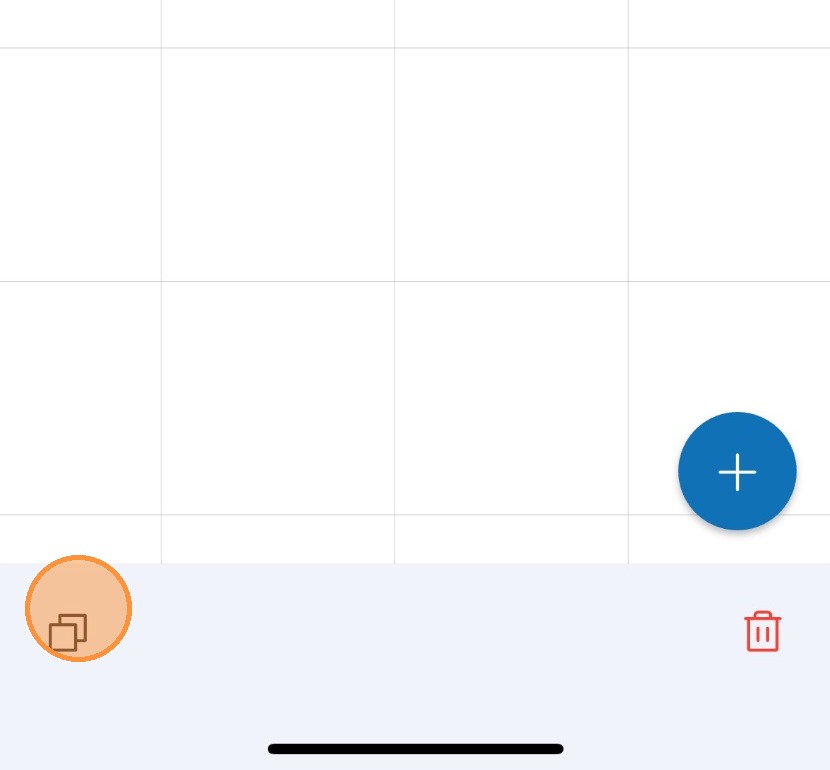
5. Tap the Duplicate icon to copy the Arrow if another is required.
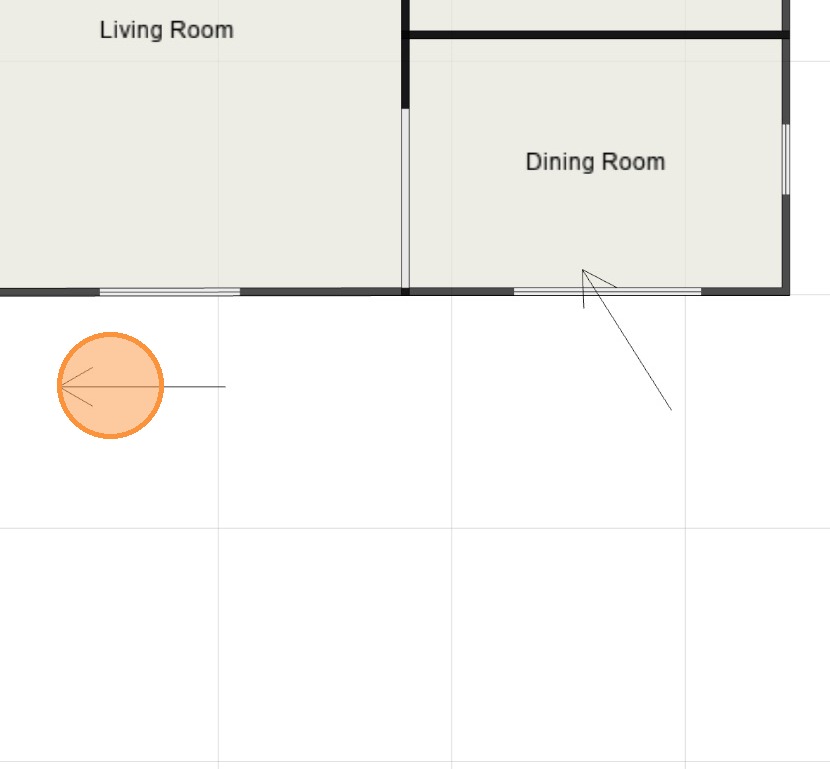
6. Tap the Canvas to add the copied Arrow.
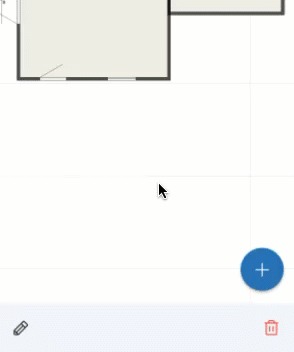
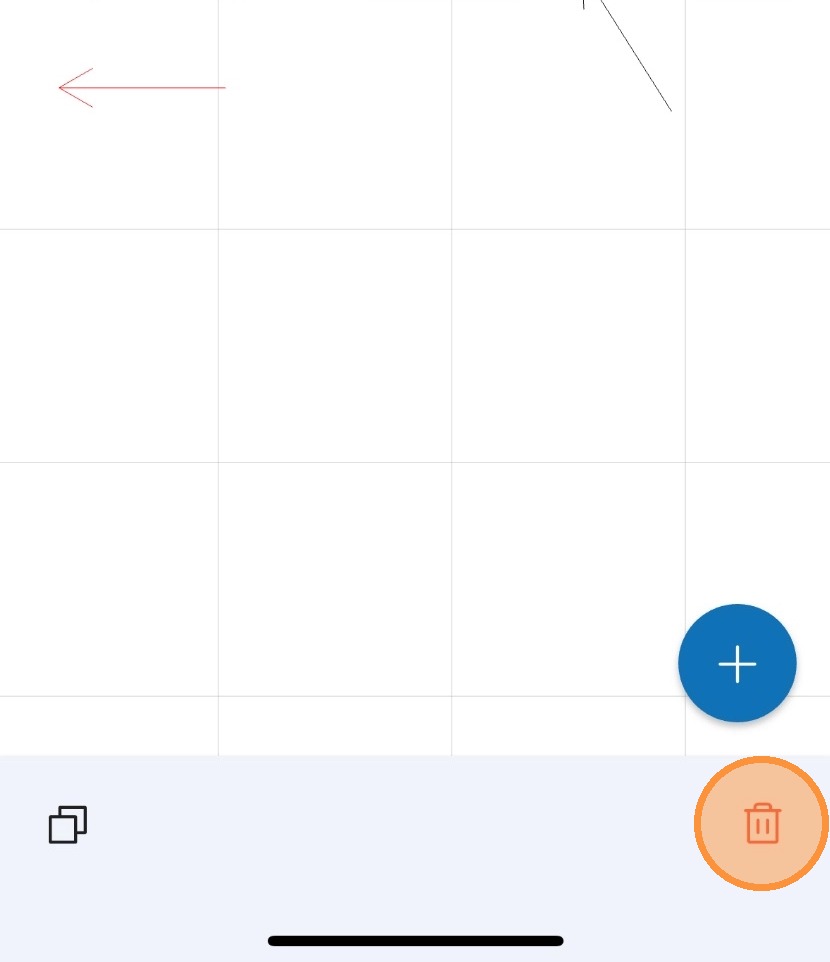
7. Remove an unwanted Arrow by tapping the arrow to select it, then tap the Trash Can icon found at the bottom to remove it. You know the arrow is selected when it turns red.
Text Box
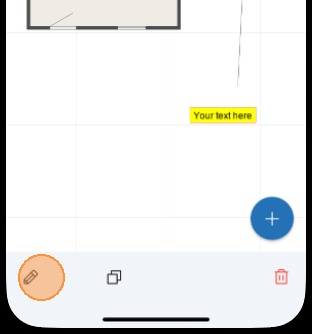
8. After dropping the text box to the canvas, tap the Pencil icon to edit the text.
9. Type over the Your text here and tap Save when you are done.
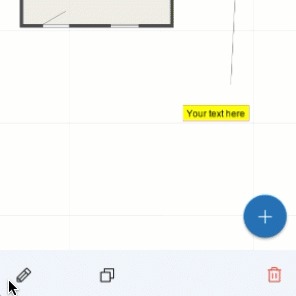
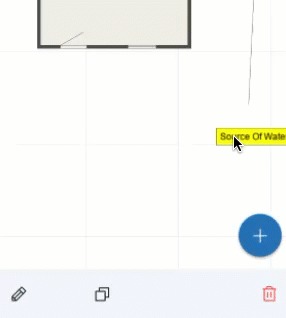
10. If you need to move the Text box, tap and hold then drag it to the new location.
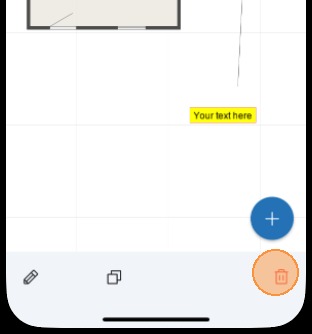
11. To remove a text box, tap it then tap the Trash Can icon in the bottom right.
Alert: This concludes the processes for adding, modifying, and removing annotations.
Questions? Contact Us!