
Question
- How do I save my view on the DASH Home page?
- Can I save my view on the new DASH home page?
Answer
DASH Home Saved Views
Learn how to customize and save specific dashboard views tailored to your preferences.
1. DASH Home now includes a Save View option. If you're a new user, or haven't saved any views yet, you'll start with zero saved views unless a teammate has already shared one with you.
A saved view captures any changes you make to DASH Home, including:
- Filters
- Column order
- Added columns
- Column edits
- Sorting
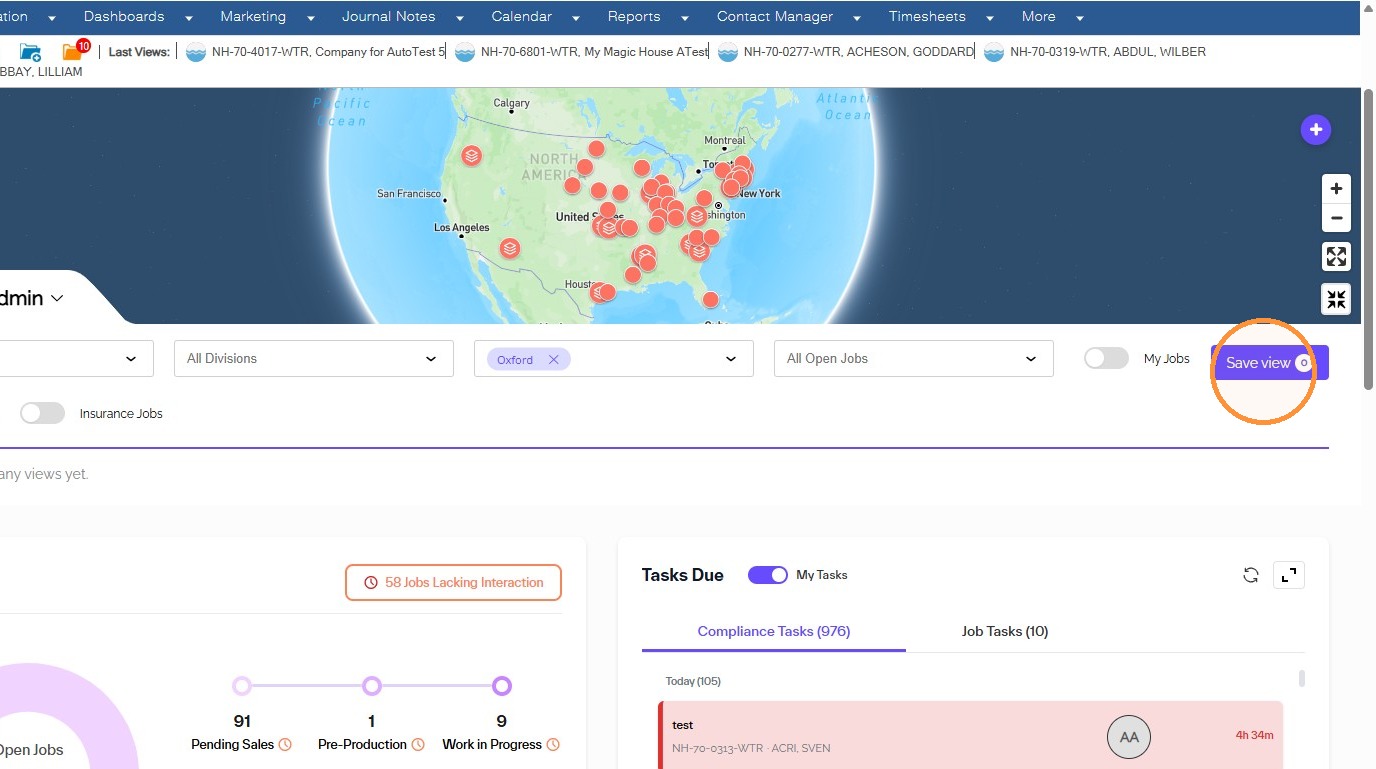
2. If you have zero saved views, clicking Save View gives you these options:
- Save the view for yourself
- Save the view for yourself and others, based on their job title
- Save the view for yourself and specific individuals
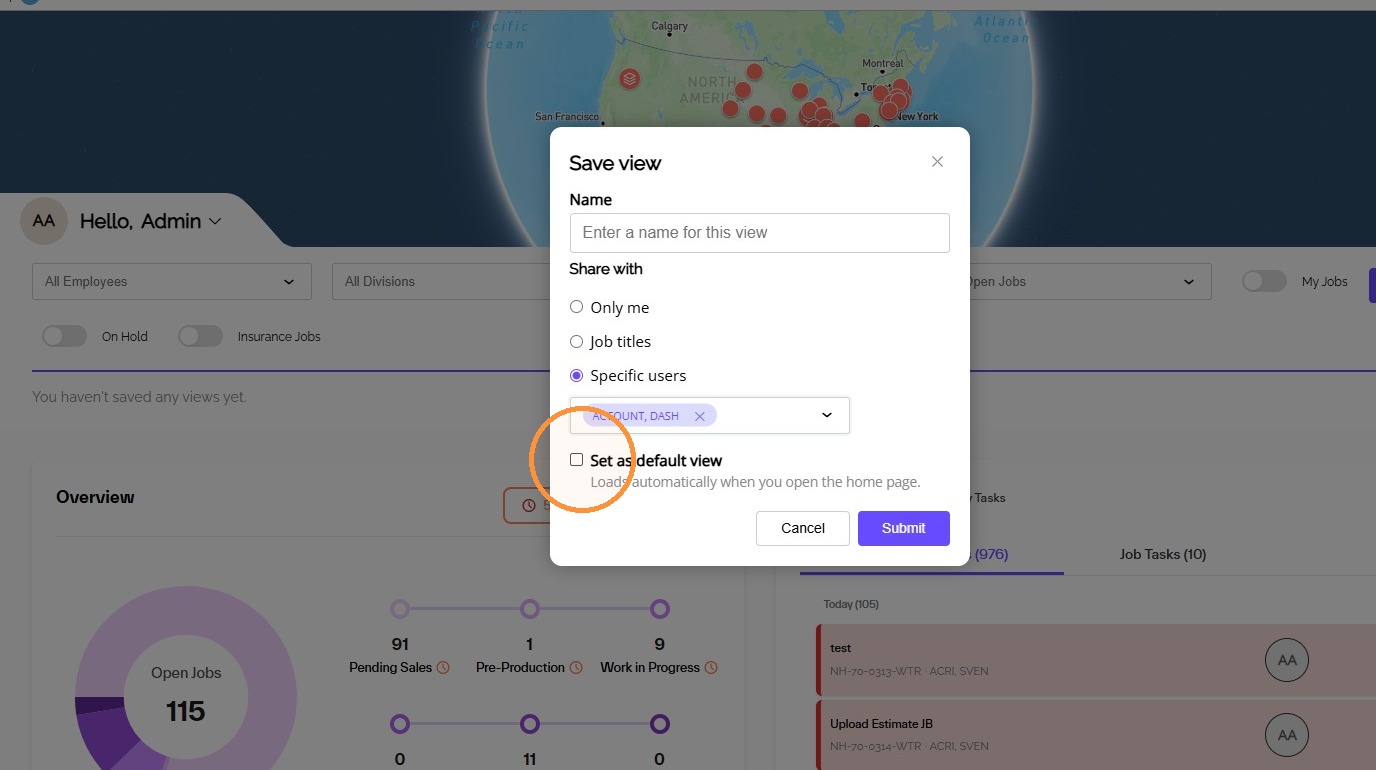
- Set the view as your default
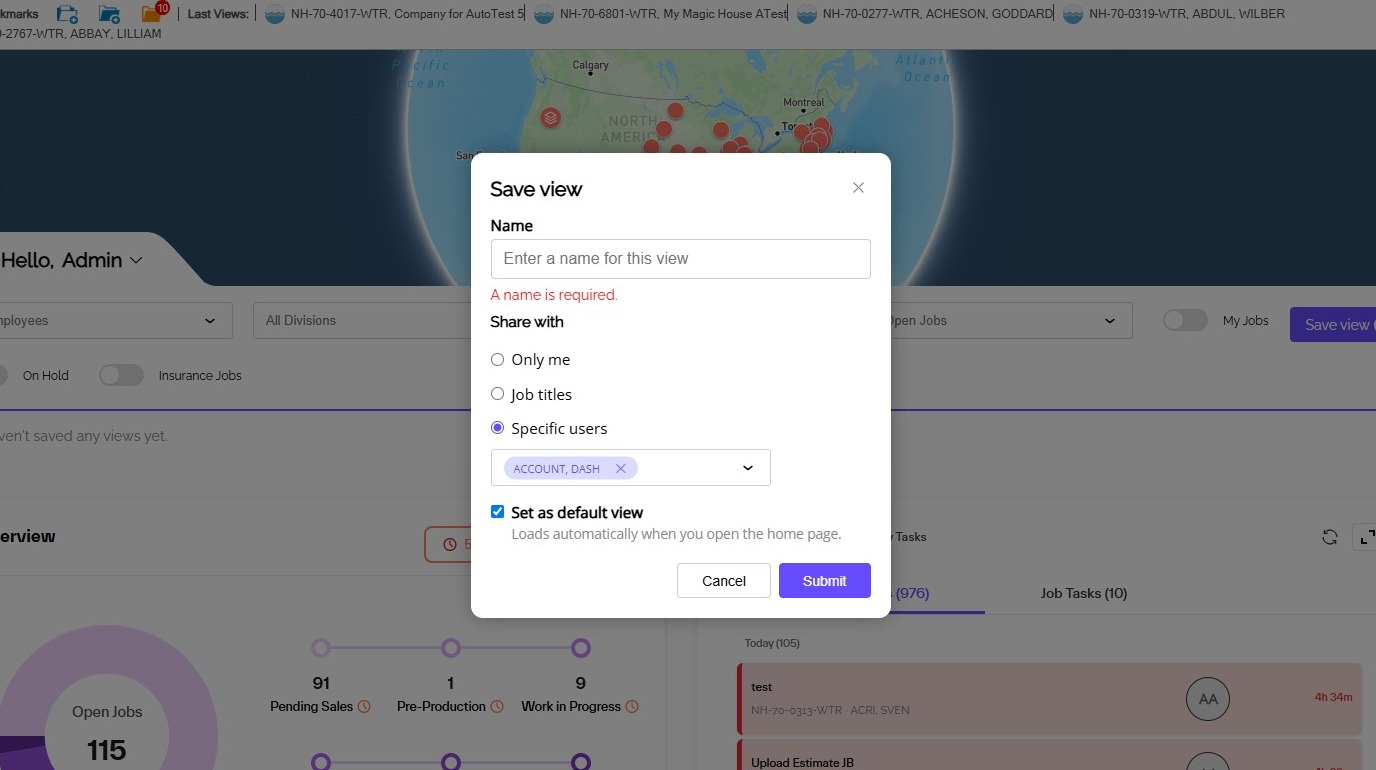
3. If you save a view for only yourself, it will only be visible to you. It will show up as a pill on DASH Home. If you are not currently editing the home page, it will also show up in the pop out menu that launches when you click the saved view option, where you manage your views.
You have full edit rights to this view.
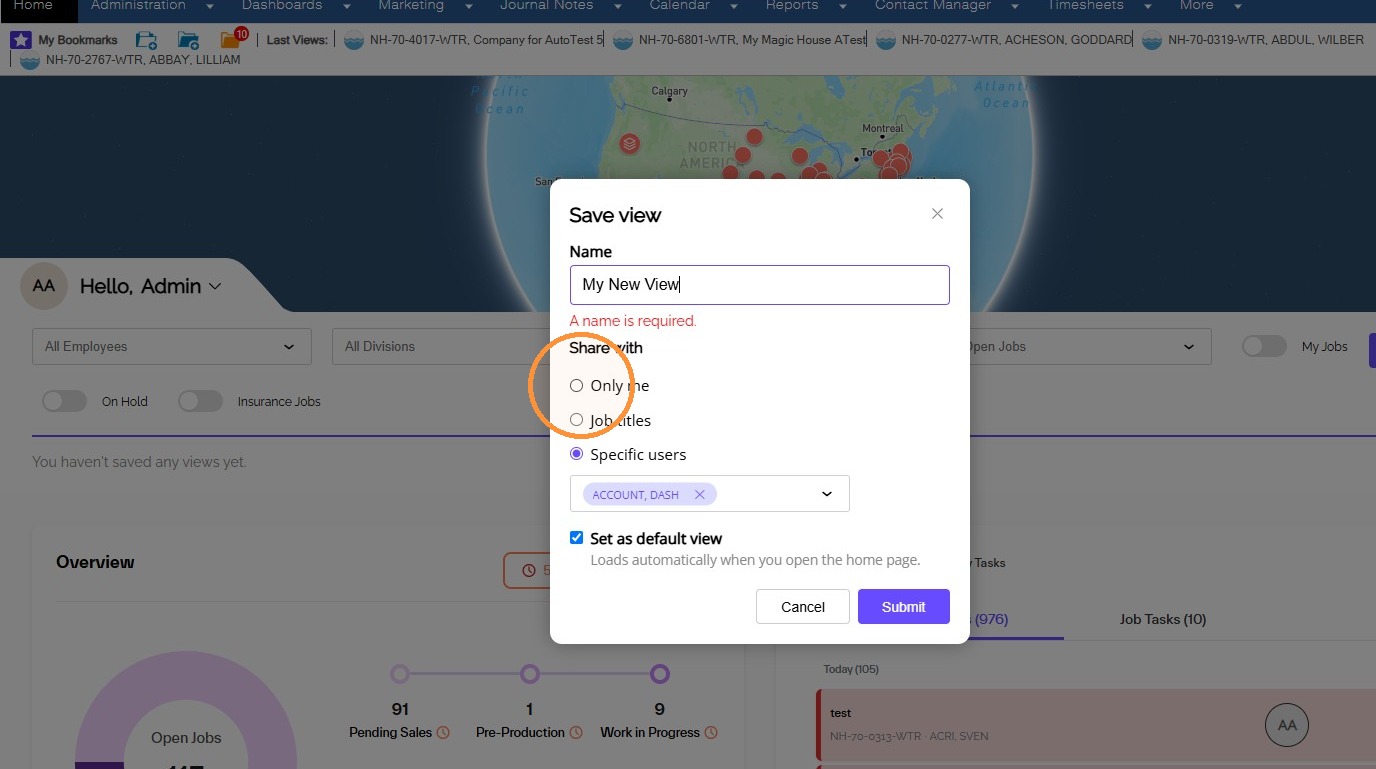
4. If you save a view for specific job titles, it will show up for yourself and for everyone who has that job title.
As the creator, you are the only person who can edit this view. Others can:
- Mark it as their default view
- Disable the view for themselves
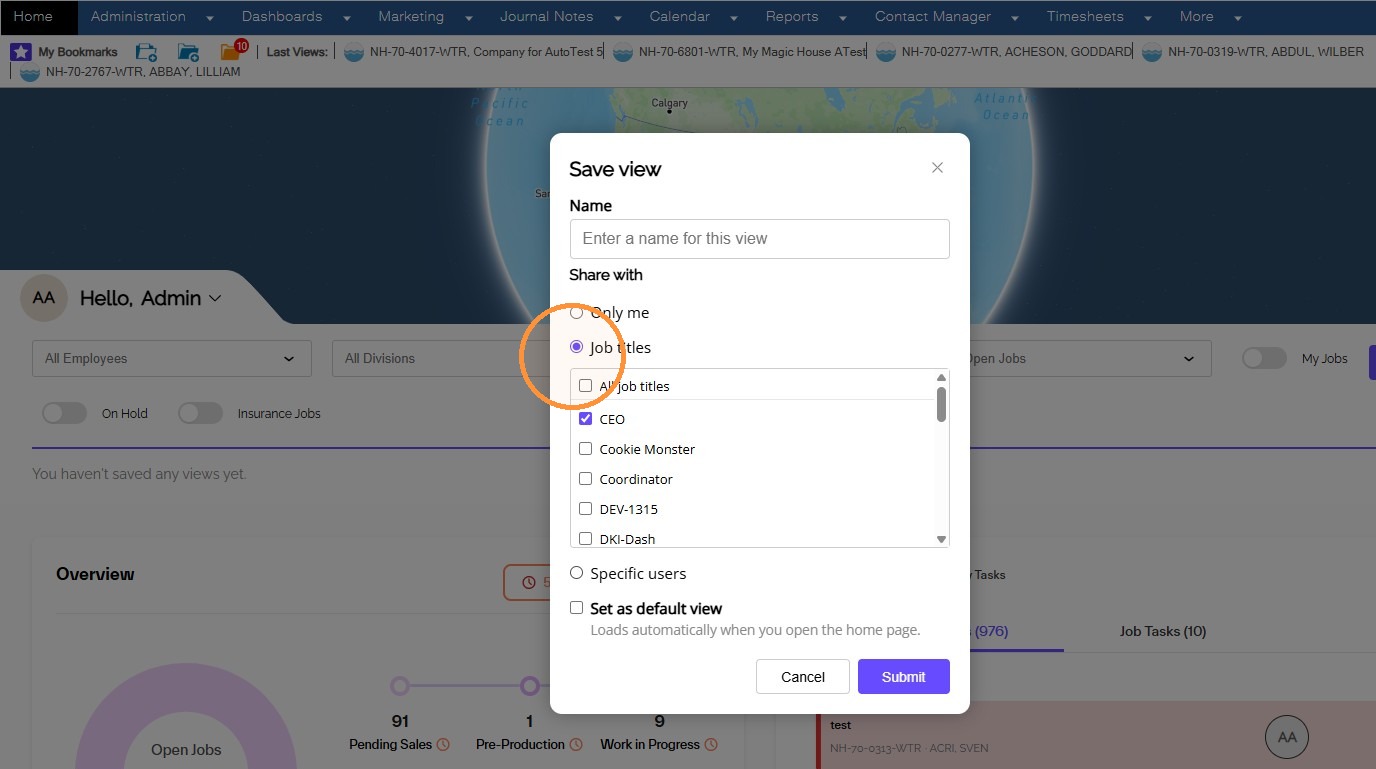
5. If you save a view for specific people, it will show up for yourself and for everyone you shared with.
As the creator, you are the only person who can edit this view. Others can:
- Mark it as their default view
- Disable the view for themselves
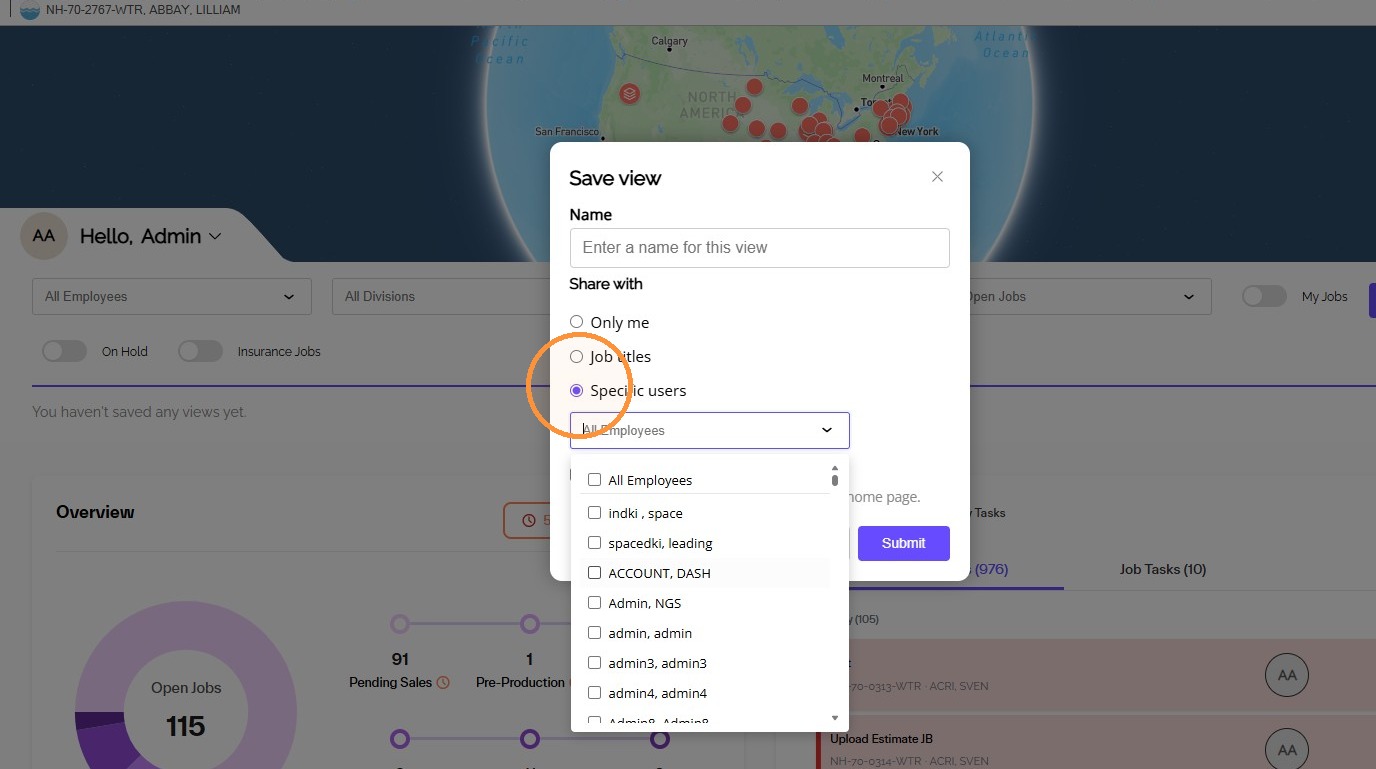
6. Setting a view as your default means that view will automatically load every time you launch the page.
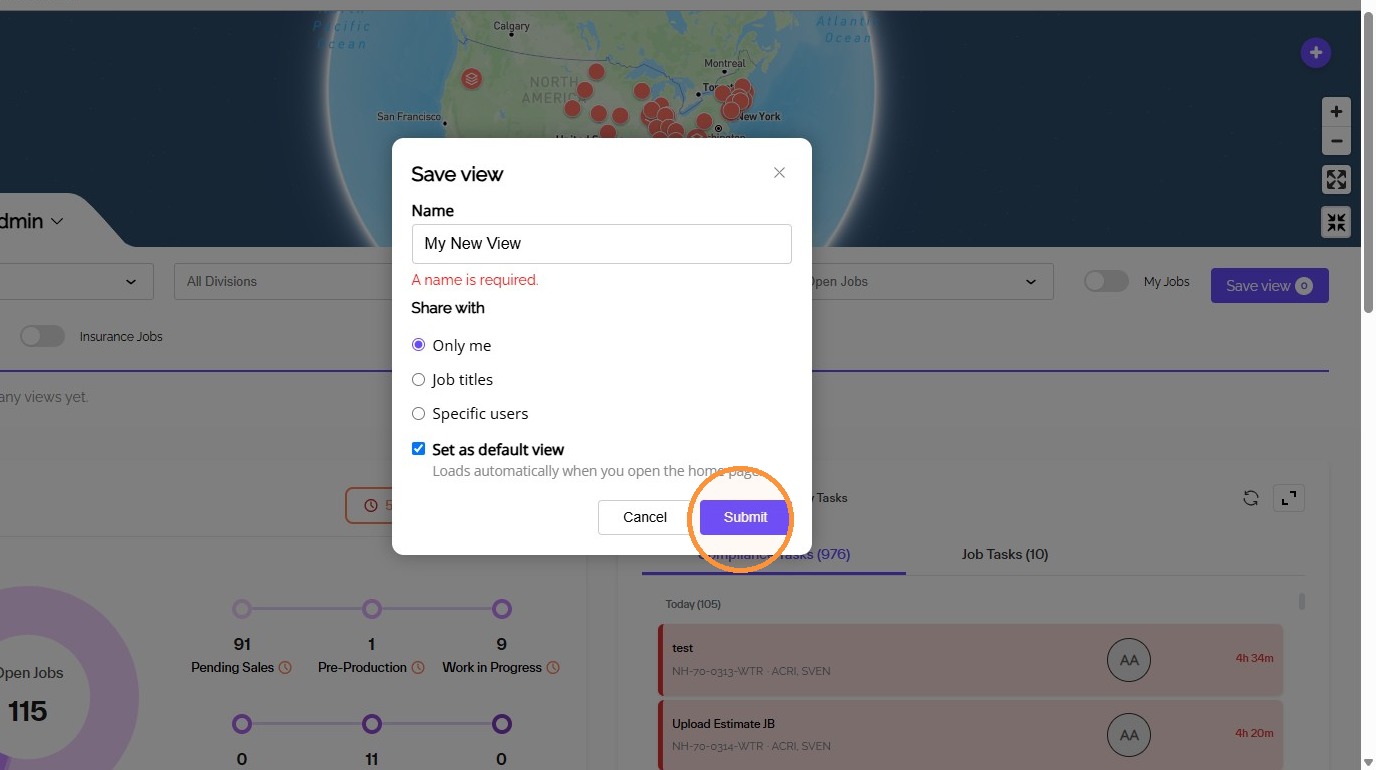
7. Click "Submit"
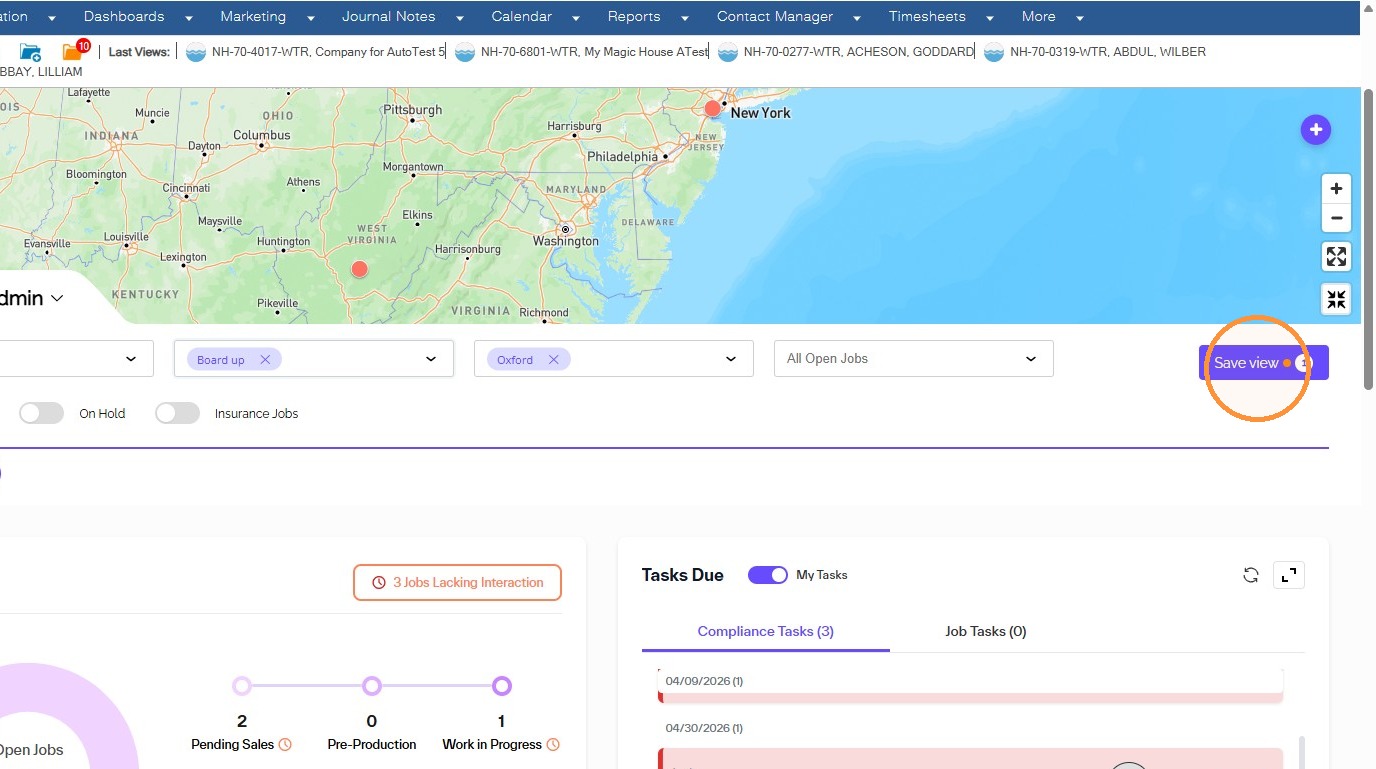
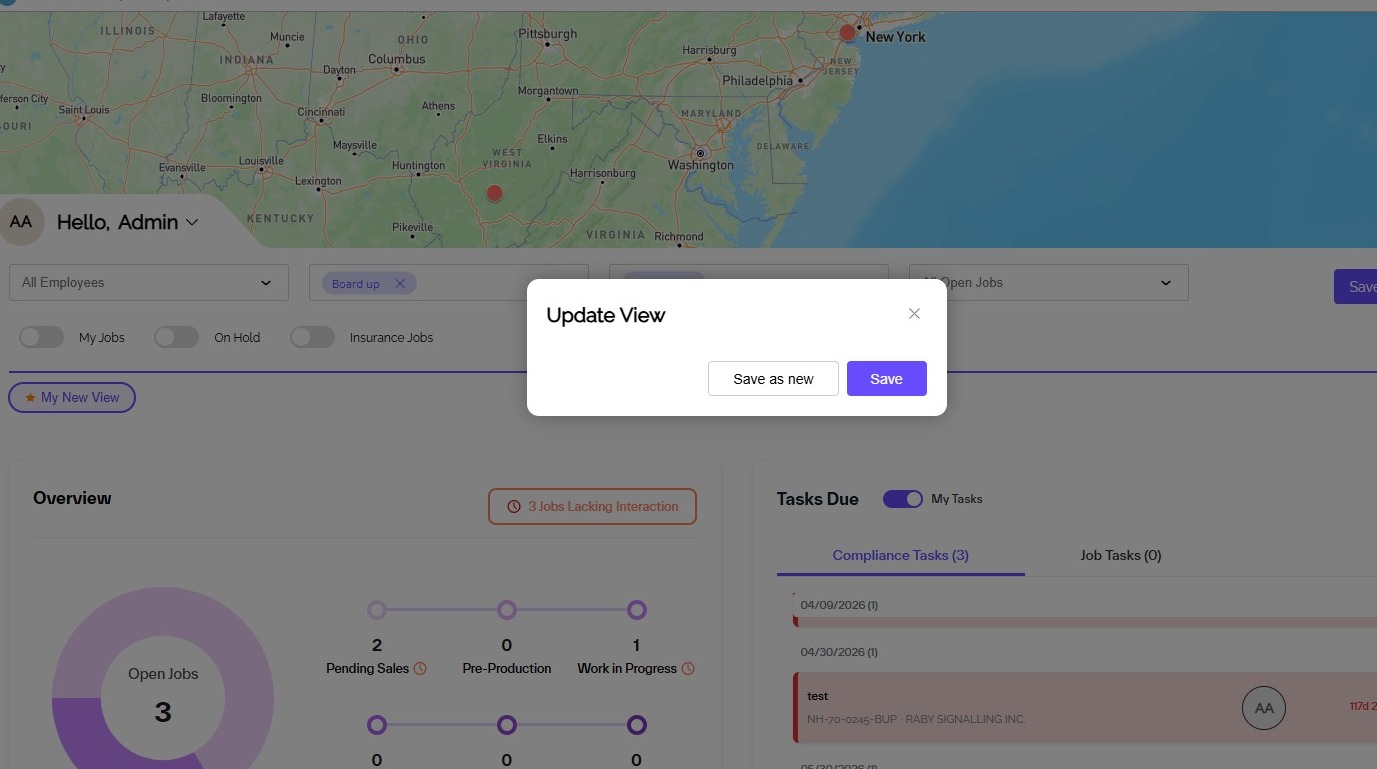
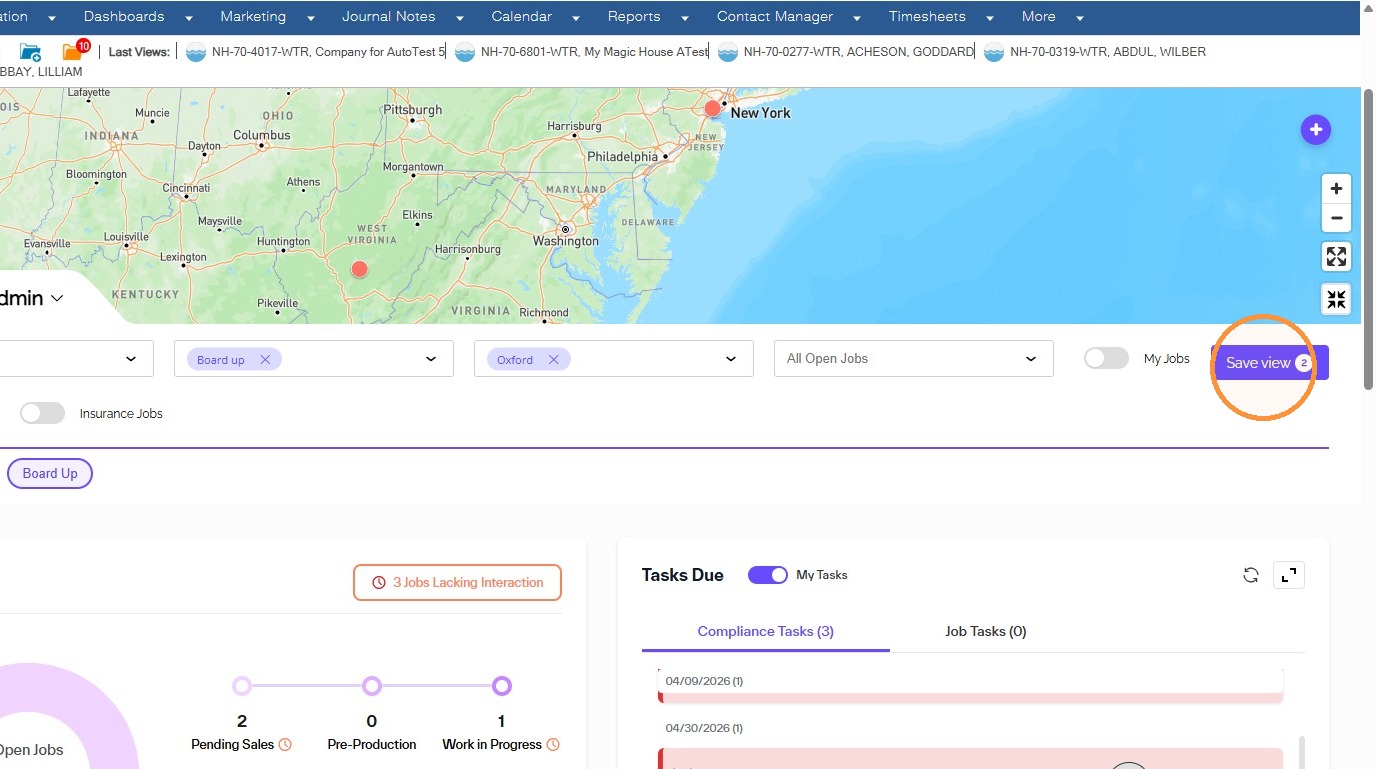
8. If you make any edits to the page while on a saved view, you'll notice an orange indicator on the saved view button. This means changes have been made. Clicking the button will prompt you to either:
- Save the changes as a new view
- Save the changes to the current view
9. If you make any edits to the page while on a saved view, you'll notice an orange indicator on the saved view button. This means changes have been made. Clicking the button will prompt you to either:
- Save the changes as a new view
- Save the changes to the current view
If the view was shared with you and you are not the owner, you will not see the option to save to the current view. Instead, you'll only be able to save your changes as a new view, starting from scratch. You cannot edit views that are shared with you, only views that you own.
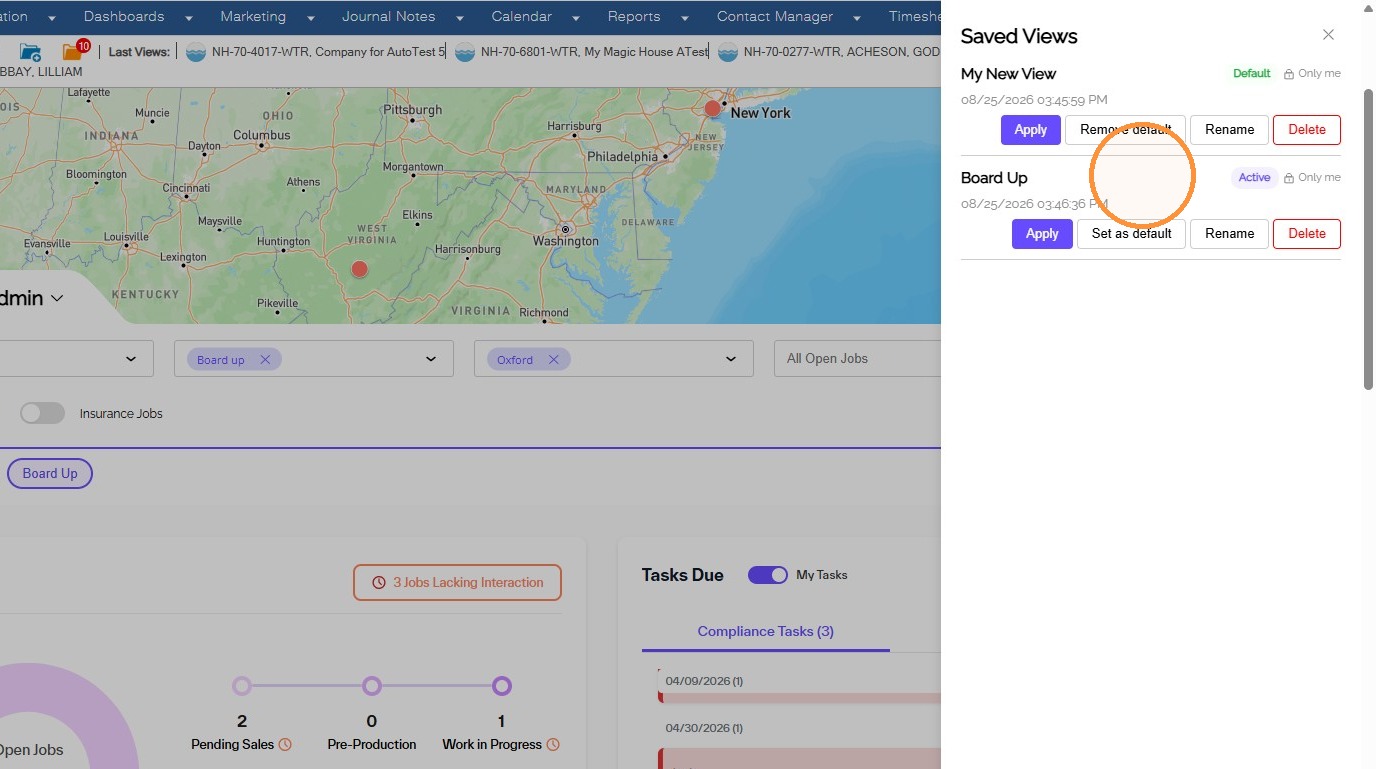
10. If you have not made any changes to Home and click the saved view button, you'll be taken to a saved views management panel. From here, you can:
- Apply the view
- Set or remove it as your default
- Rename the view
- Delete the view
You can only do all of these things if you are the owner of the view. If a view was shared with you, your only options are to apply the view or set it as your default.
11. If you have not made any changes to Home and click the saved view button, you'll be taken to a saved views management panel. From here, you can:
- Apply the view
- Set or remove it as your default
- Rename the view
- Delete the view
You can only do all of these things if you are the owner of the view. If a view was shared with you, your only options are to apply the view or set it as your default.
Questions? Contact Us!