
Question
- Can I copy my documents from one job to another in DASH™?
- How do I copy documents to another job in DASH?
- Can I move documents to another job in DASH?
- Can I merge documents between losses?
Before You Begin
- Copy Direction: Start the process from the originator job (the source of the data). You will then select the destination job where the dates should be applied.
- To use the Copy Documents feature, you must have the appropriate security permissions enabled:
- Navigate to Administration > Employee/Security Settings > Security (or Group Security).
- Select the specific User or Group title from the top-right corner.
- Expand the Other security section.
- Expand Copy Jobs.
- Select the checkboxes for the applicable use cases.
Copying Documents
- Select Copy Job button on the job you intend to copy job information from.
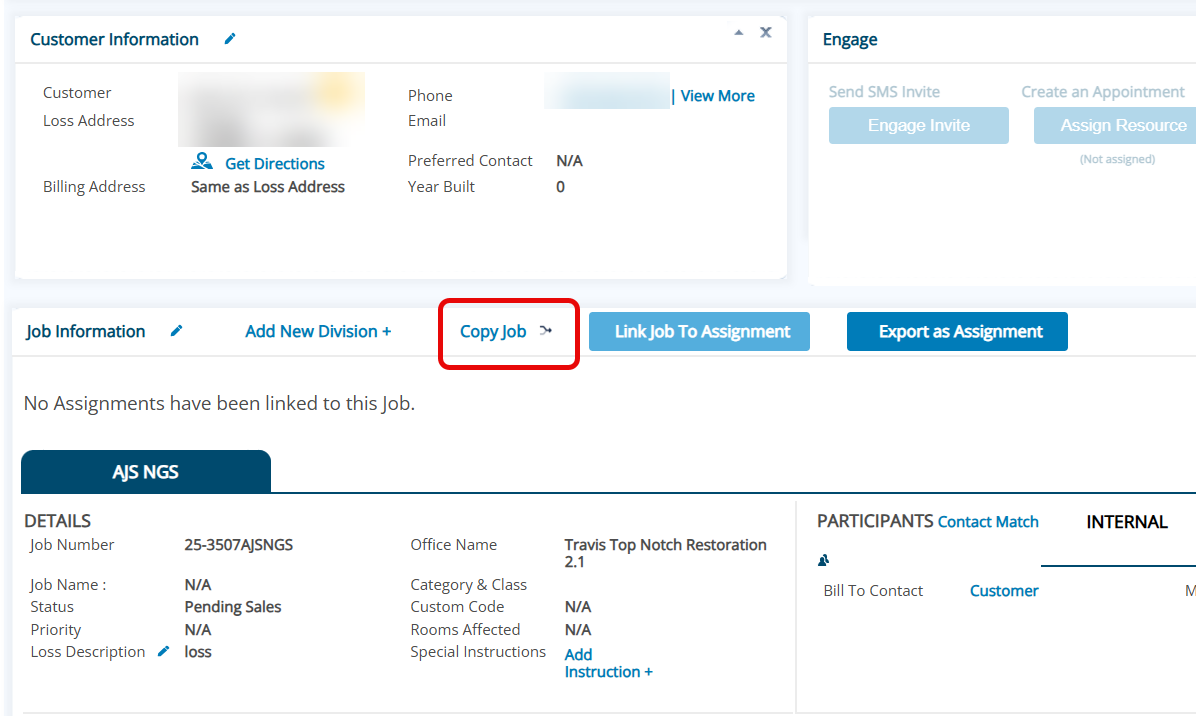
- Using available filters and the search bar, search for the job where you will copy the information too.
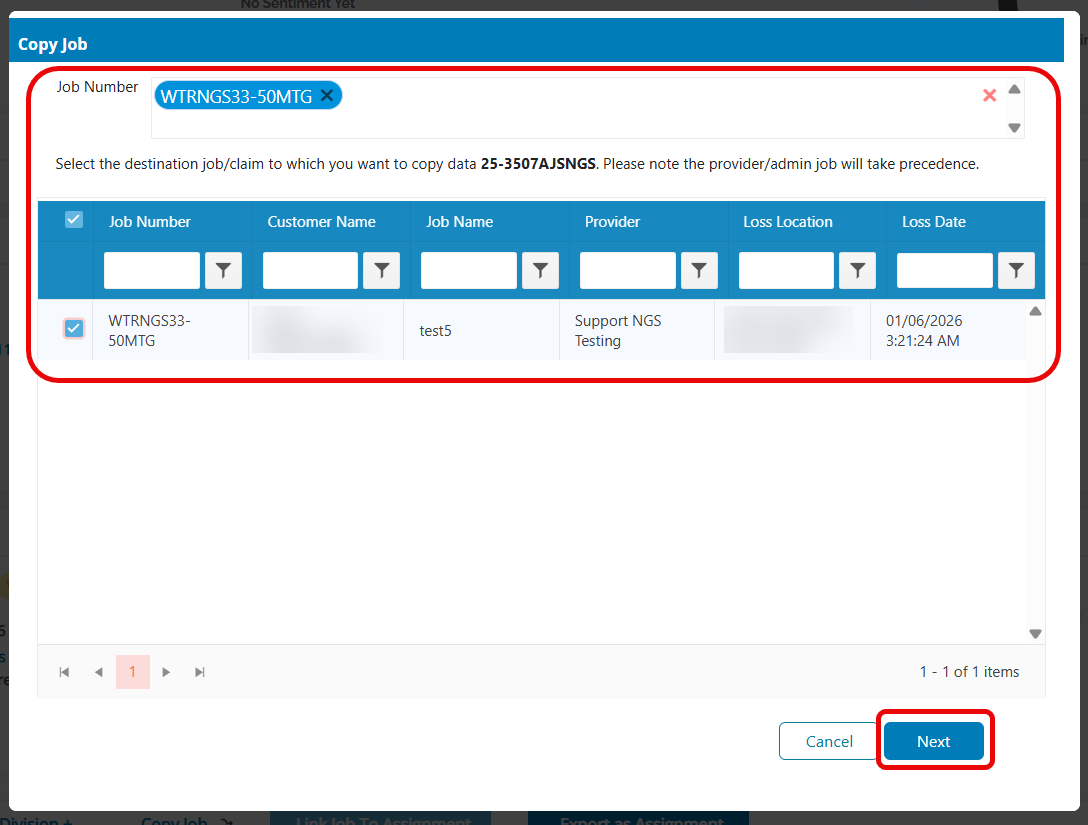
- Select the checkbox next to the job and hit Next
- Select the Documents tab
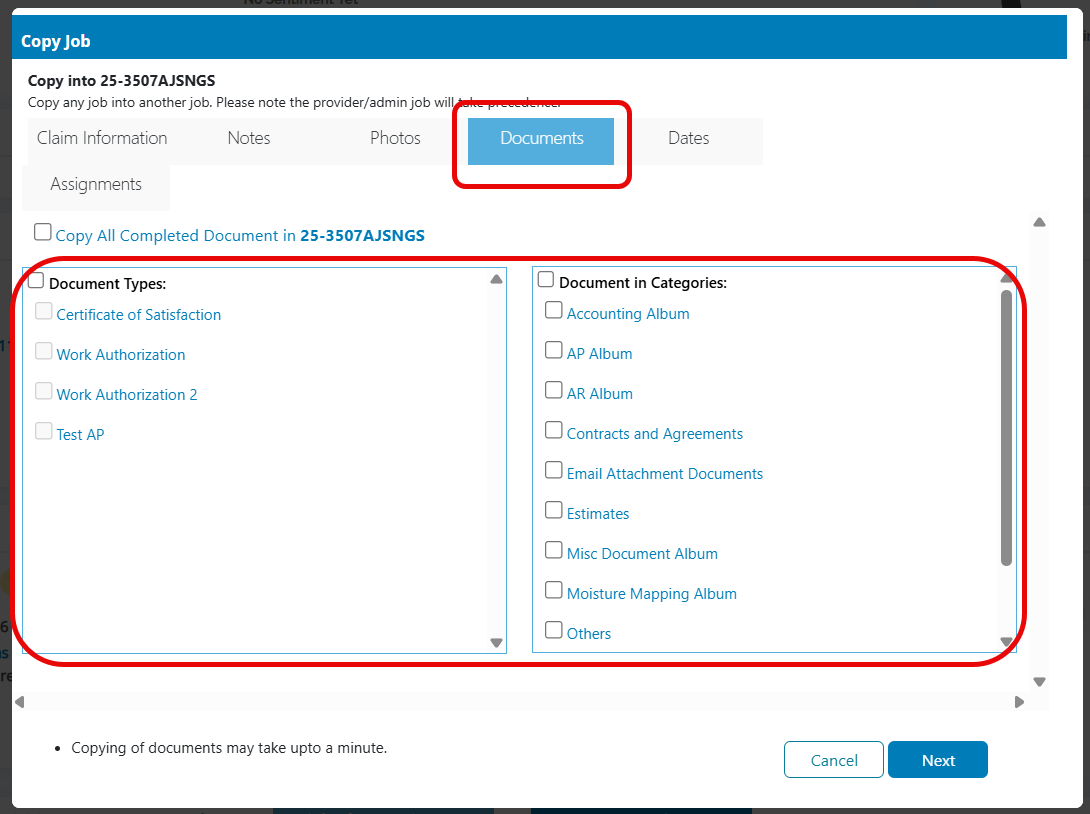
- Choose the Document Types (the Buckets) and/or Categories (the folders) you want to send to the destination job.
- Document Types (the "Buckets") will carry over to like buckets. For example, Work Authorization will go to Work Authorization.
- Document Categories (the "folders") will be dropped into a new folder dedicated to the copy labeled with Misc followed by the origin job number.
- Select Next to apply changes
Questions? Contact Us!