
Question
- Where can I add additional photos in Mitigate™?
- How to add more photos to a loss in Mitigate mobile?
- How to tag photos in Mitigate
- How to add photo annotations like shapes, text, or arrows?
Answer
Adding Photos
Follow the steps below to learn how to add photos to a Mitigate project:
- Add photos anytime you see a camera icon.
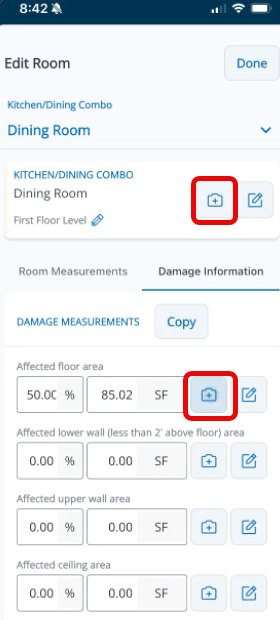
- Take a photo or video or upload from your phones Gallery.
- In the Gallery you can select photos to add. Select one or multiple, then click Add.
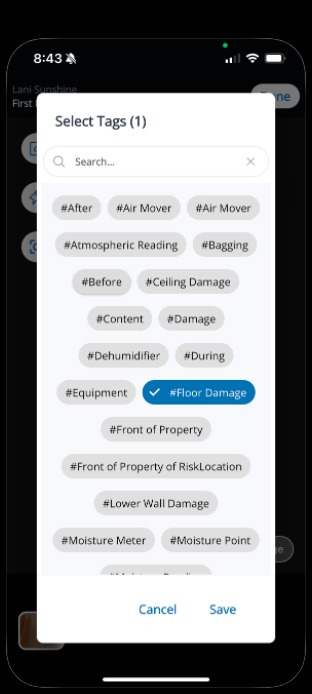
- Add additional tags if you want.
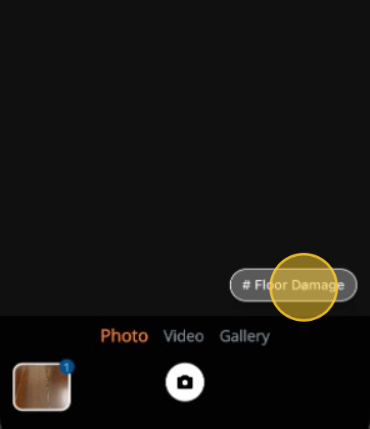
- Tap tags to add them to the photo, then hit Save.
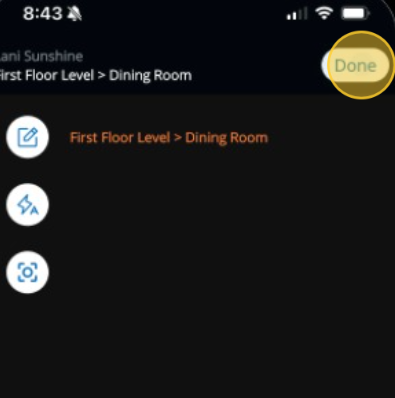
- Tap Done to finish adding the photo(s).
Adding Photo Annotations
- Tap the Photos Card from the Snapshot view of the job.
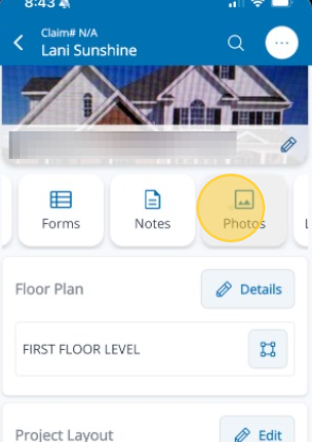
- Tap a photo to select it
- Tap the Annotate icon in the top right of the screen.
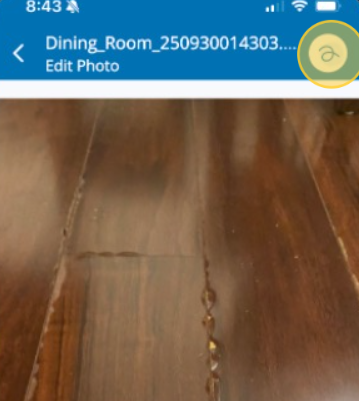
- Tap the color palette to change the color of the annotations.
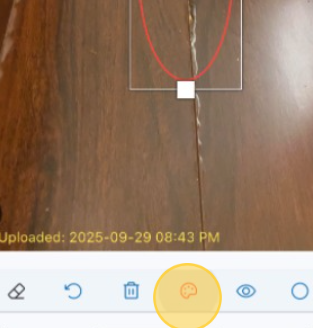
- Select a new color.
- Tap Done.
- Tap the Shape icon in the bottom right to select a shape, arrow, switch to text, or freehand.
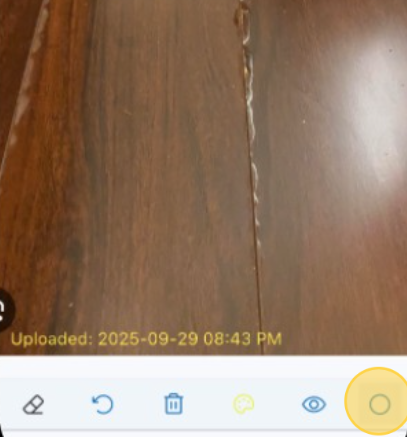
- Tap Save when you are done.