
Question
- How do I create a compensation plan for my employees in DASH™?
- Can I create compensation plans in DASH™?
- What do the fields mean in the compensation plan creator?
Answer
DASH™: Creating a New Compensation Plan
This document provides detailed instructions on creating and managing compensation plans for employees based on Actual Gross Profit, including setting default plans and assigning them to employees.
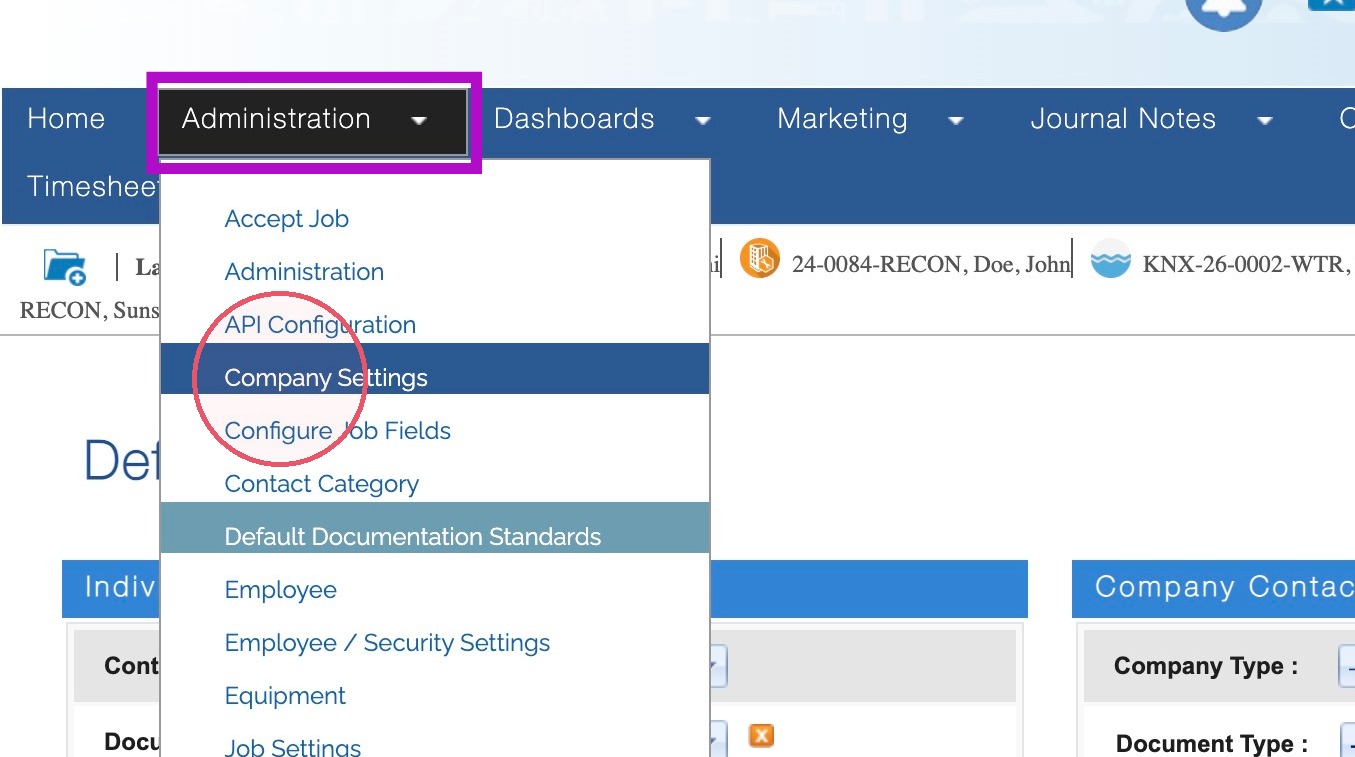
1. Hover over the Administration tab.
Click Company Settings.
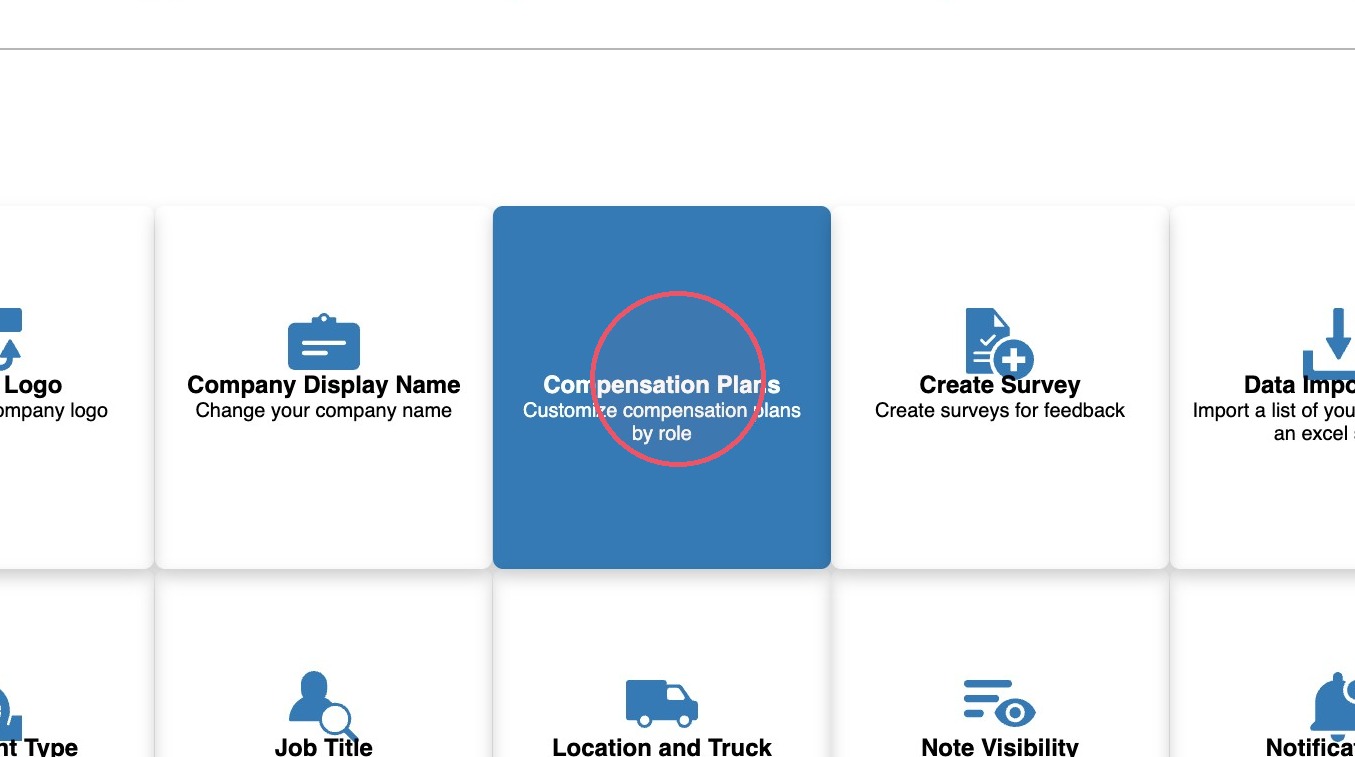
2. Click Compensation Plans.
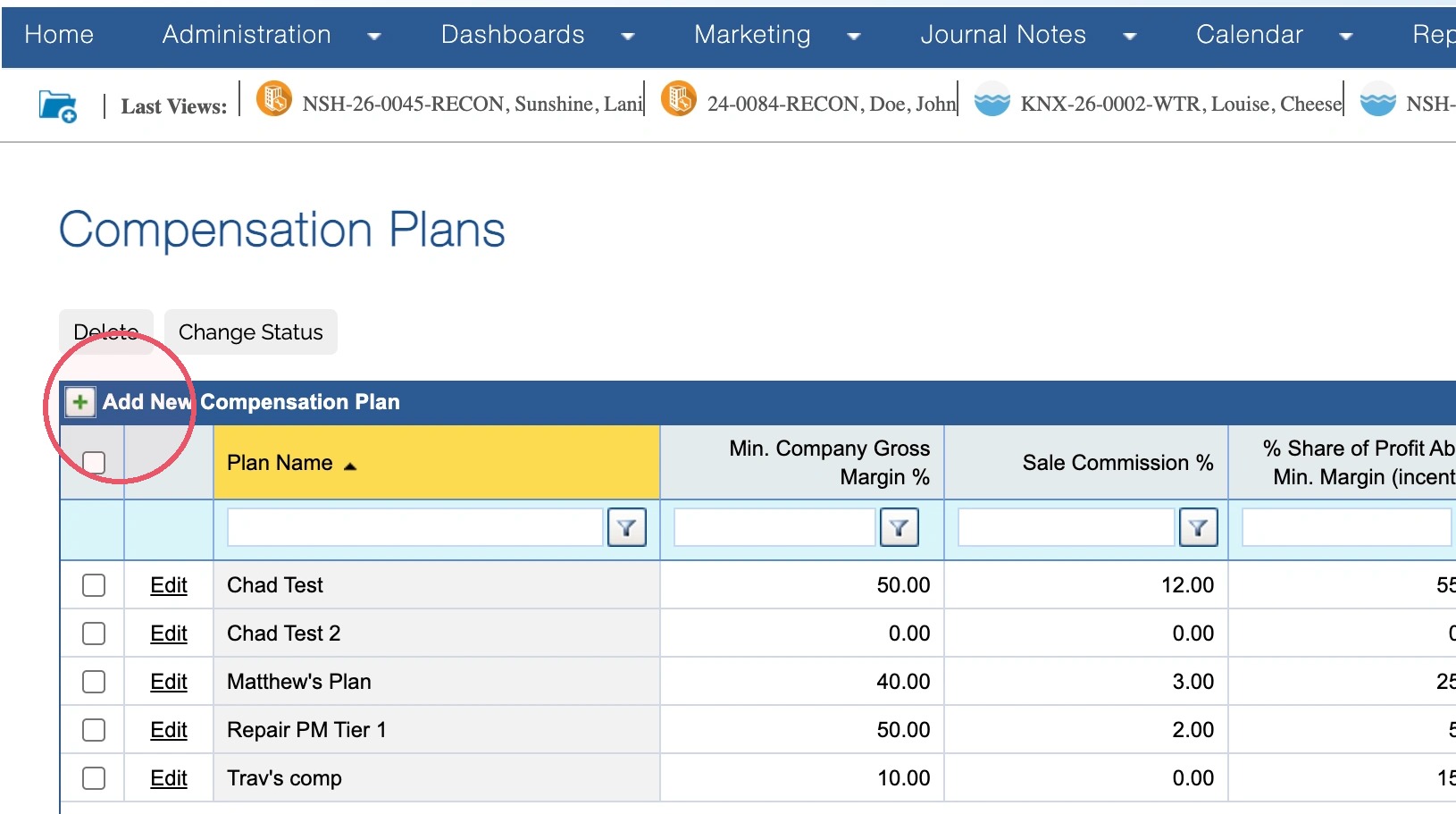
3. Click Add New Compensation Plan.
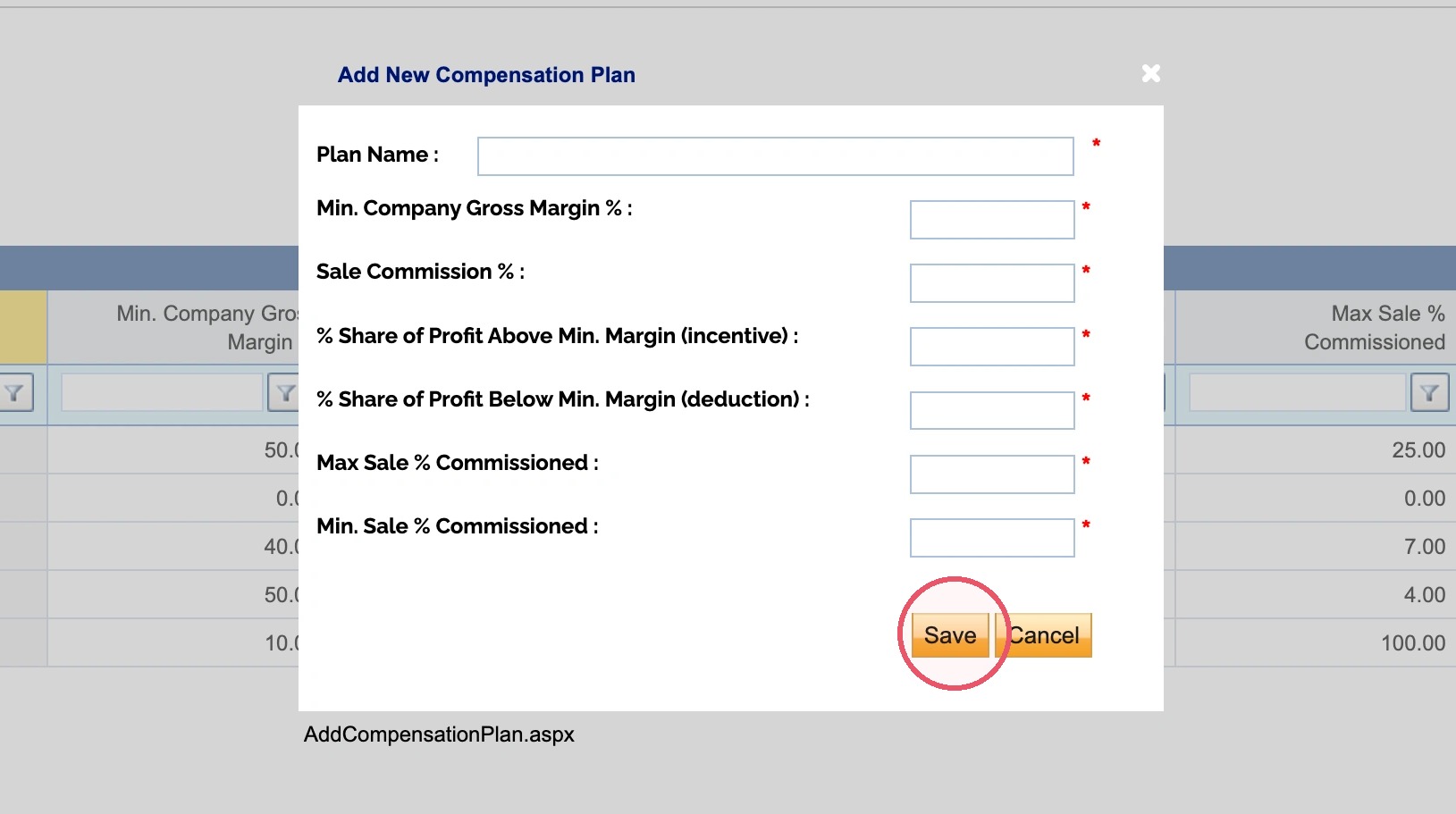
4. Enter all of the required information for the Plan. See the note below for more details.
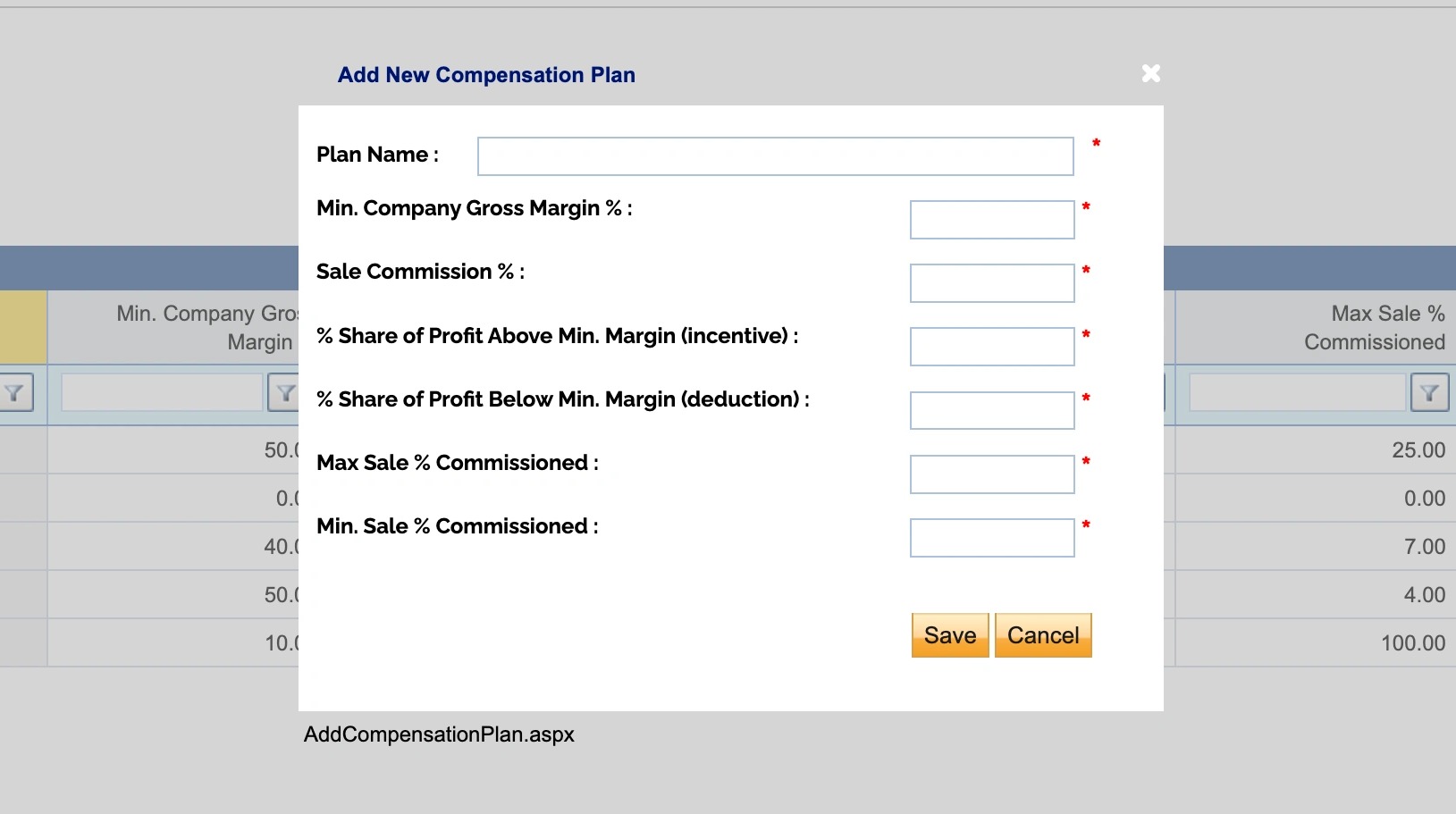
Tip: More information regarding the fields for the New Compensation Plan:
Min. Company Gross Margin % (The Threshold): The minimum profit margin a job must hit before a participant can earn their full commission (e.g., 35%). It acts as the dividing line for extra incentives or deductions.
Sale Commission % (The Base Rate): The standard compensation rate, expressed as a percentage of the total sale.
% Share of Profit Above Min. Margin (The Incentive): The percentage of extra profit given to the participant if the job's actual margin beats the minimum threshold.
> Example: If a job makes $300 more profit than the minimum threshold, and this field is set to 25%, the participant earns an extra $75.
% Share of Profit Below Min. Margin (The Deduction): The percentage of lost profit deducted from the commission if the job's actual margin falls below the minimum threshold.
> Example: If a job makes $200 less profit than the minimum threshold, and this field is set to 25%, $50 is subtracted from the commission.
Max. Sale % Commissioned (The Ceiling): The absolute maximum commission percentage allowed per job, capping total payout even if costs were incredibly low.
Min. Sale % Commissioned (The Floor): The absolute minimum commission percentage guaranteed per job. Setting this to 0% ensures a participant's commission is never penalized into a negative balance, even if job costs were unusually high.
5. Click Save.
Tip: This concludes the process for adding a new compensation plan in DASH.
Questions? Contact Us!