
Question
- How do I get my template signed on the DASH™ mobile app?
- I need a customer to sign my document on the mobile app.
- How do I attach and sign a Filebuider template via the mobile app?
Answer
Recommended Best Practice: To initiate a document signature, start by locating the appropriate compliance task (if applicable). This ensures the task is completed once document is signed and allows you to use any pre-set templates associated inside your workflow. For instructions on attaching and signing documents via the mobile app, see below.
Attaching the Template
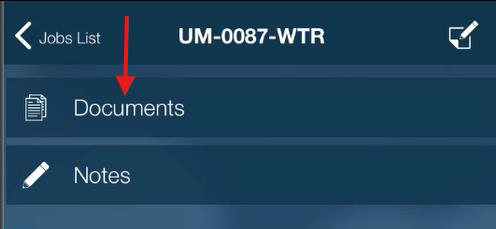
- Open the relevant job in the DASH mobile app and click the associated compliance task OR tap on More > Documents. Tap on the desired document bucket (ex: Work Authorization, Certification of Completion, etc.)
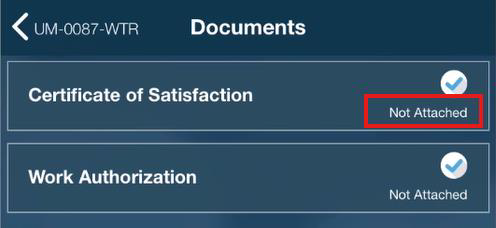
- Select the desired template from the list. Once the template is attached, it will show as "Not Signed".
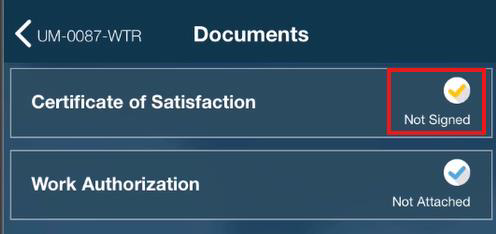
Signing the Document
- Once the document is attached, it can be signed onsite with the customer.
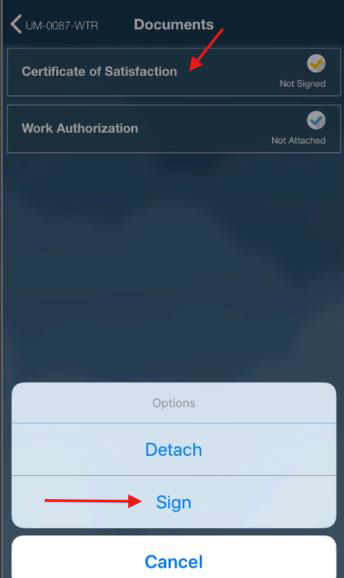
- Tap the desired document bucket (ex. Work Authorization, Certificate of Completion, etc.)
- If the wrong template was attached, click Detach.
- Tap sign to initiate the signature process.
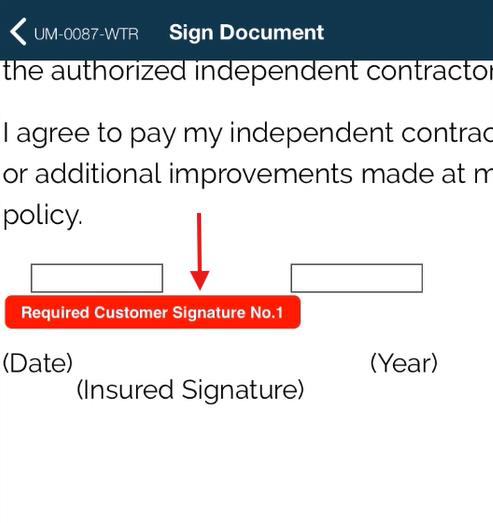
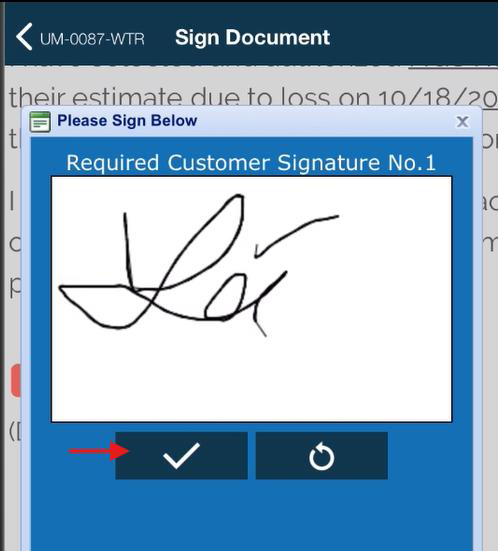
- Fill out and sign all required fields. Click the Save Document button. NOTE: The Save Document button will not work if any required fields are incomplete.
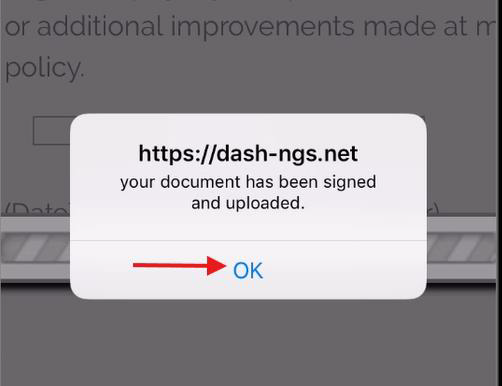
- Once successfully completed, a pop-up will confirm "your document has been signed and uploaded". Tap OK and you will be routed back to the Documents screen.
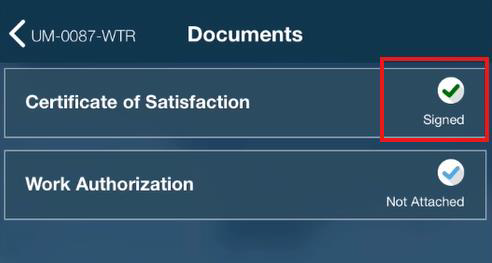
- The document bucket will now say "Signed". Click on the bucket to review the signed document.
Questions? Contact Us!