
Question
- How do I get my Filebuilder template or document signed in DASH™?
- How do I email a template or document to be signed in online?
- Can I have people sign my Filebuilder template or document at different times?
- Why didn't my Filebuilder template or document save?
Answer
Attaching the Template
- Open the relevant job.
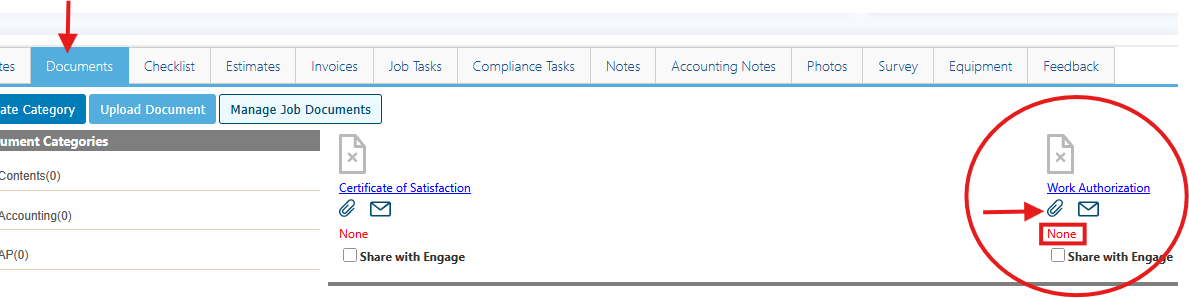
- Scroll down and click the Documents tab.
- Locate the desired document placeholder bucket (ex: Work Authorization, Certificate of Completion, etc.)
▪ Note: Shows “None” as there is no template attached - Click the paperclip icon to select desired template from list.
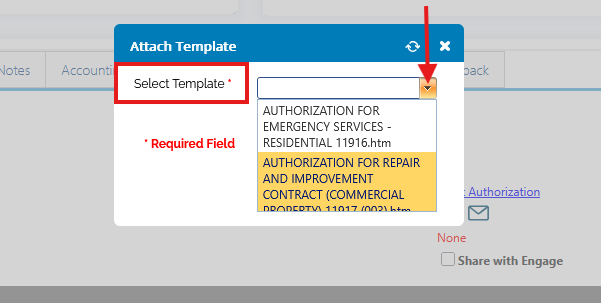
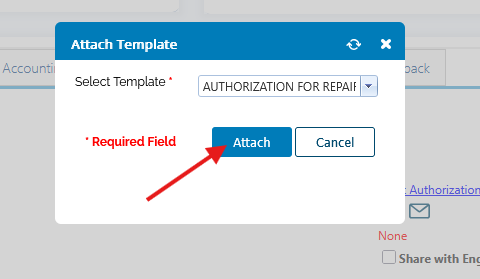
- Click Attach.
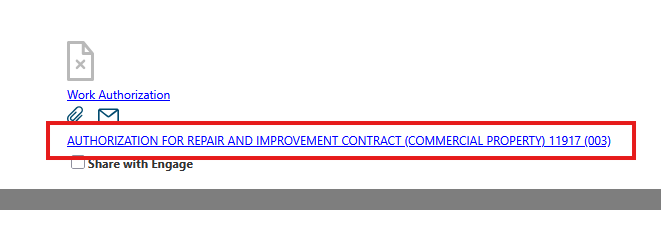
- You will now see the name of the template attached.
Sending Filebuilder Document
- Once the template is attached, it can now be sent to the customer via email
- Only one customer can sign the document – this person should be the one to fill out, sign, save document.
- Only one customer can sign the document – this person should be the one to fill out, sign, save document.
- Click the envelope icon, to send
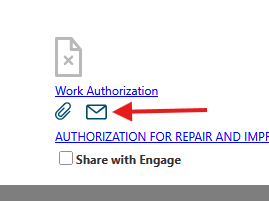
- The email pop-up window will now open.
- The "From" field should contain your email.
- The "To" field will populate automatically from the email field found in the Customer Information on the job.
- If you want to add others on your email, use the fillable/dropdown fields or check box of System Participants below.
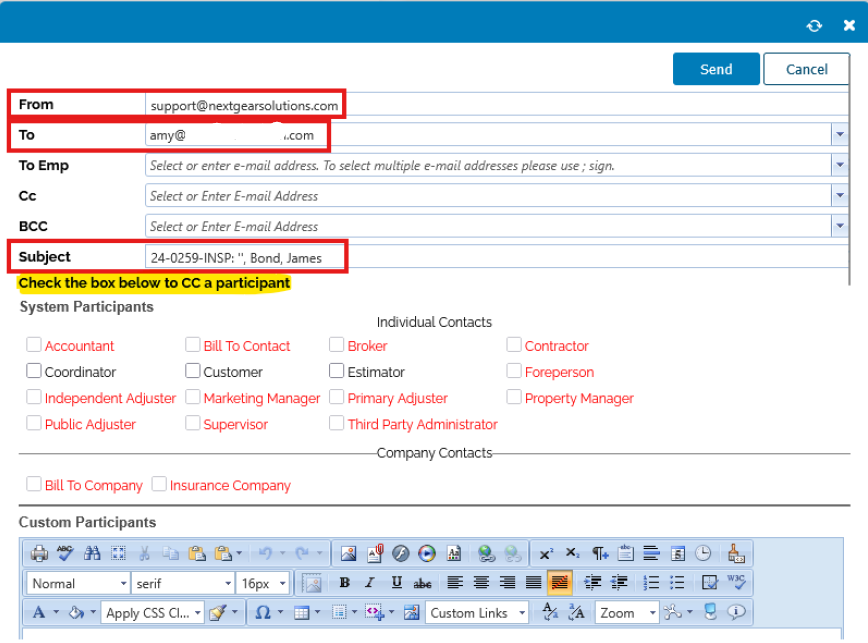 The email body contains only the document link. Manually add any additional text before selecting Send.
- Customers must click the link to access and complete the document. Red buttons indicate required signatures, while blue buttons indicate optional onsite signatures. The signature counter at the bottom of the page updates as fields are completed.
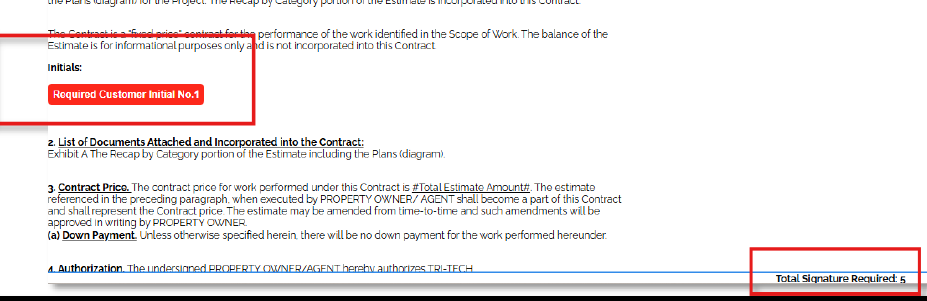
- Reminder that only one customer can sign the document – this person should be the one to fill out, sign, save document.
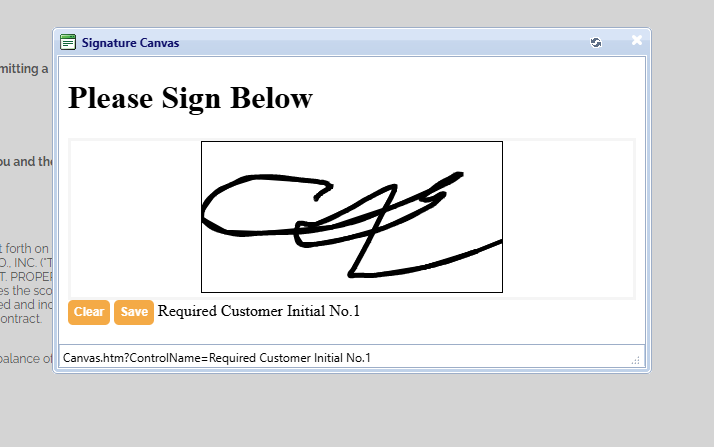
- The customer will sign and Save to apply to the document.
- The Save Document button appears at the bottom of the page only after completing all required fields.
- Customer should select Save Document to finalize the document.
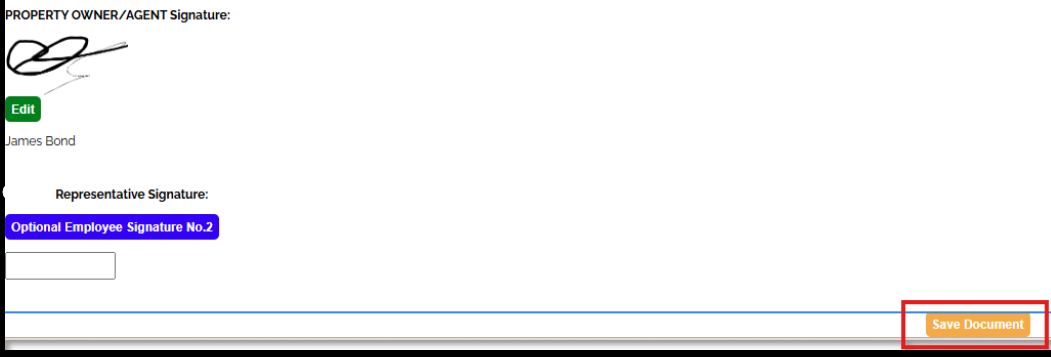
- Selecting Save Document triggers a confirmation pop-up. Customers may select Download File to save a copy.
- The completed document automatically syncs to the associated job bucket and displays a green checkmark. Select the checkmark to view the file.
- If the icon is missing, refresh the Documents tab or browser page. The Date Uploaded confirms the exact time of customer completion.
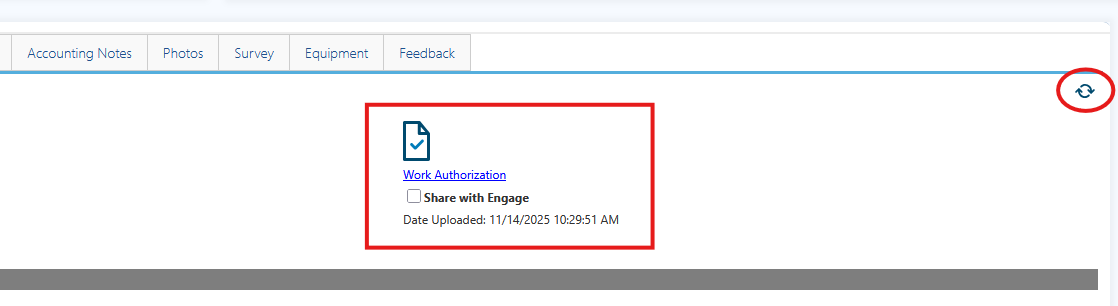
- If the icon is missing, refresh the Documents tab or browser page. The Date Uploaded confirms the exact time of customer completion.
Questions? Contact Us!