
Question
- Where do I enter atmospheric readings in Mitigate™?
- How do I enter atmospheric readings into Mitigate?
Answer
Questions? Contact Us!
Mitigate™: Atmospheric Readings
This document provides a step-by-step guide for recording atmospheric readings using the Mitigate™ app.
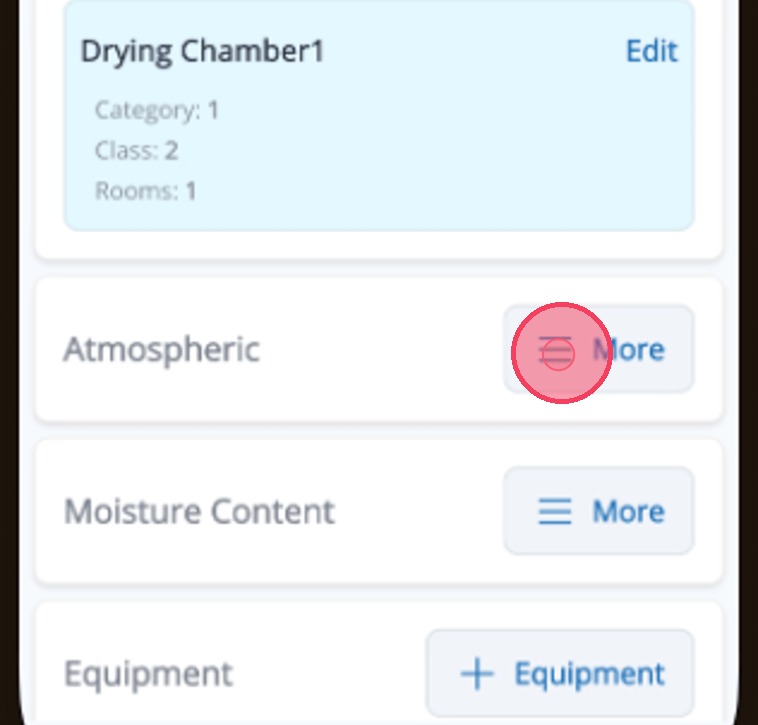
1. Tap More on the Atmospheric card to begin adding an atmospheric reading.
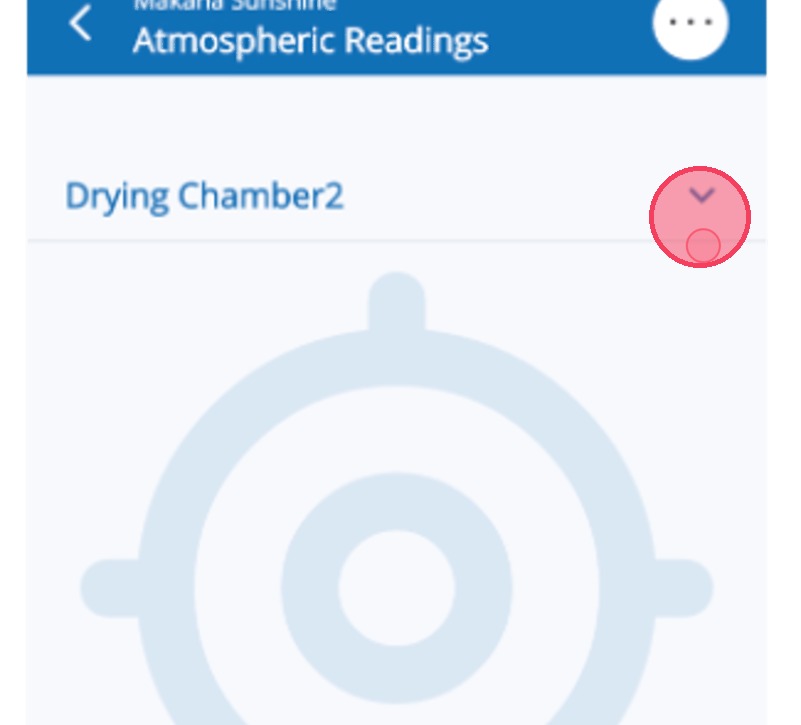
2. Tap the caret to select a location.
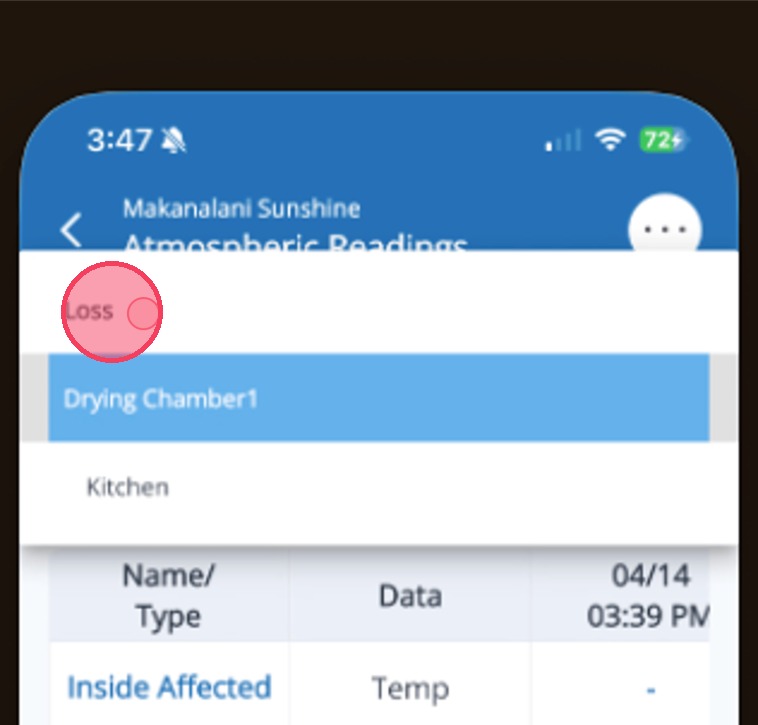
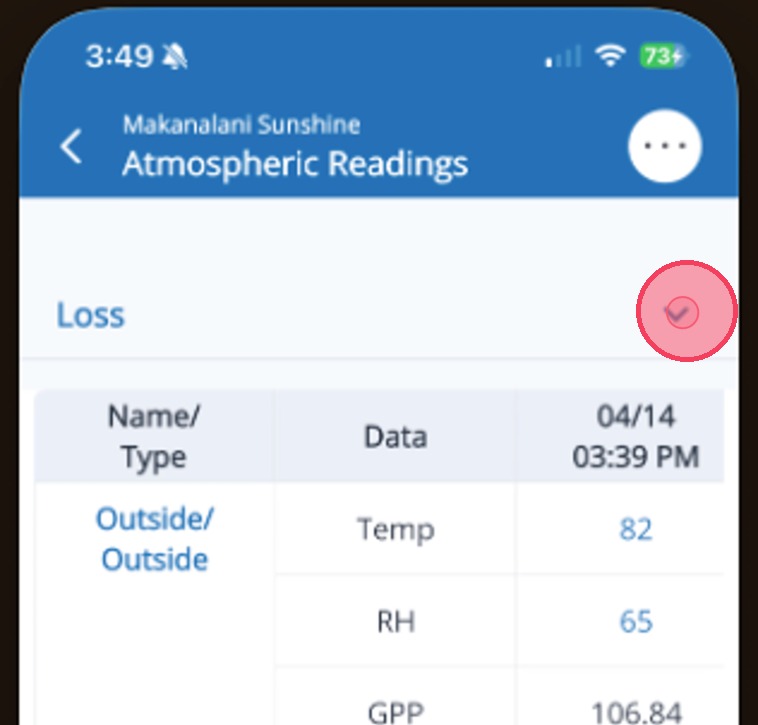
3. Select Loss from the options to enter outside and unaffected area atmospheric conditions.
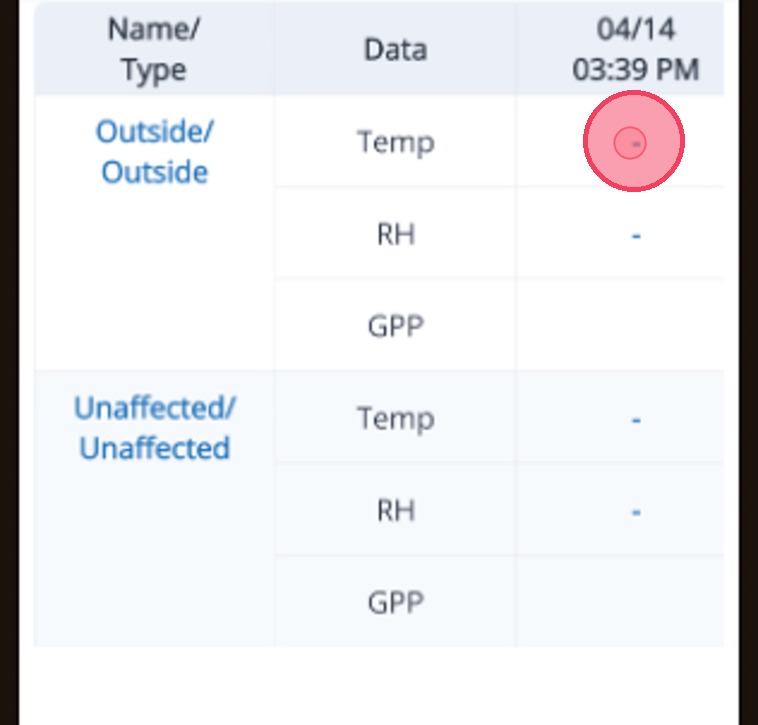
4. Tap into the Temp field to enter the current outside temperature.
5. Use the keyboard to enter the temp and then tap into the RH field to enter the relative humidity.
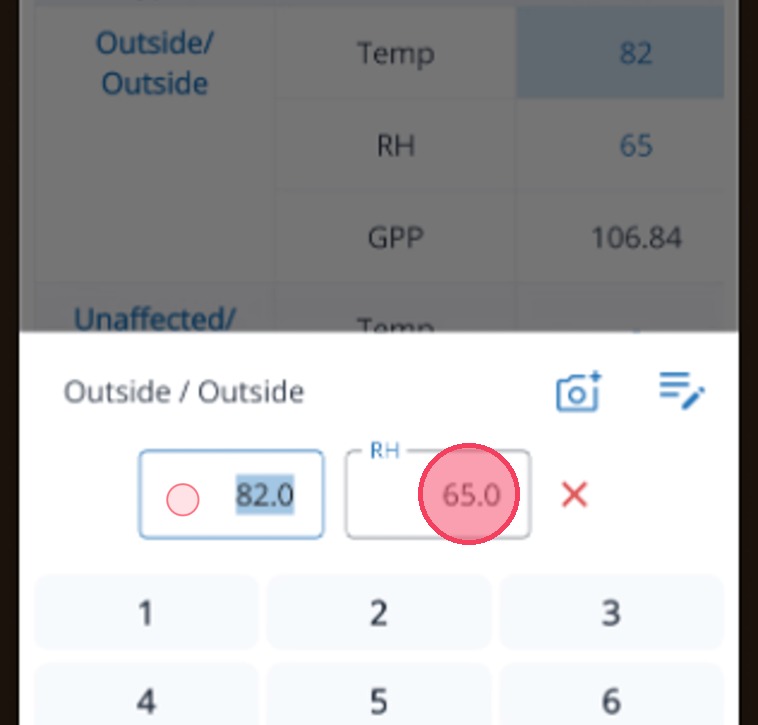
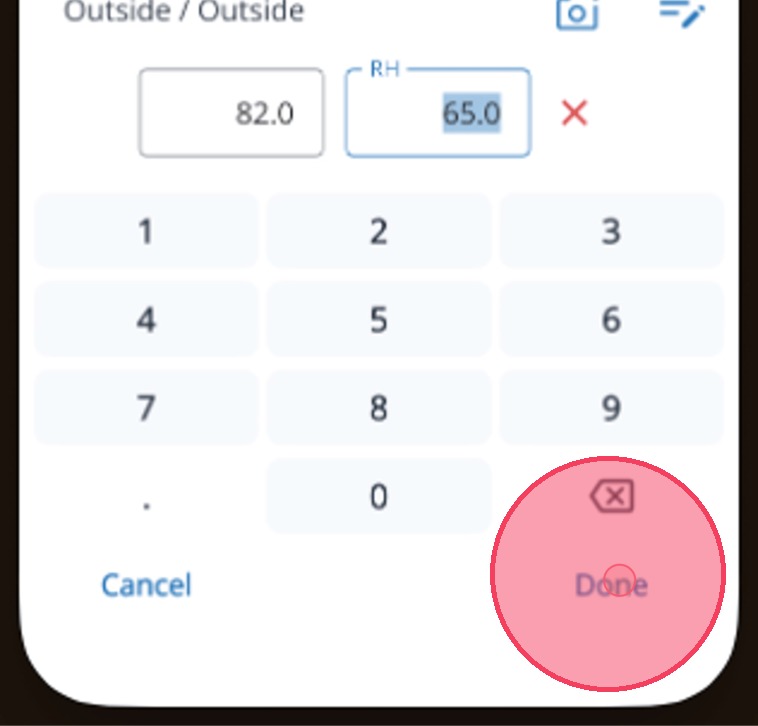
6. Tap Done to record the data.
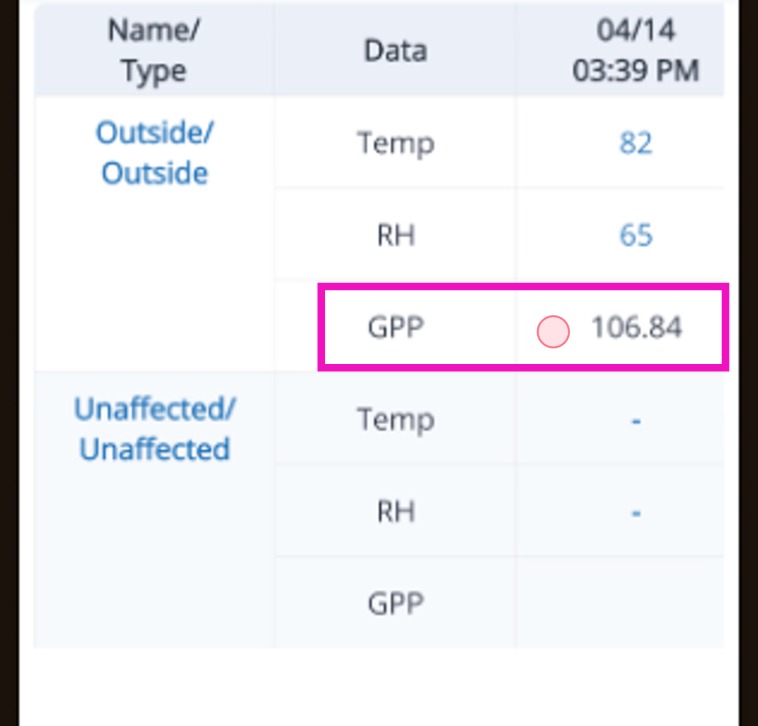
7. Mitigate will automatically calculate the GPP (Grains Per Pound).
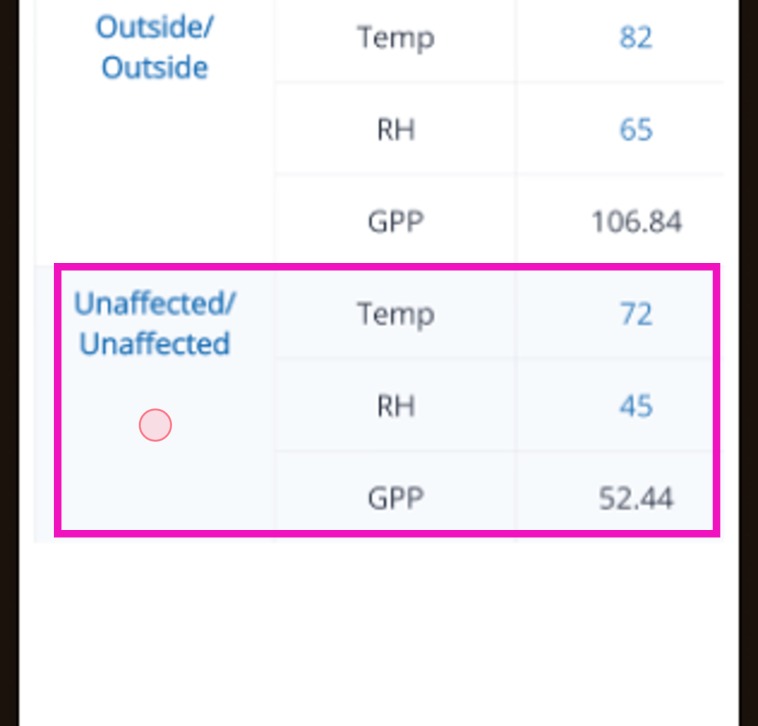
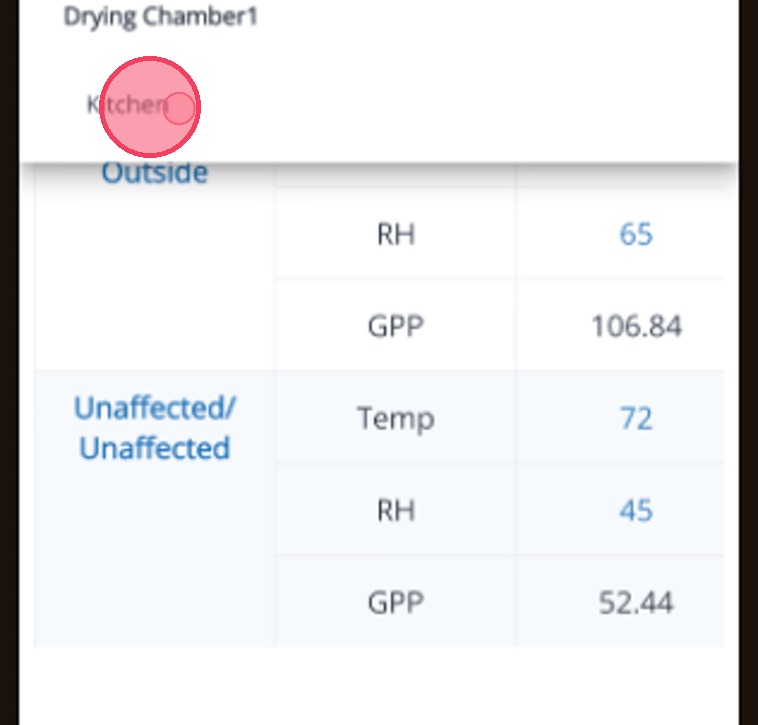
8. Repeat these steps for the Unaffected area inside the home. An example would be the Living Room since the Kitchen is where the damage occured.
9. Now we need to record the atmospheric conditions in the Kitchen. Tap the caret to locate the room.
10. Tap the room to select it.
11. Enter the inside temperature and the RH for the affected room.
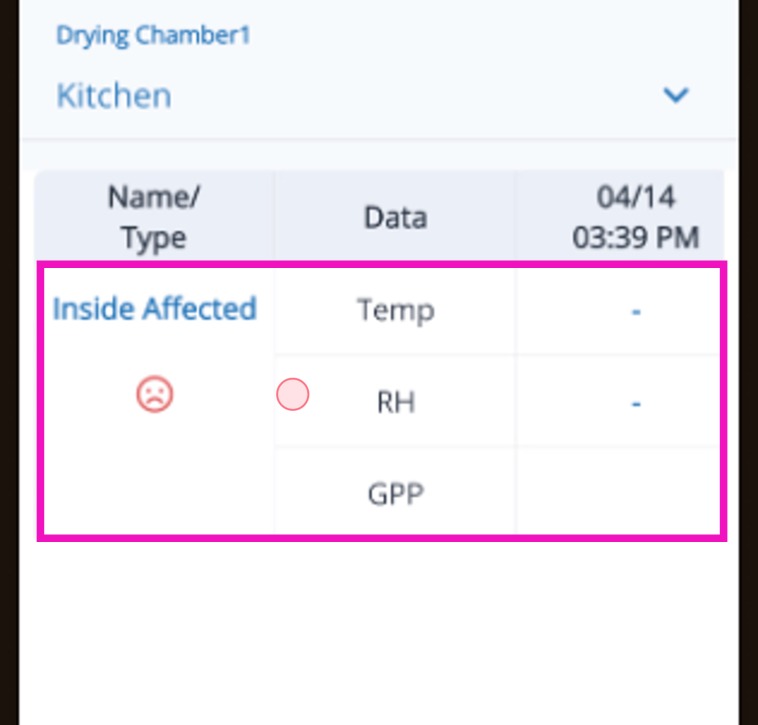
Tip: With this step complete, all atmospheric conditions for the current trip have been recorded, and the app saves your entries automatically as you go.