This document provides step-by-step instructions on syncing data.
Tip: How to Pull Data from the Cloud (Syncing)
When you are heading out for a Day 2 monitoring visit, you do not need to re-download the entire loss. Instead, you should sync it to ensure you have the most up-to-date information before you arrive on-site.
Let's learn more about the steps required to sync data:
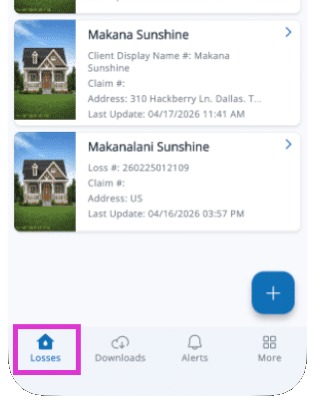
1. Access the My Losses screen in the Mitigate app to view your job list. This is normally the screen you see when logging in. If you are already in the app, you can tap on the Losses icon to return to this screen.
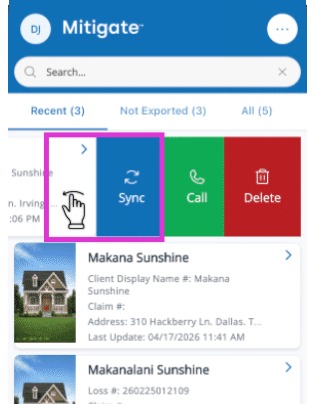
2. Find the job to sync and swipe left to reveal options.
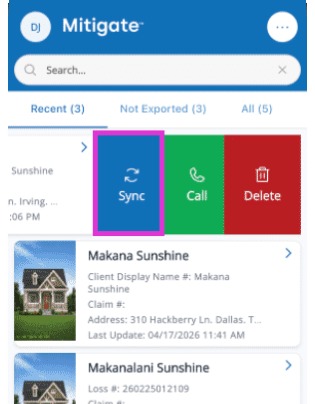
3. Tap the Sync button to start updating your data.
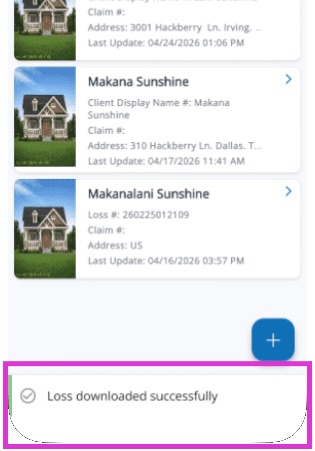
4. Wait for the spinning wheel to finish as updates are applied. When complete, you will see the notification at the bottom of your screen.
Tip: Now that your data is updated, you can confidently proceed with setting up your monitoring visit.