
Question
- How do I add moisture readings in Mitigate™?
- How do I add moisture point locations in Mitigate™?
- How do I enter my meter readings in Mitigate™?
Answer
Mitigate™: Moisture Readings
This document provides a step-by-step guide on how to use the Mitigate™ mobile app to record moisture readings, including adding locations, selecting materials, and entering meter information.
Build Assembly
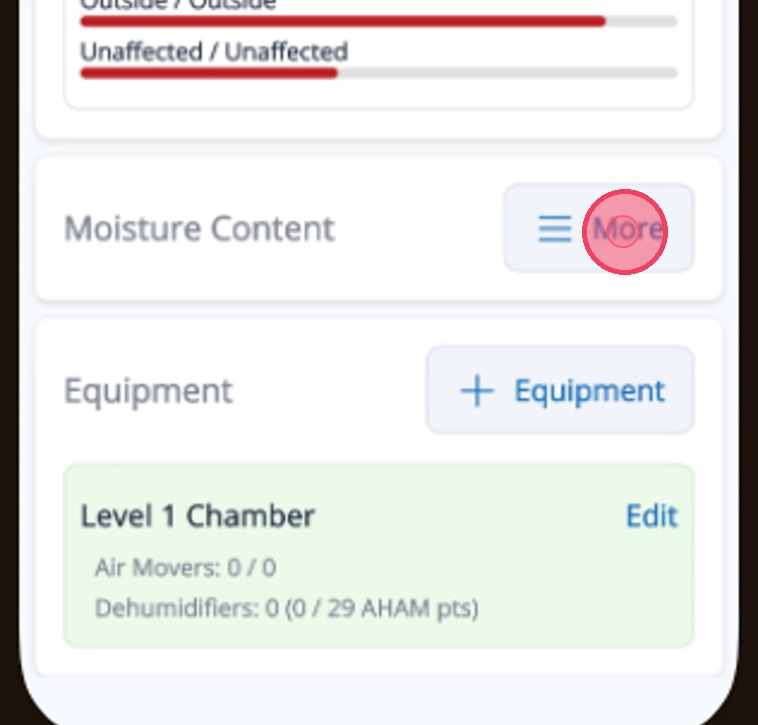
1. Start by tapping More on the Moisture Content card to add a moisture reading.
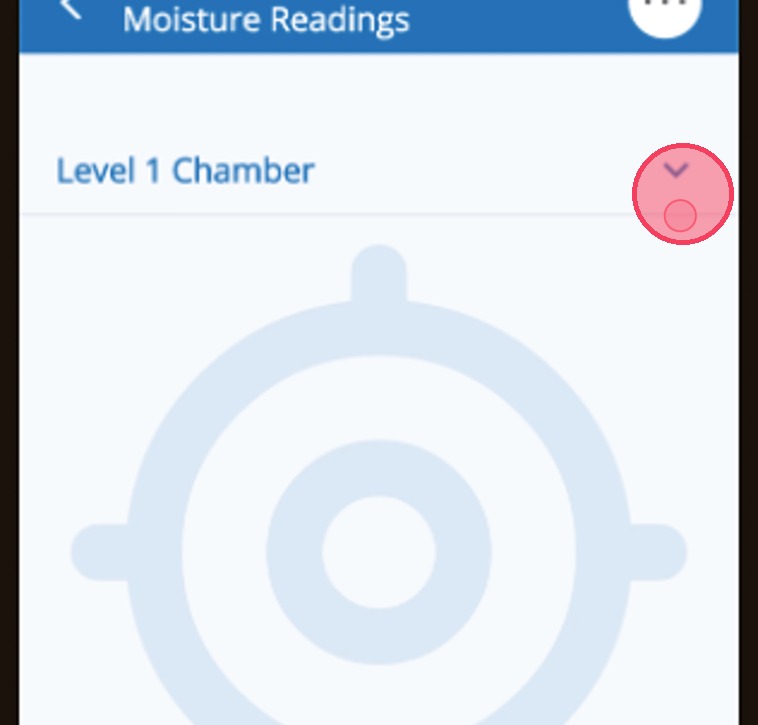
2. Tap the caret to see a list of rooms.
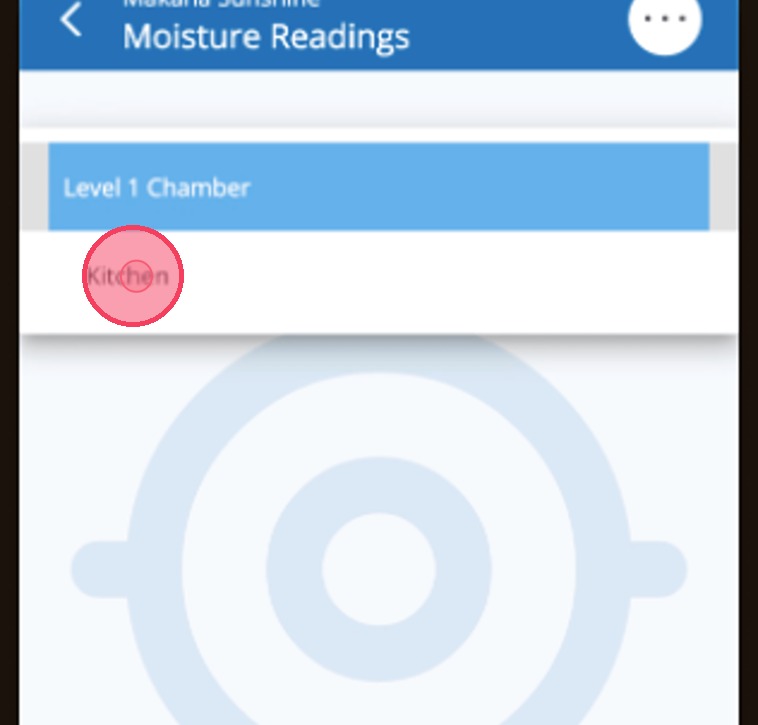
3. Select the room where you want to add a moisture reading location.
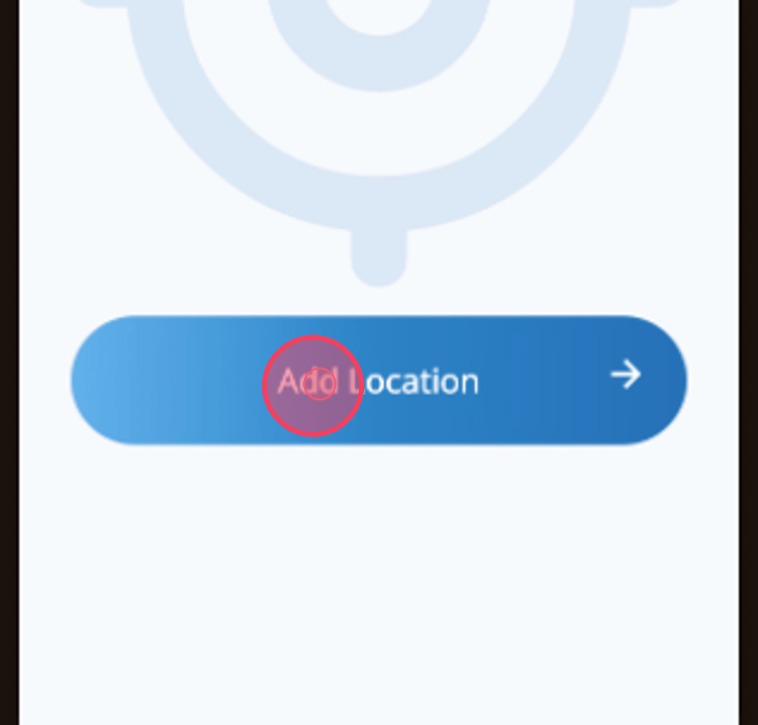
4. Tap Add Location.
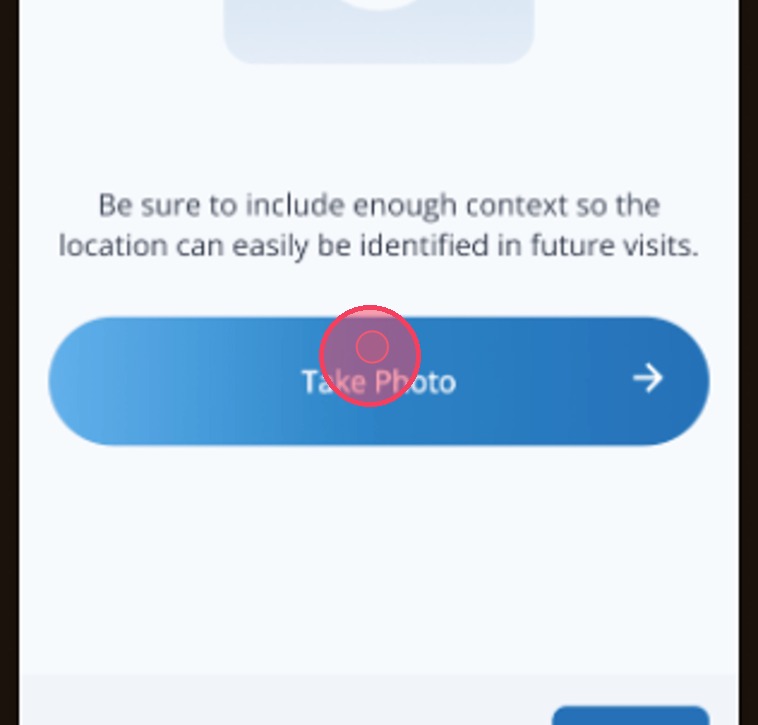
5. Tap the Take Photo button to open your device’s camera, then take a photo of the damaged location and the affected material.
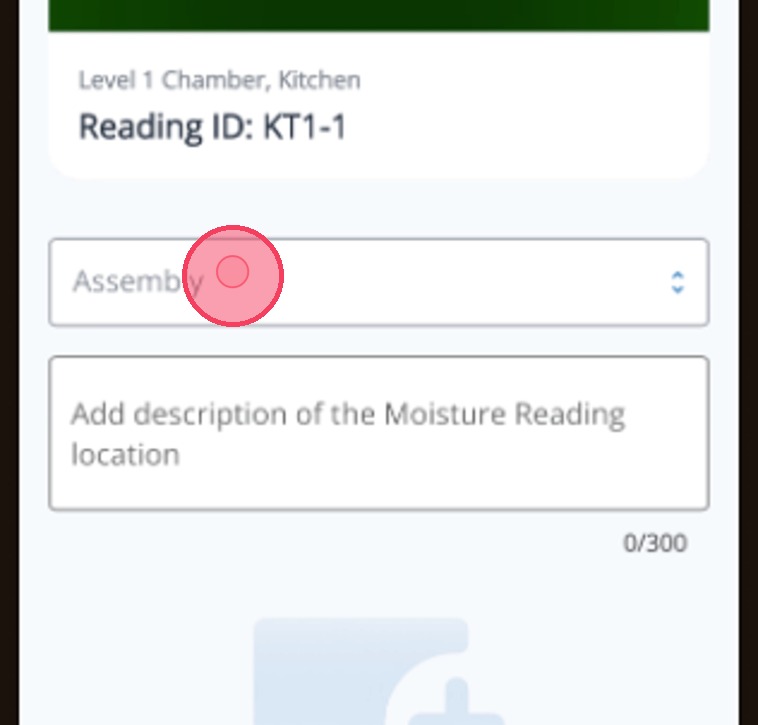
6. 6. After capturing the photo, tap the Assembly field to select an assembly type.
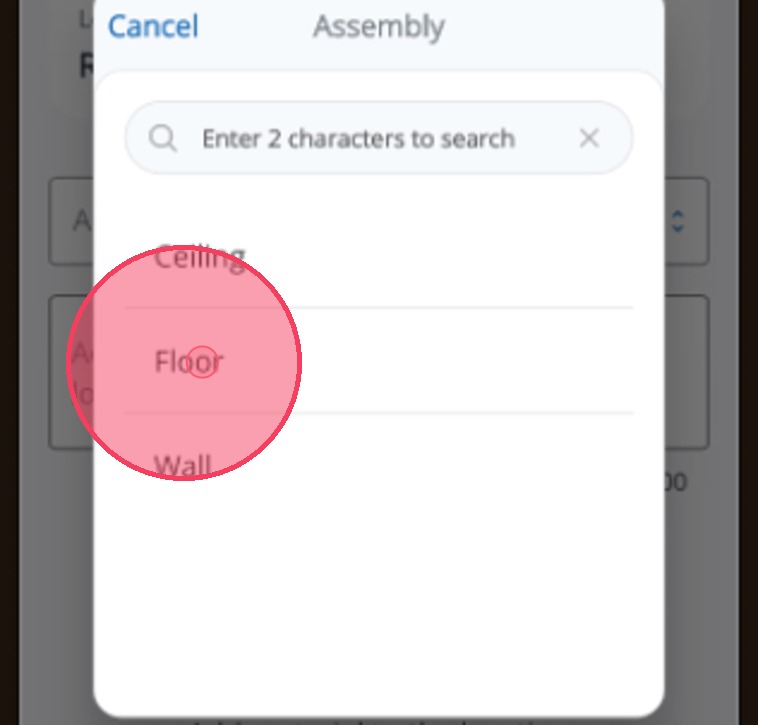
7. Tap on one of the assembly options to start building your assembly.
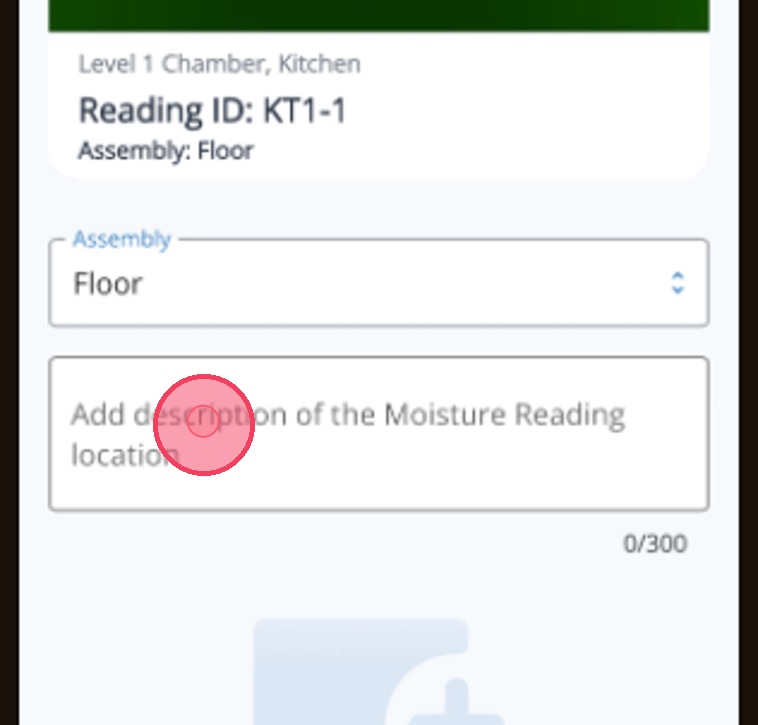
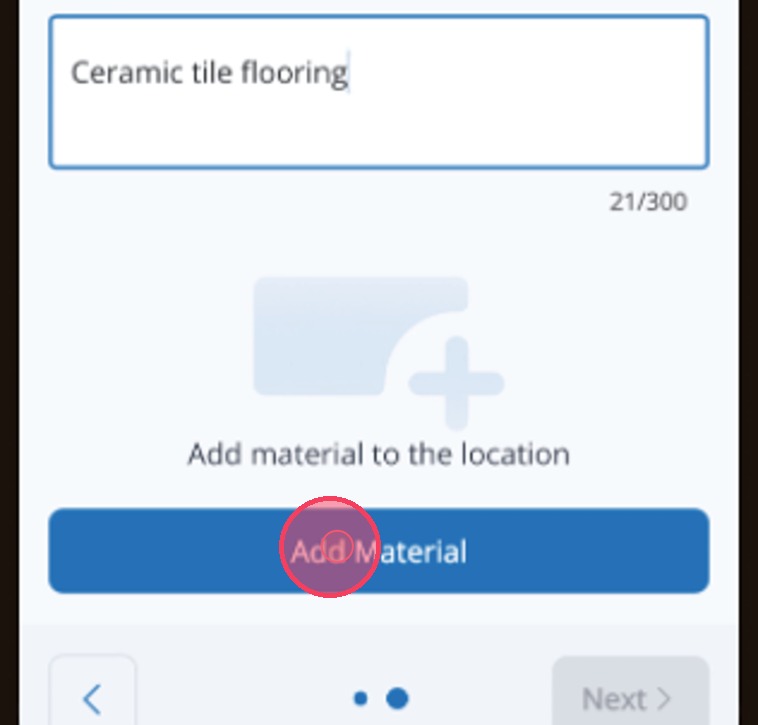
8. Enter a description of the materials and condition of the area you are obtaining the moisture readings.
9. Tap the Add Material button. You want to include only material where you are obtaining readings.
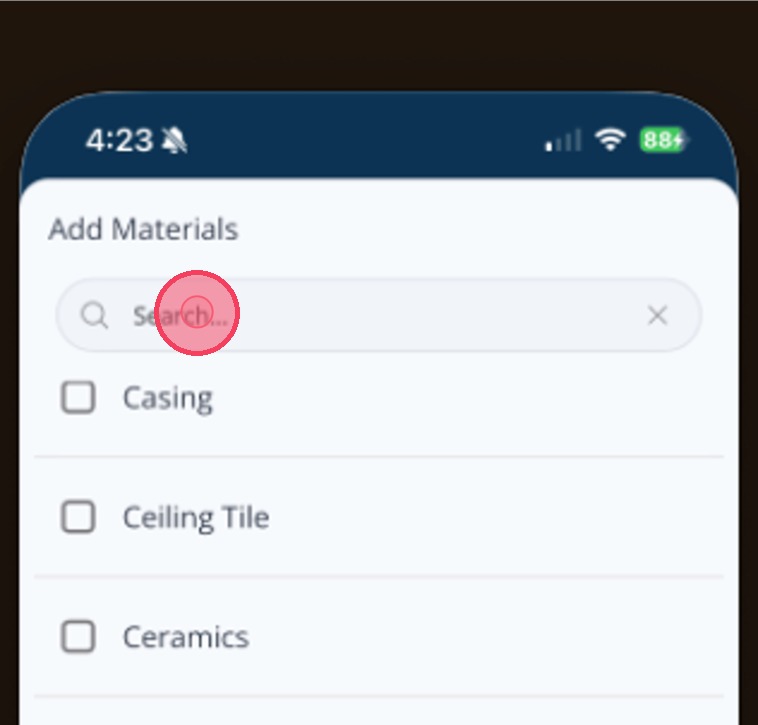
10. Tap the materials you need from the list below. To search faster, type the first few letters of the material name.
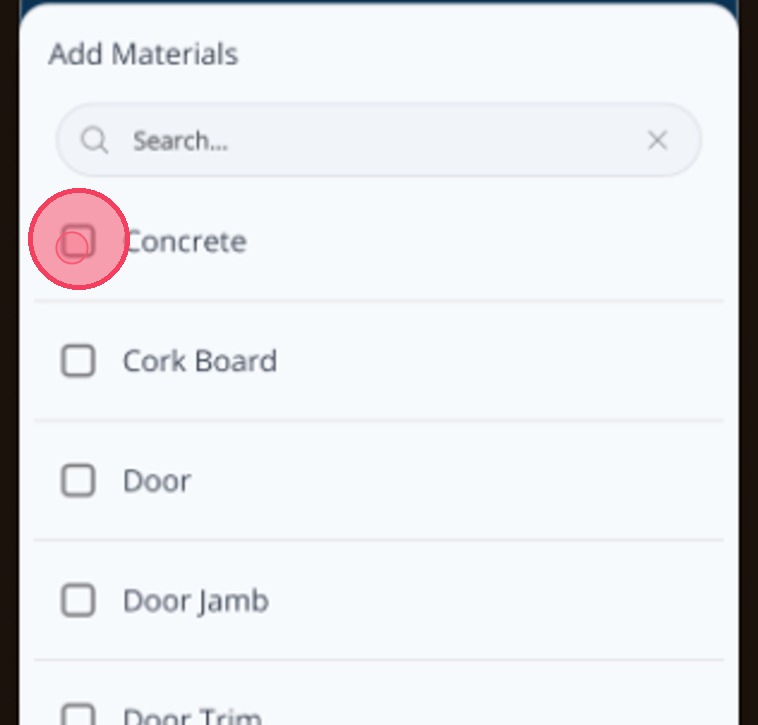
11. Once you locate the material, tap the checkbox to select it.
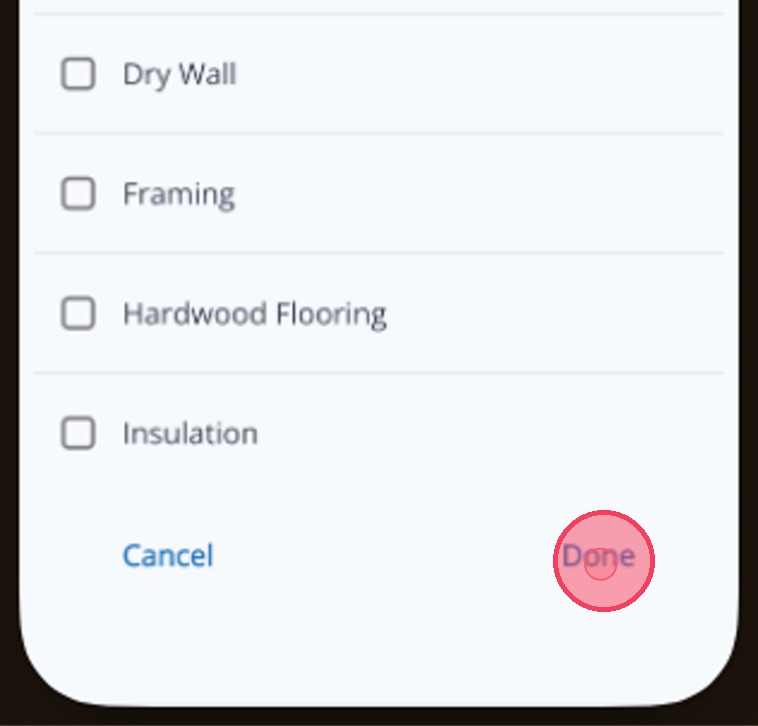
12. Tap Done.
Add Meters
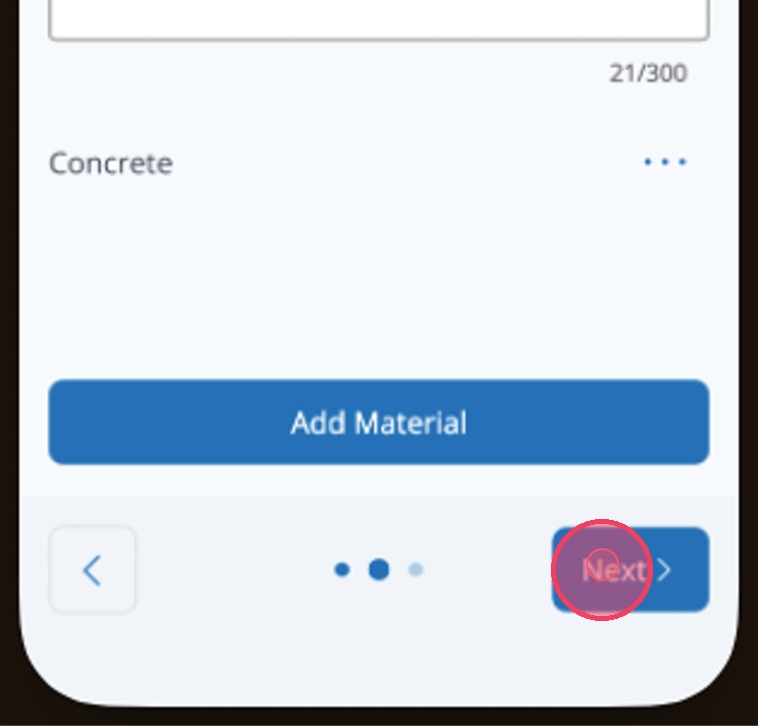
13. Tap Next to start entering your meter information and readings.
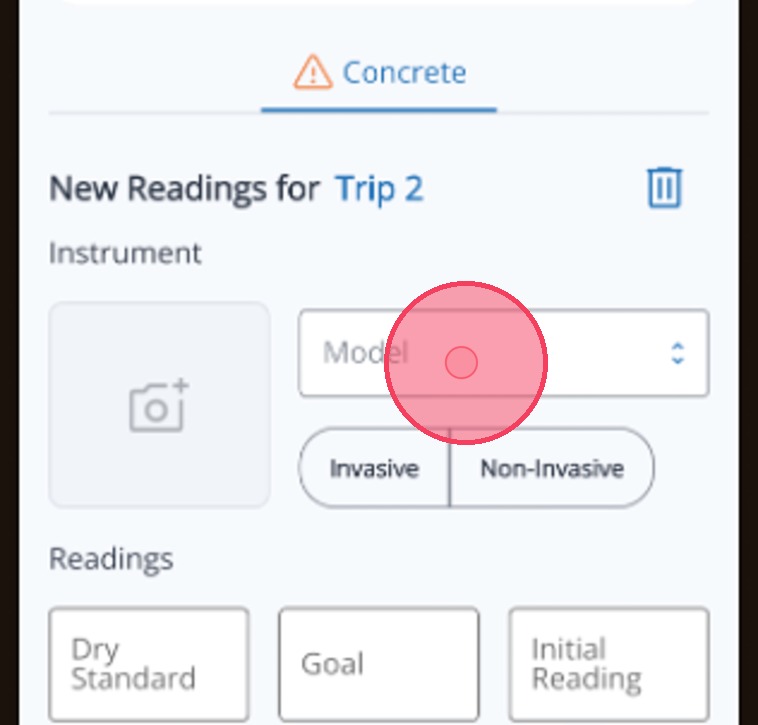
14. Tap into the Model field to select your Model of meter.
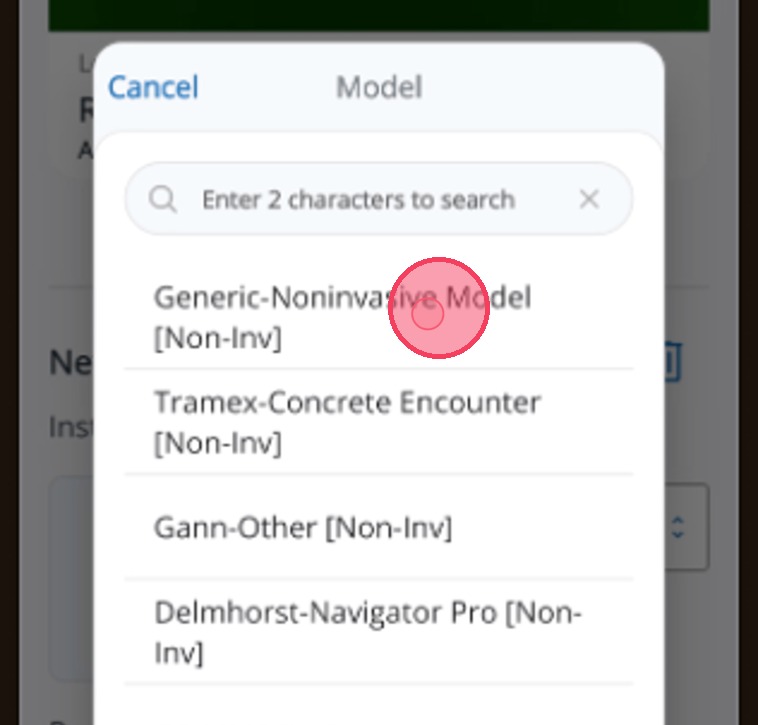
15. Tap your choice to select it.
Set Dry Standard and Add Initial Reading
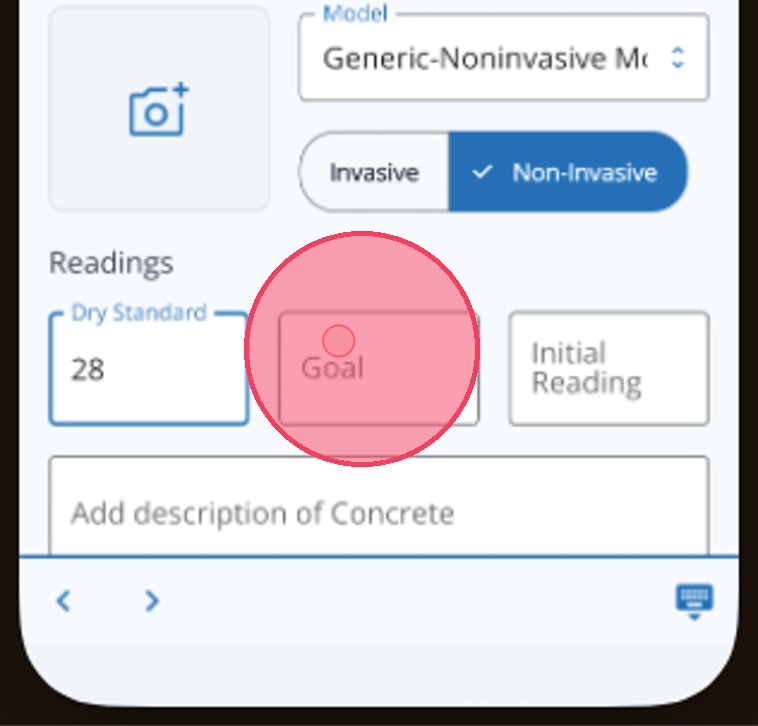
16. Enter the Dry Standard for this material.
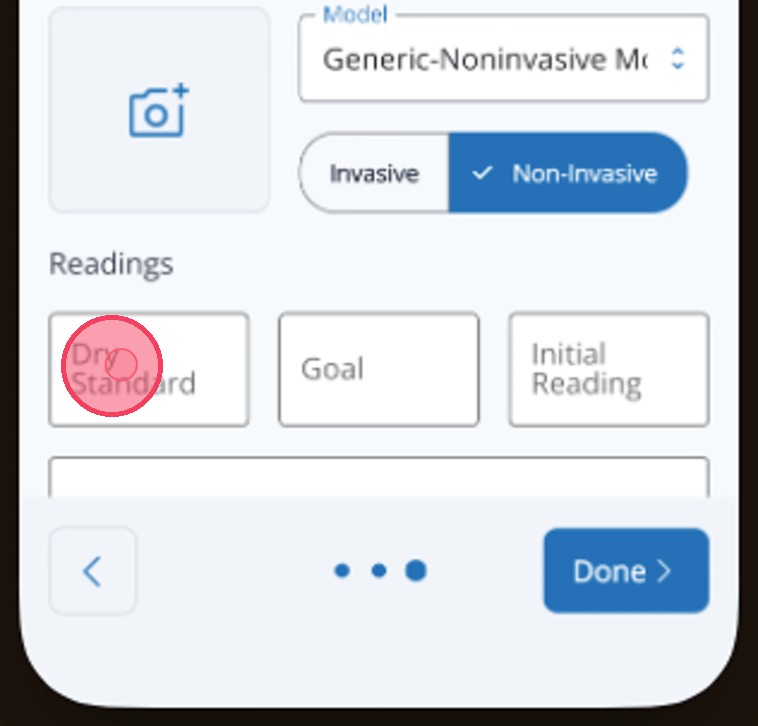
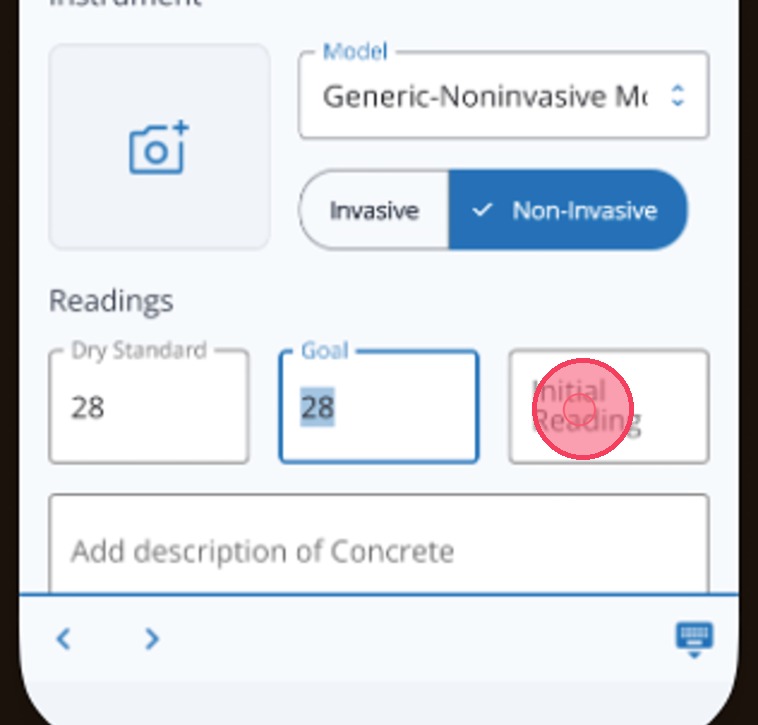
17. Tap into the Goal field and Mitigate will copy over your Dry Standard automatically.
18. Enter the current reading for the material.
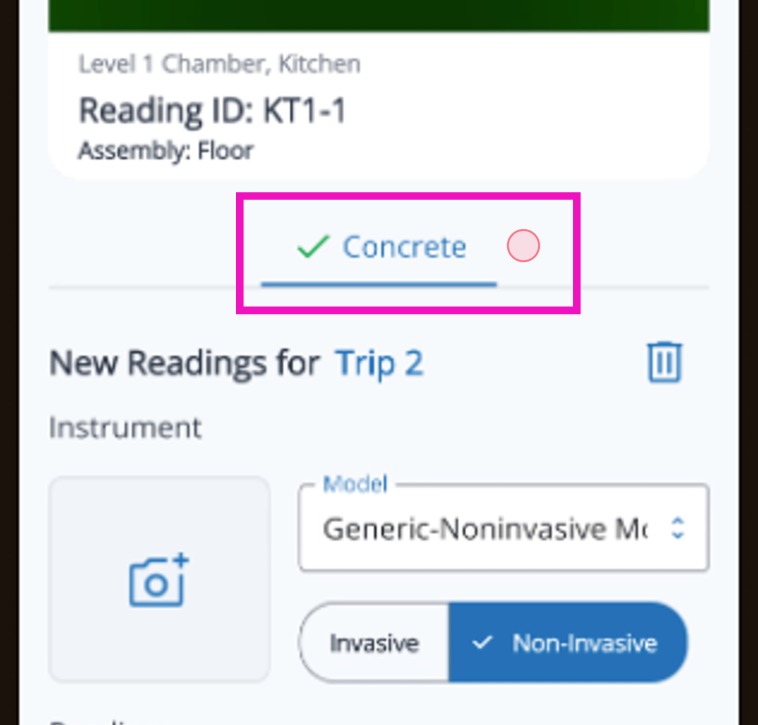
19. Once the required information is added, a green checkmark appears. If there are other materials in the location, you can tap on those to move to the next material.
20. Tap Done when you have finished recording data for each layer of material.
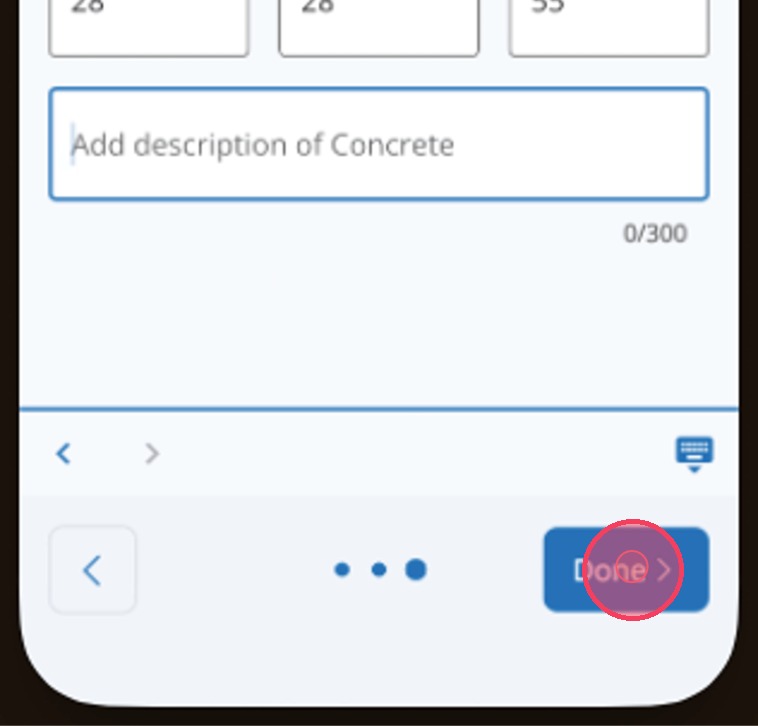
Tip: This concludes the process for adding the initial moisture reading in Mitigate.
Questions? Contact Us!