Mitigate: Manually Create a Chamber and Assign Rooms
Follow these steps to create and organize chambers effectively.
1. Locate the Chambers Section
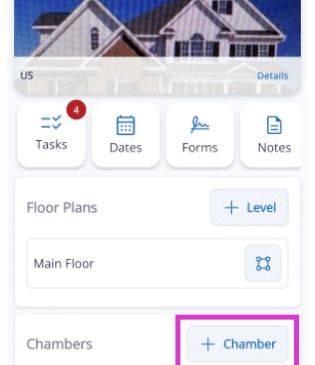
Navigate to the project summary screen and find the Chambers card. This section allows you to view existing chambers or begin creating a new one
2. Add a New Chamber
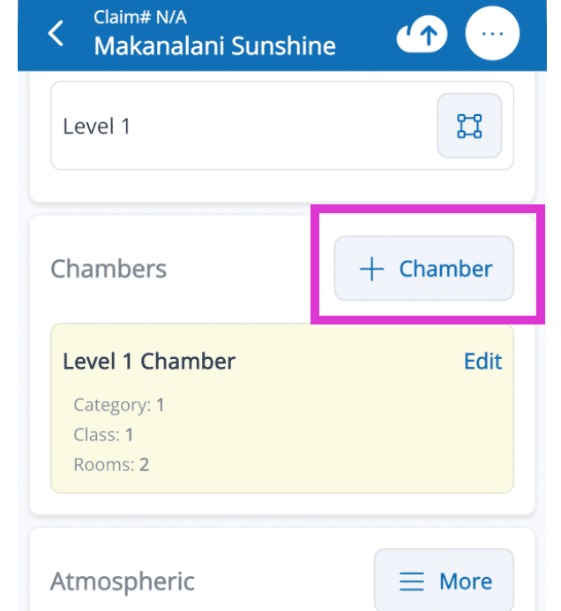
Select the + Chamber button to create a new drying chamber for your project. This is necessary if the automatically generated chambers do not meet the specific needs of the job site.
3. Edit Chamber Details
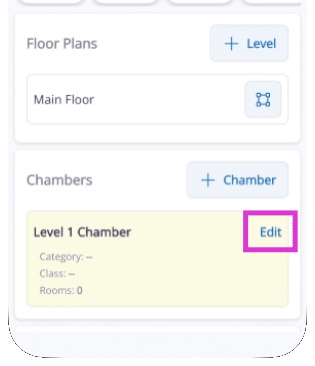
Tap the Edit link to define the room assignments.
4. Assign Rooms to Chambers
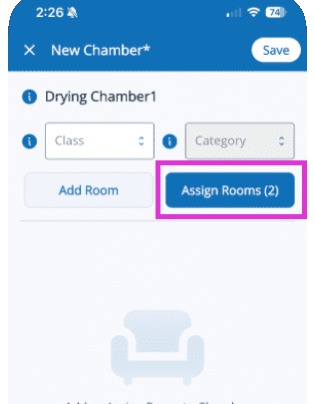
Tap the Assign Rooms button within the chamber menu. Select the specific rooms you want to group together for this drying zone to ensure accurate equipment calculations and atmospheric tracking.
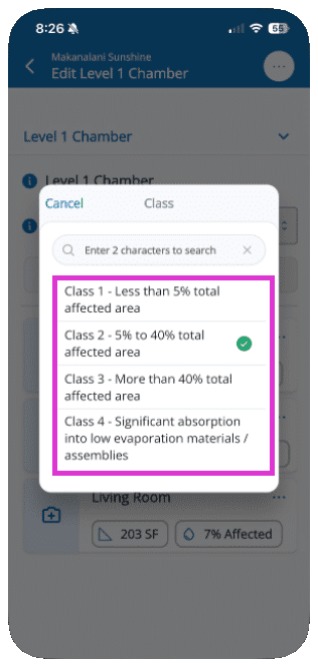
5. Define Damage and Class
Once rooms are assigned, choose the appropriate Class of the loss. This ensures proper resource allocation for the entire chamber.
Tip: That completes the process for manually creating a chamber and assigning rooms.