
Question
- How do I add a Matterport link to a DASH™ job?
- How do I add a Docusketch link to a DASH™ job?
- How do I add a Hover link to a DASH™ job?
Answer
Securities
The ability to a 3D Room Model requires proper security access. To grant access to this feature:
1. Hover over Administration and click on Employee/Security Settings.
2. Click Security or Group Security. Select the employee's name (or title) in the upper-right hand corner.
3. Expand Slideboard > From the list here, you will see separate option for the three softwares. Check the desired software and Save
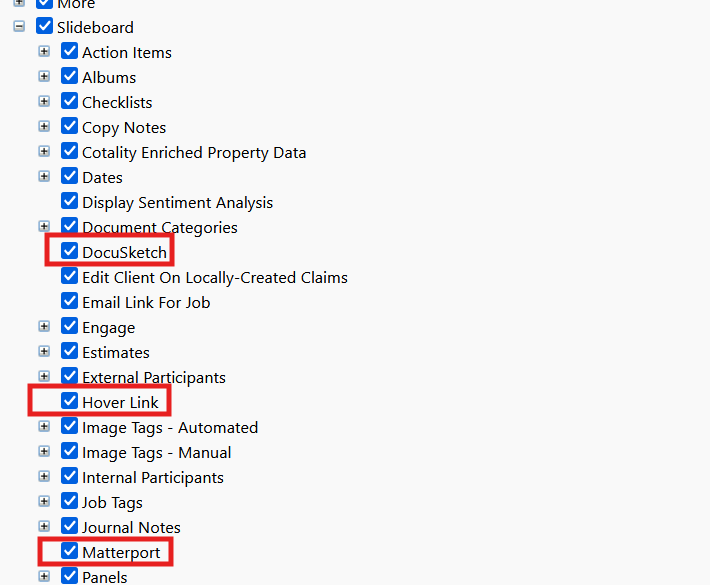
To Add a Link:
- Navigate to the job you want to link with a 3D Room Model.
- Scroll to the bottom of the Slideboard.
- Select the Photos tab > click the 3D Room Models button.

- Clicking this button will generate a popup that you can then use to input your 3D Room Model link. Click the +Link Button. Title and add the link. Click Save.
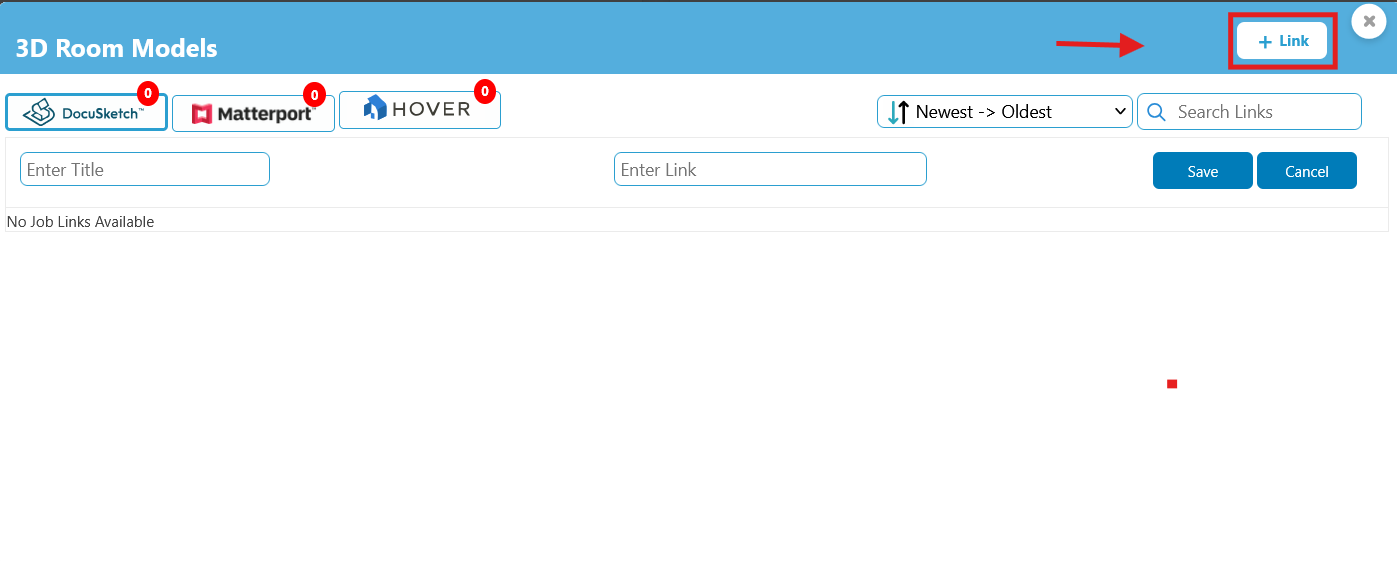
- It must be a valid link, otherwise you may receive an error that says "Please enter a valid job link".
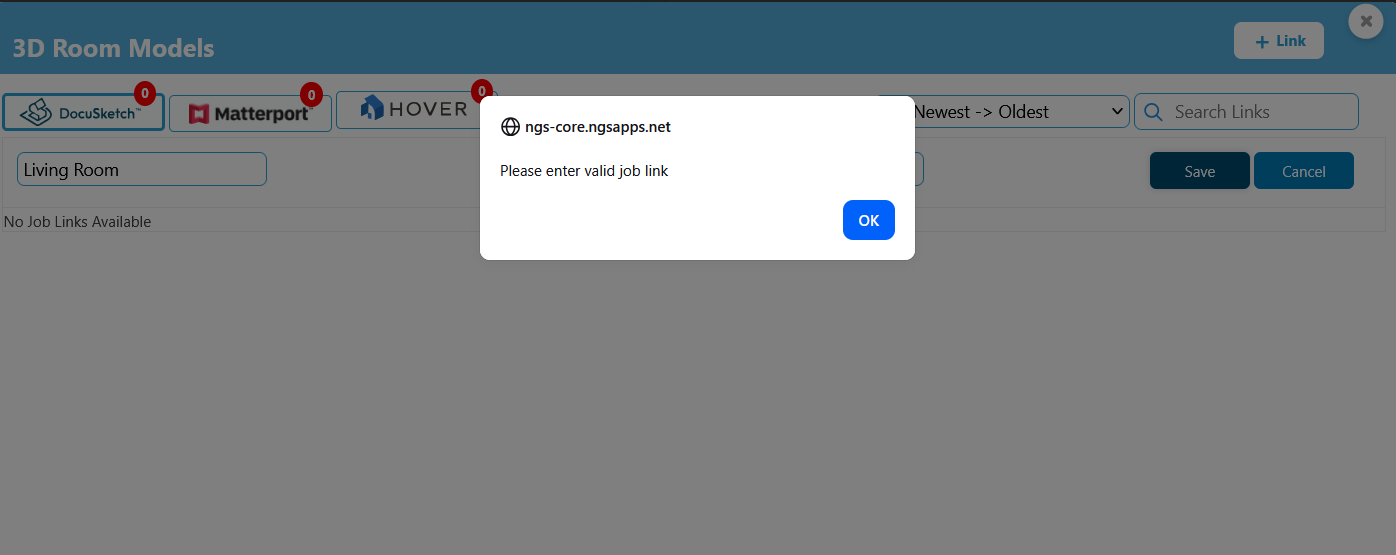
- Once a valid link has been saved, you can click the 3D Room Model button on the Photos Tab
Questions? Contact Us!