
Question
- How do I print a single Work Order?
- How to print a Purchase Order
- Can I print all Work Orders on a job?
- How do I send a Work Order to print?
Answer
To print a Work Order or Purchase Order:
- Navigate to the Job page (Slideboard)
- From the Job Slideboard, click into the WO/PO section under the Accounting Information quadrant
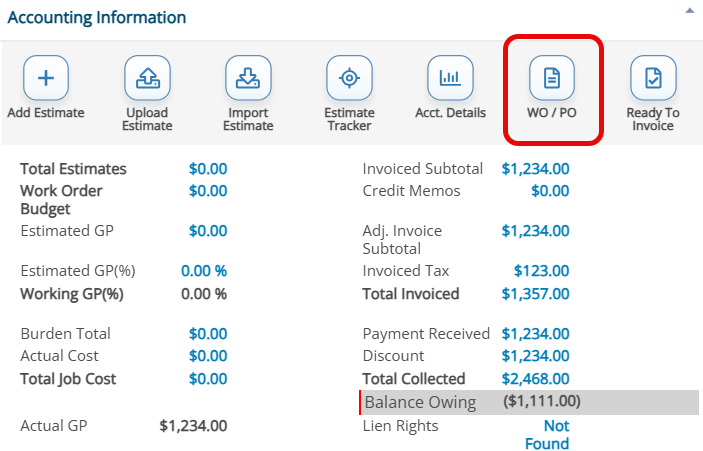
- From the Work Orders page, you have a few options for printing:
- Click Print All to print all Work Orders
- Check the box next to the orders you want and then click Print Selected Work Orders
- Click Edit on a specific Work Order and click Export
Printing Options
Once you've decided how many work orders you want to work with, there are a variety of options for printing (or exporting) work orders.
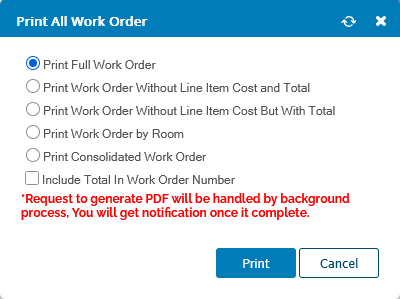
- Full Work Order: Shows each line item’s cost with a work order total at the bottom of the page.
- Without Line Item Cost and Total: Prints without each line item cost and without an ending total.
- Without Line Item Cost But With Total: Prints without each line item cost, but does print an ending total.
- By Room: Groups all line items by Room. If you chose this format, you will have the option to select one of the options listed above in the next step.
- Consolidated Work Order: Totals include Material, Labor, Equipment, and Adjustments consolidated into one line item view.
Questions? Contact Us!