How to annotate photos on the Mitigate mobile application?
How to add tags to photos?
Answer
Mitigate™ | Adding and Annotating Photos
Learn to add and annotate photos within the Mitigate™ platform, enhancing your project documentation. Upload images, tag them for better organization, and add visual annotations for clarity.
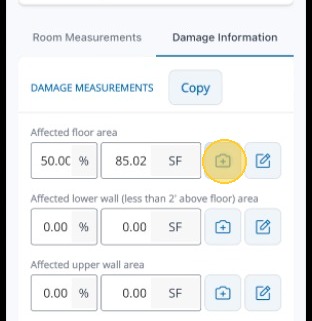
1. Add photos anytime you see a camera icon.
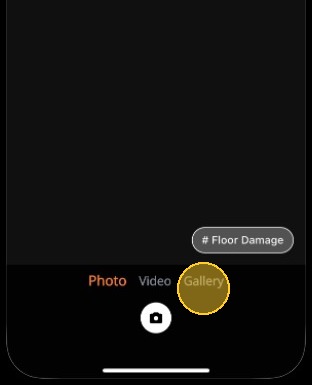
2. Take a photo or video or upload from your phones Gallery.
3. Select the photo to add.
4. Tap the Add button.
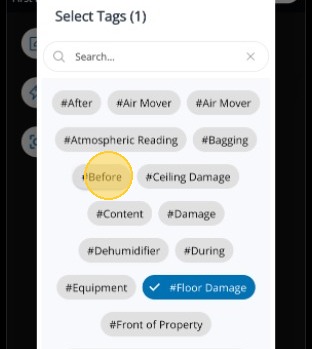
5. Add additional tags if you want.
6. Tap tag(s) to add it.
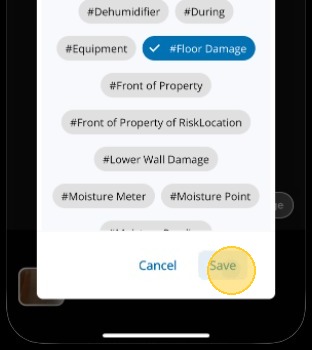
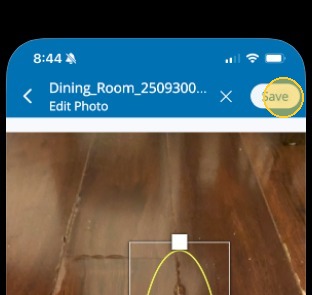
7. Tap Save to add the tags to the photo.
8. Tap Done to finish adding the photo.
Add Annotations
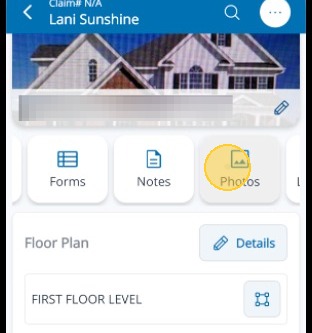
9. Tap the Photos Card from the Snapshot view of the job.
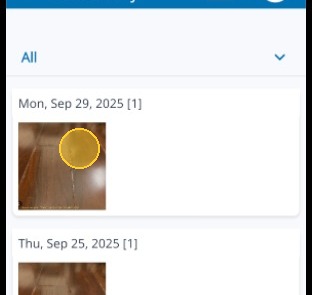
10. Tap a photo to select it
11. Tap the Annotate icon in the top right of the screen.
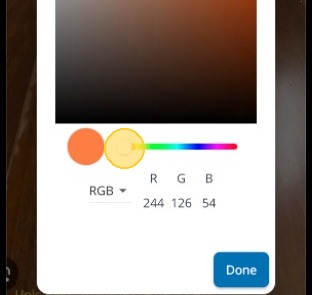
12. Tap the color pallette to change the color of the annotations.
13. Select a new color.
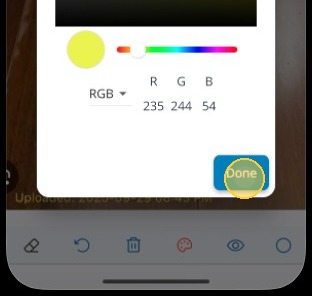
14. Tap Done.
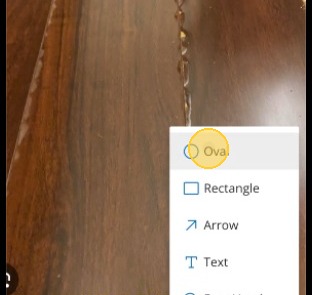
15. Tap the Shape icon in the bottom right to select a shape.
16. Select the shape you want to use.
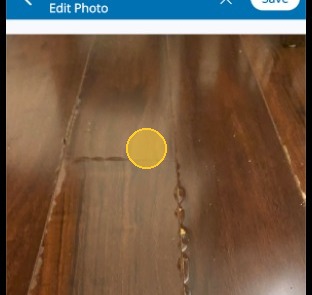
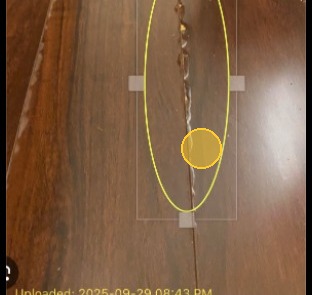
17. Use your finger to place the shape on the image.
18. You can use your finger to move and adjust the shape after it is added.