Question
- What are the steps to creating a trip?
- How do I create a new trip?
Answer
Questions? Contact Us!
Mitigate: How to Create Trips
Follow this guide for creating your first trip and monitoring visits in the Mitigate app. Documenting your first trip sets you up for a successful job lifecycle.
The First Trip
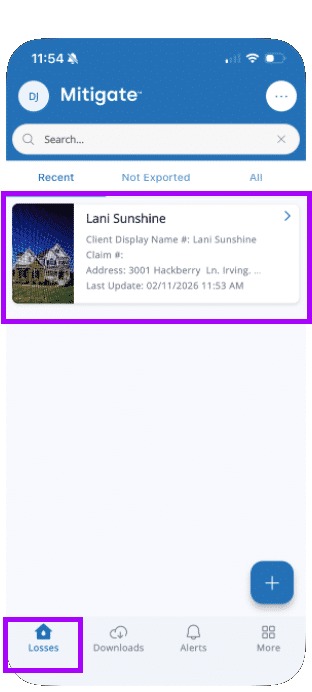
1. Access the Job
After logging into the app, locate your job on the Losses screen and tap on it.
2. Create First Trip
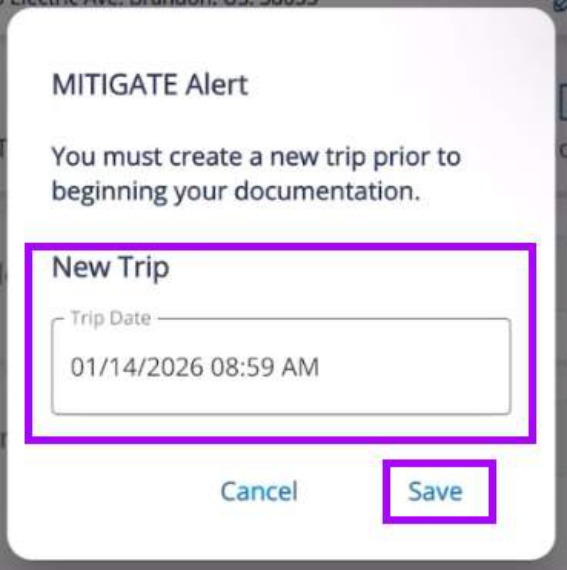
For downloaded jobs: Mitigate will alert you to create a new trip. Make sure the date and time are correct and tap Save.
Create new job: The app automatically records your new trip as the date/time you created the job.
Monitoring Visits
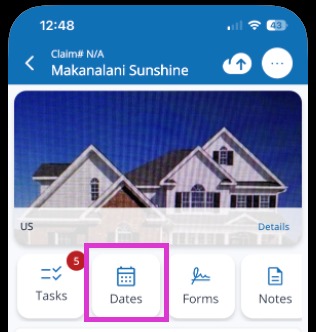
3. Open the Dates Tab
Go to the Dates tab in the Mitigate app to begin logging your trip.
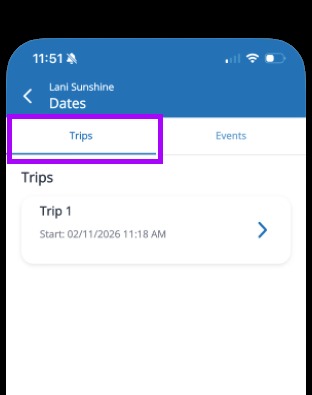
4. Select the Trips Tab
Ensure the Trips tab is active. If not, tap it to proceed.
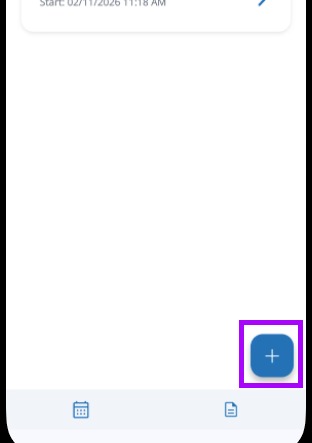
5. Add a New Trip
Tap the Blue Plus Sign icon in the bottom right to add a new trip.
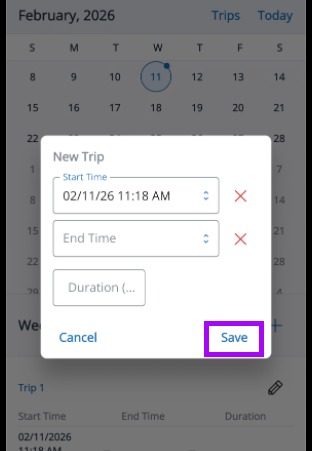
6. Confirm the Start Date and Time
The current date and time will populate. You can edit this information if needed.
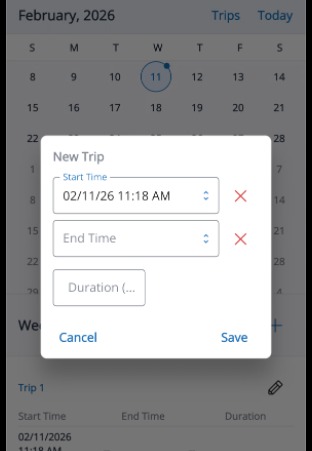
7. Save the Trip
Tap Save to finalize and confirm the trip is recorded.