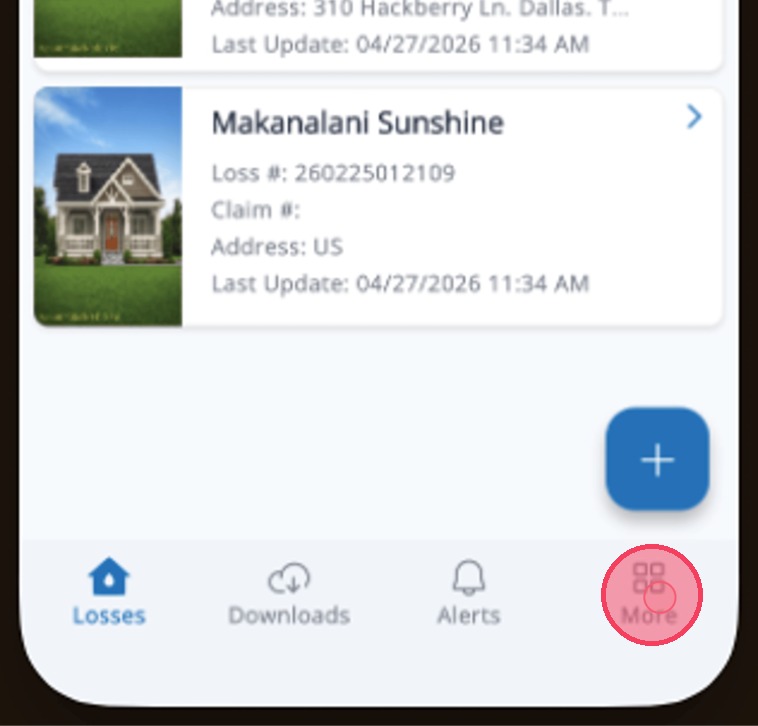
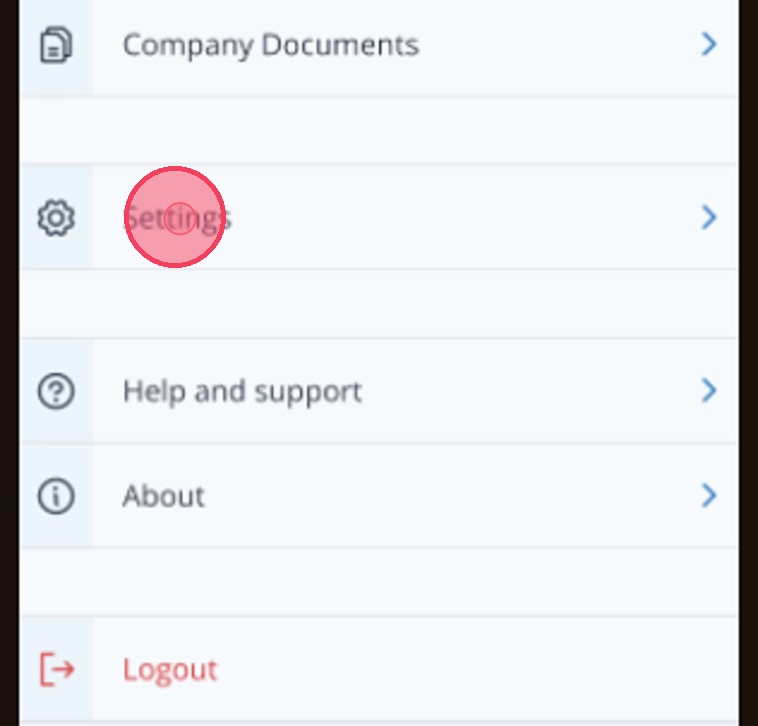
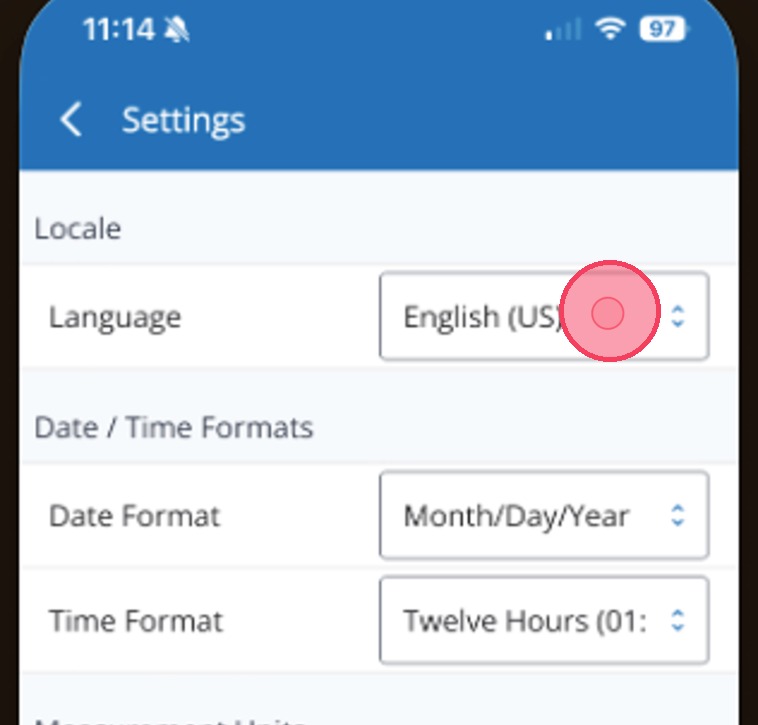
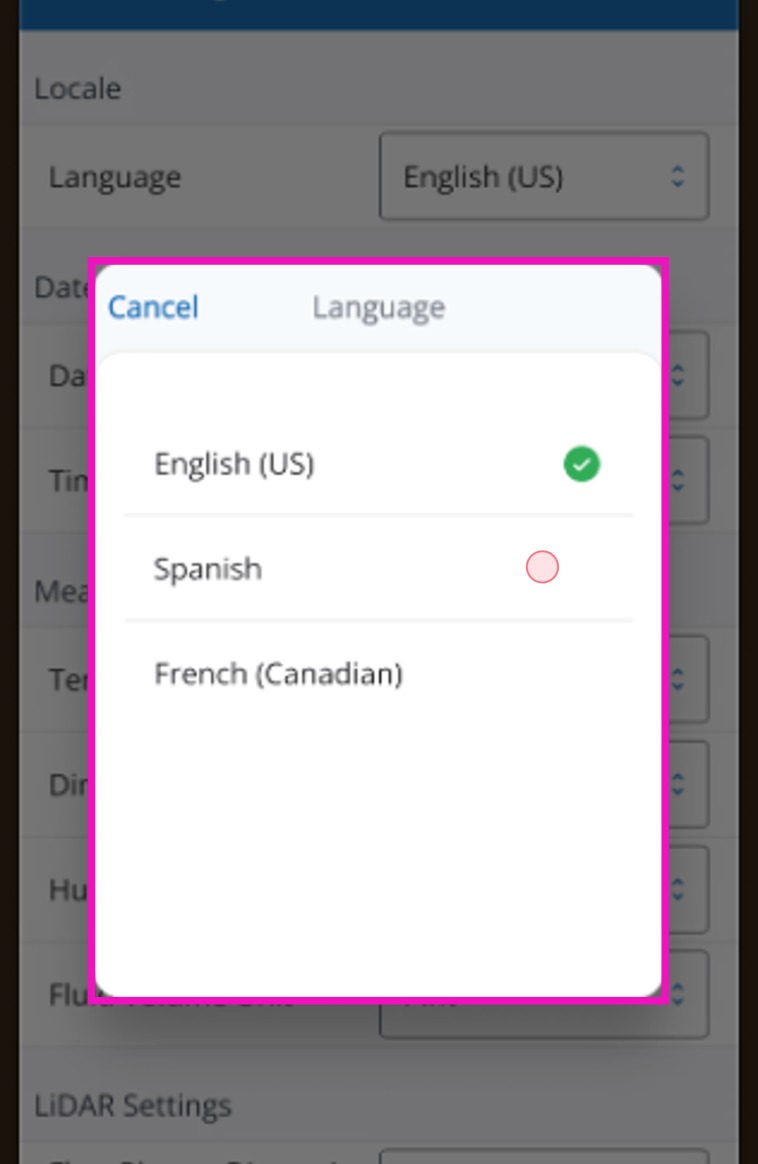
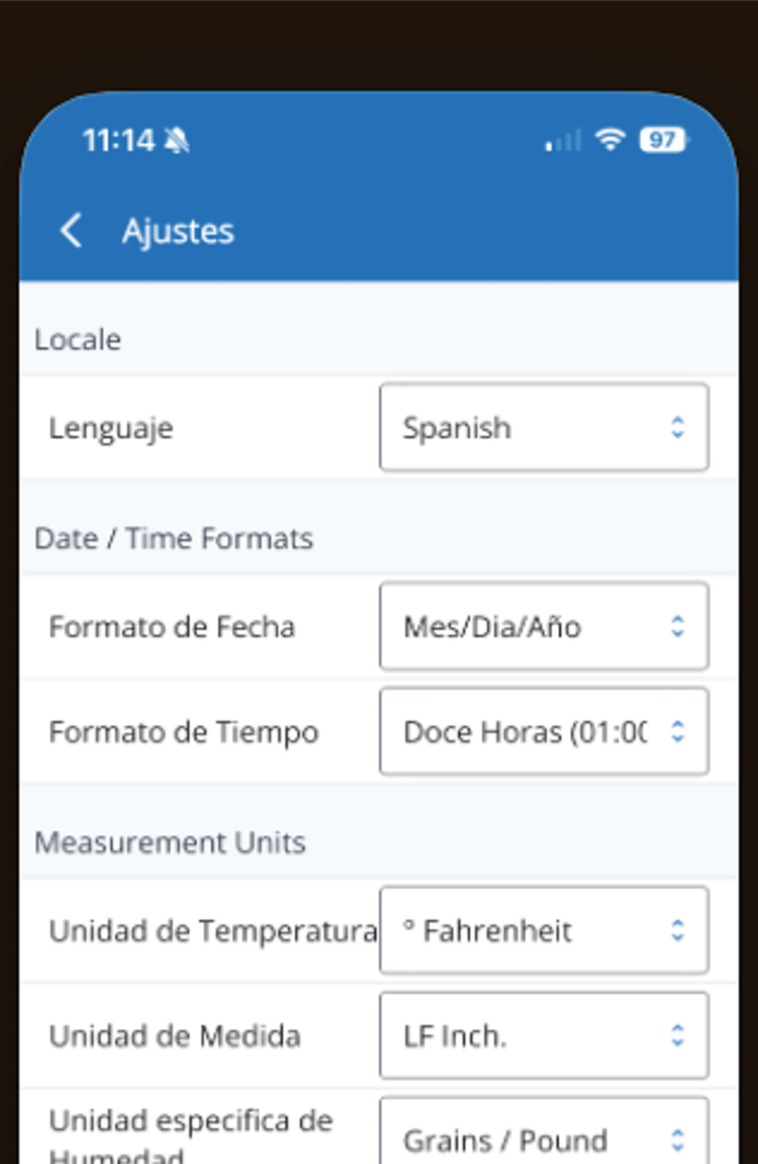
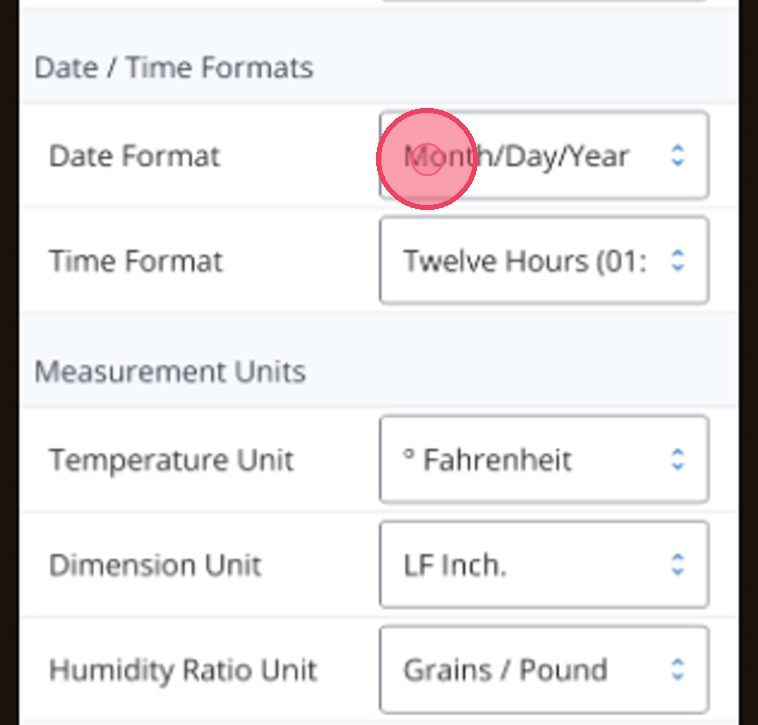
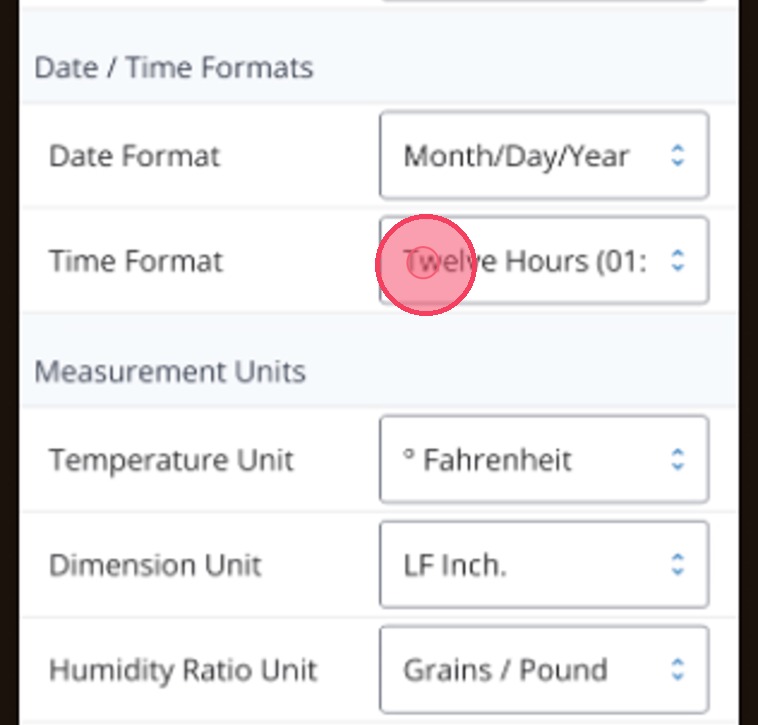
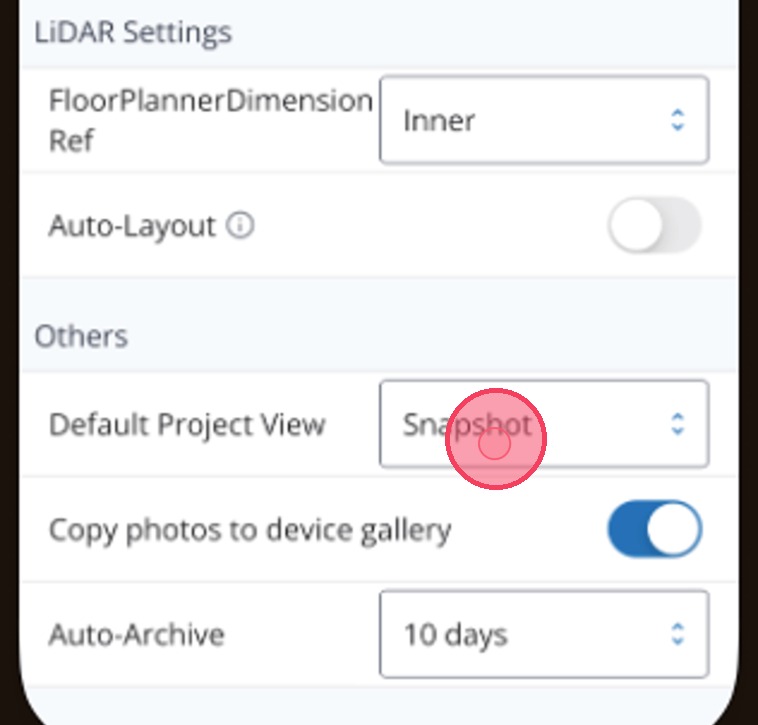
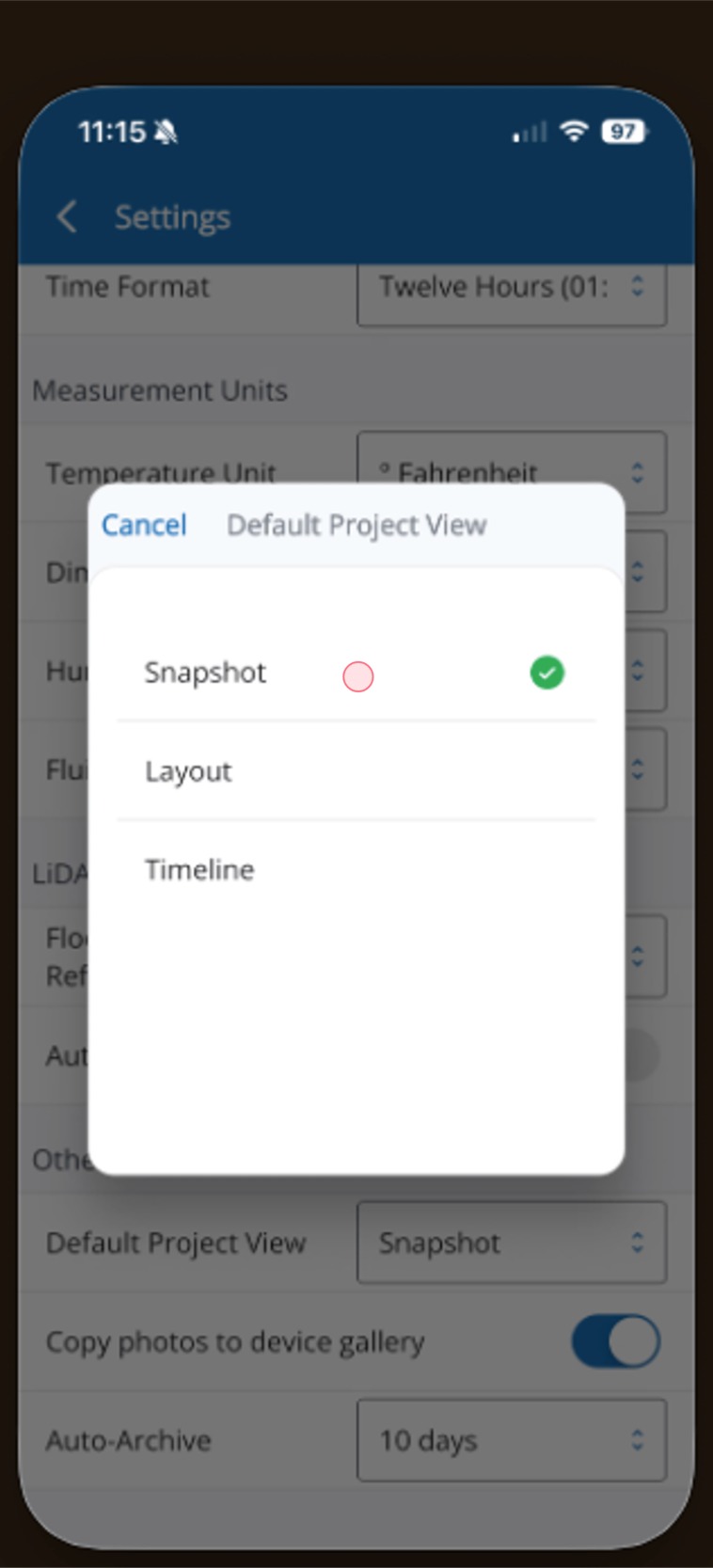
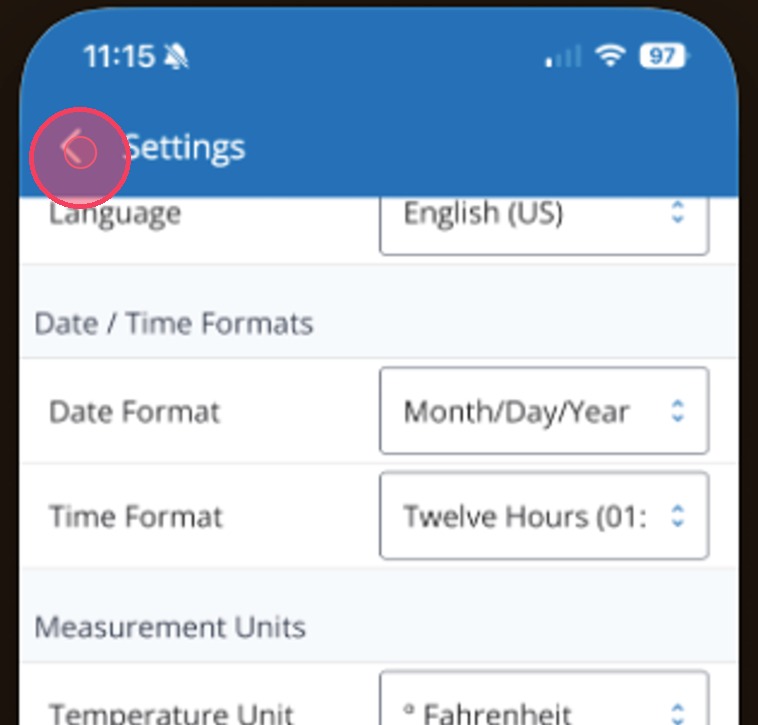
Mitigate: Managing App Preferences Modified on: Wed, 20 May, 2026 at 9:05 AM QuestionHow do I change the unit of measurement in Mitigate?Where do I change the language in Mitigate?Can the Default Project View be changed in Mitigate?Where do I go to change the time format in the Mitigate app?AnswerMitigate: Managing App PreferencesFollow this guide for managing your app preferences such as language, date and time and unit measurements, and default project view.1. Start by tapping More. This is where you’ll access your settings.2. Open Settings to manage language, date, time, unit, and default display preferences.3. Tap the Language drop‑down to choose a new language.4. Select your preference from the list by tapping on it.5. The app updates automatically in the new language.6. Select a Date Format from the menu to adjust how dates appear.7. Select a Time Format from the menu to adjust how times display.8. Adjust how measurements display for temperature, dimensions, humidity, and fluids. Tap each field to view the options.9. Scroll down and tap into the Default Project View field to update your project view when you log into the app.10. Tap an option in the list to change your view and the app saves your preference automatically.11. All changes save automatically. Tap the Back button to return to the main menu.Tip: This completes the process for updating preferences in the Mitigate application.Questions? Contact Us!