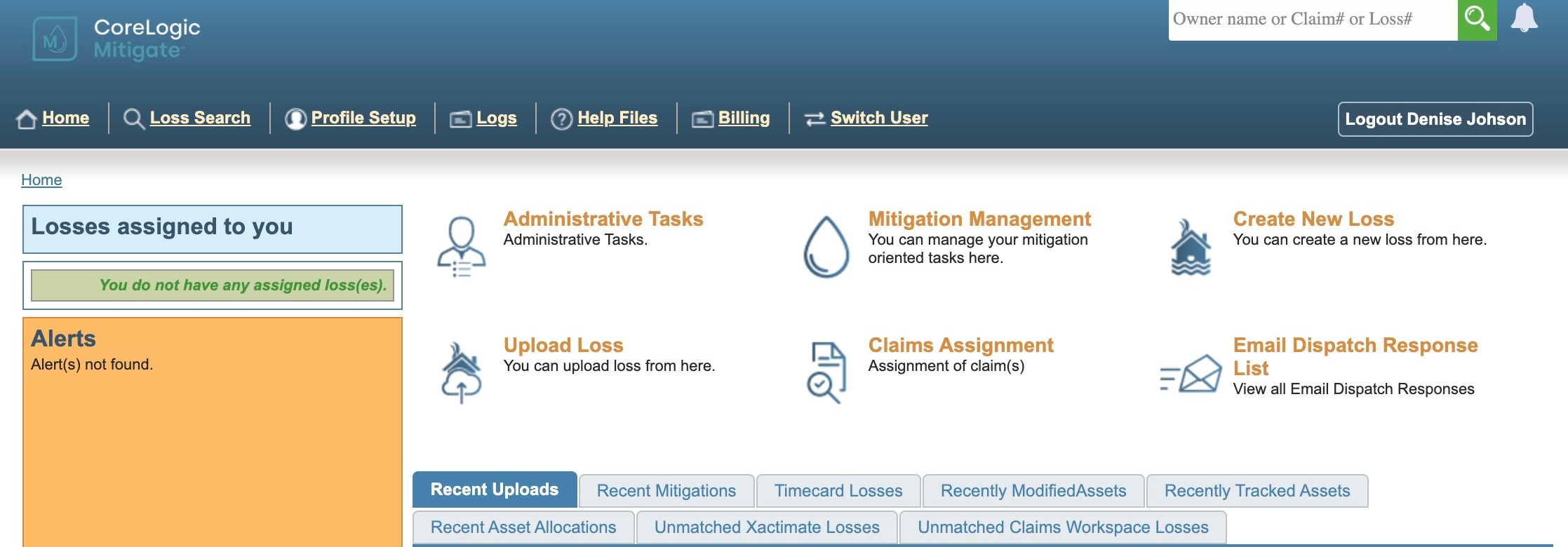
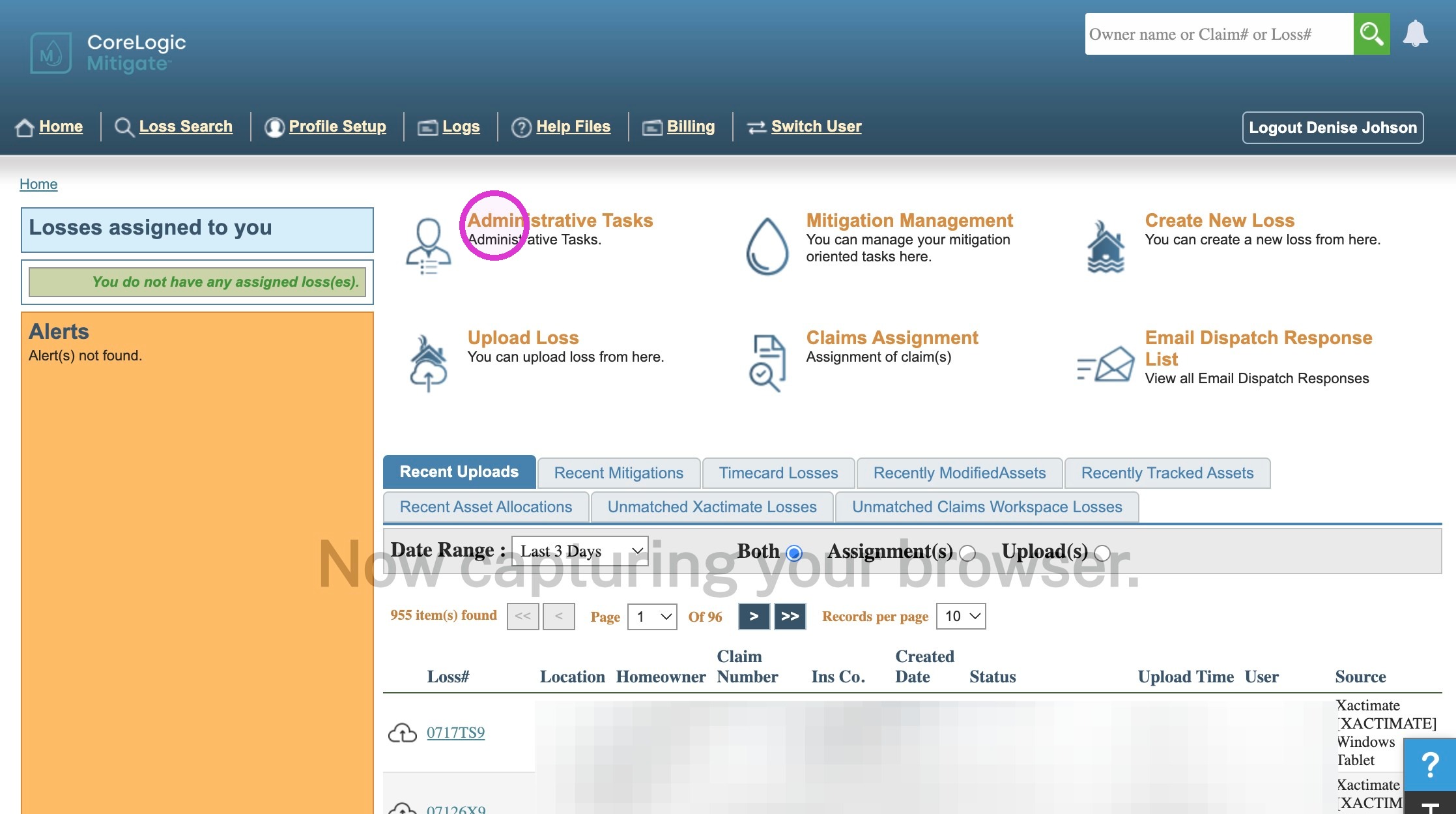
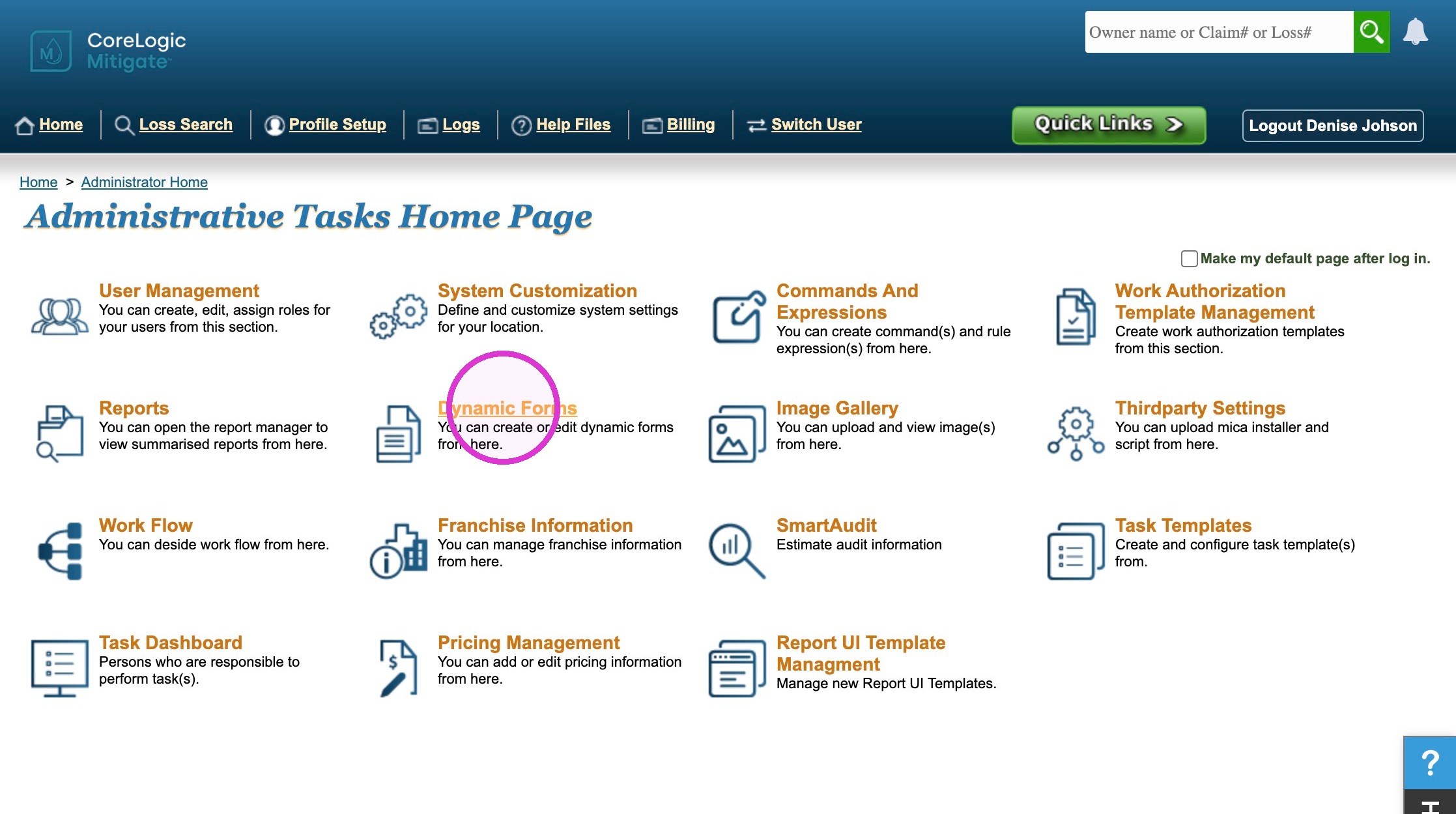
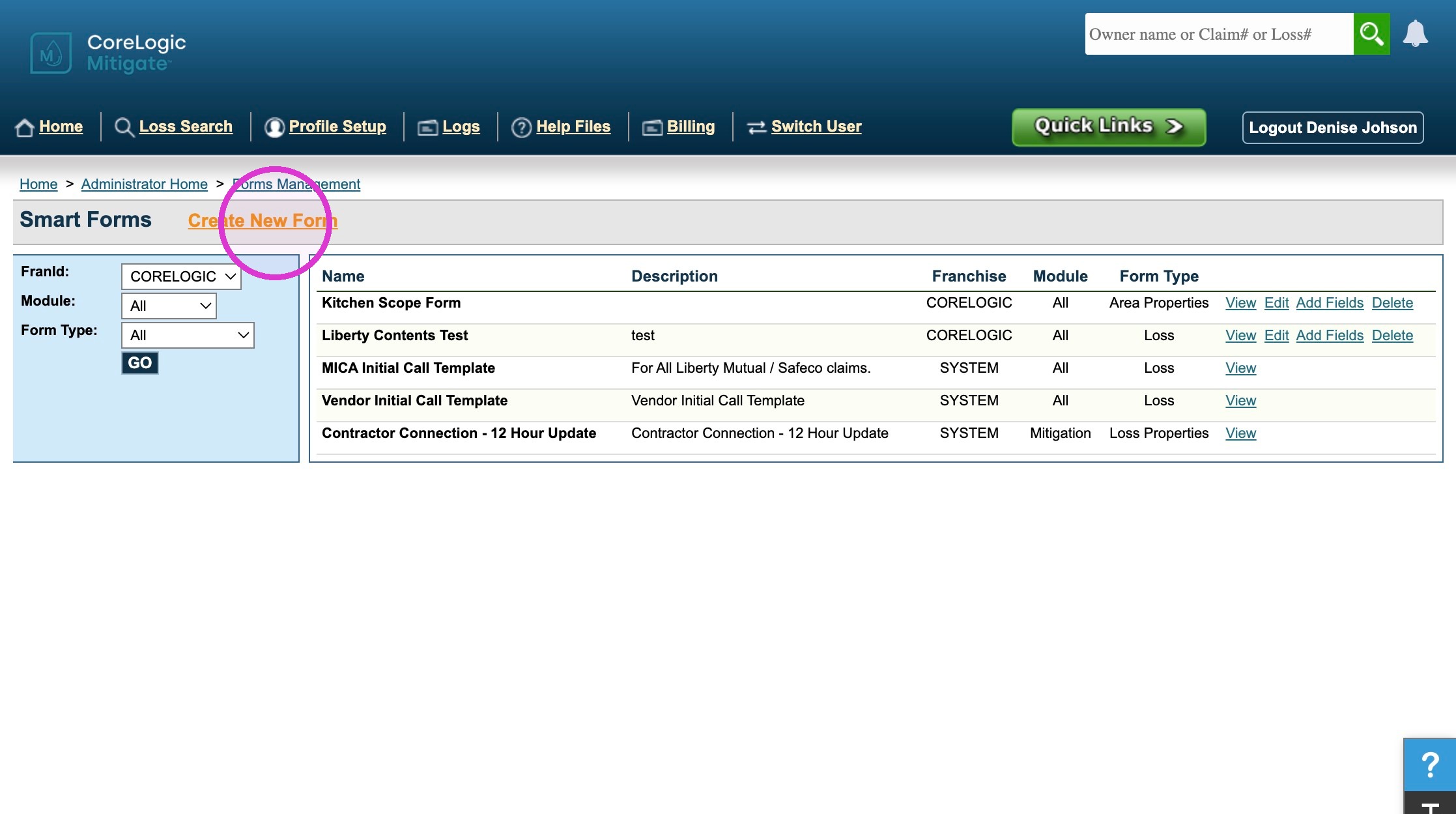
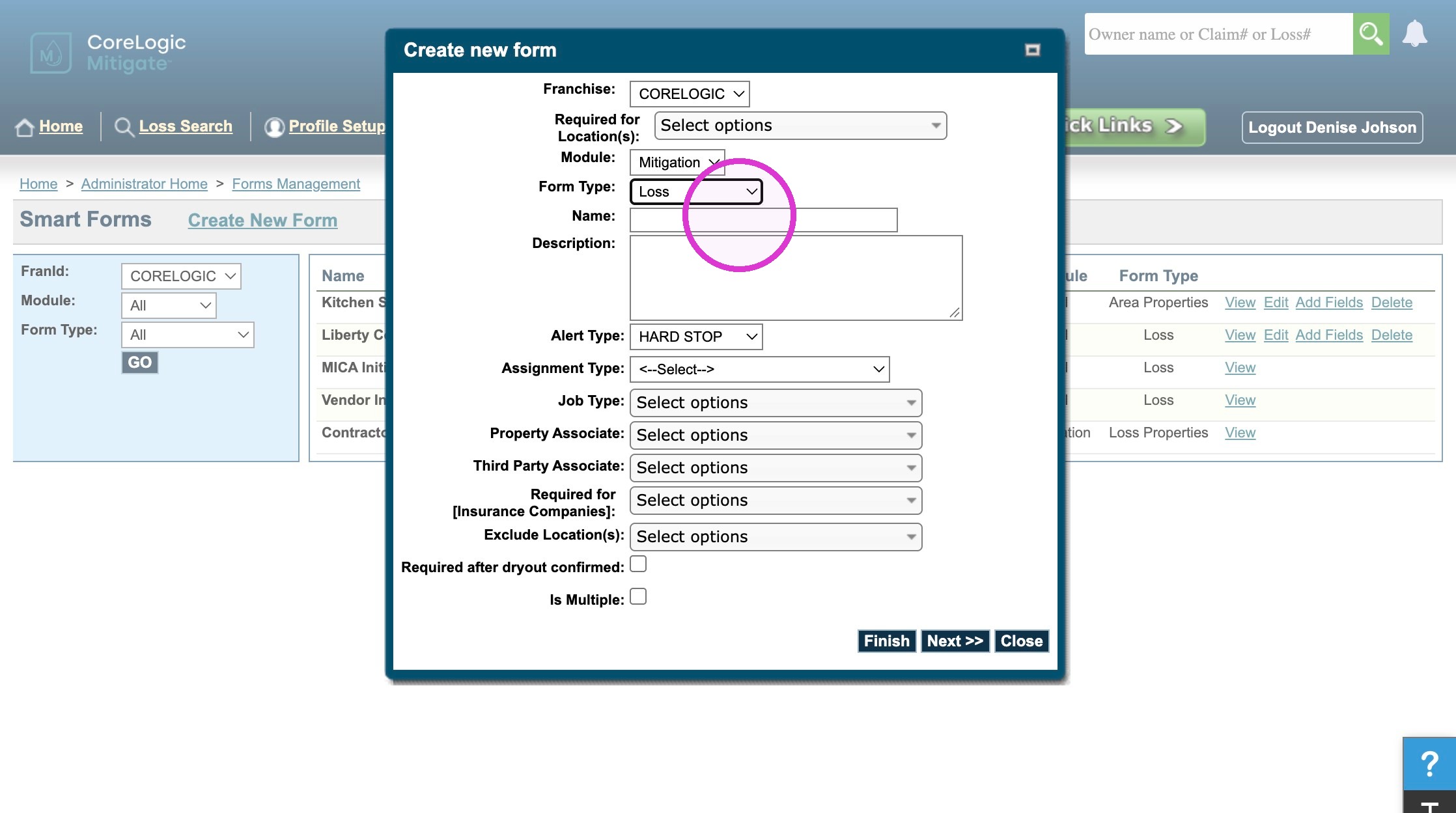
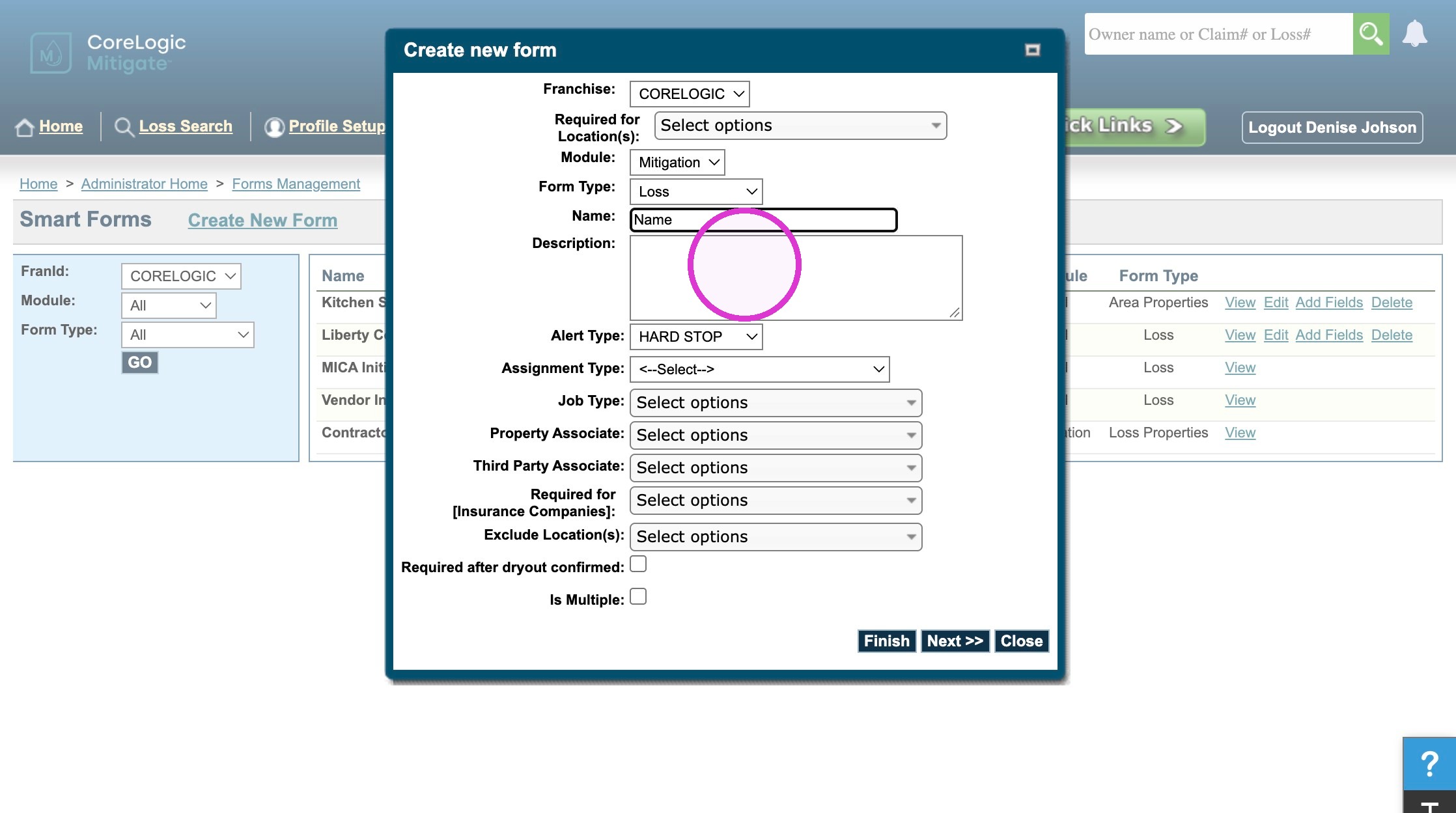
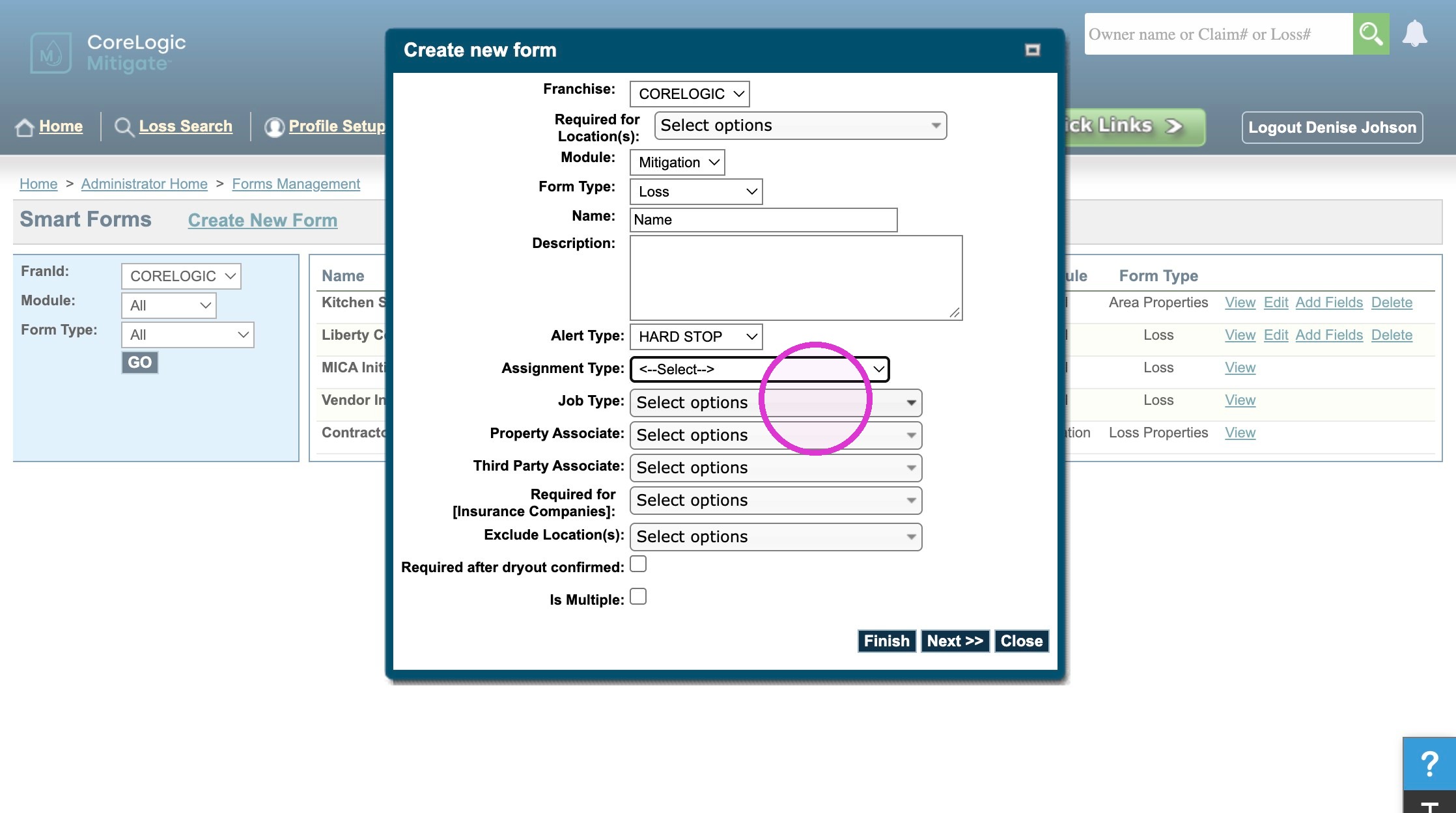
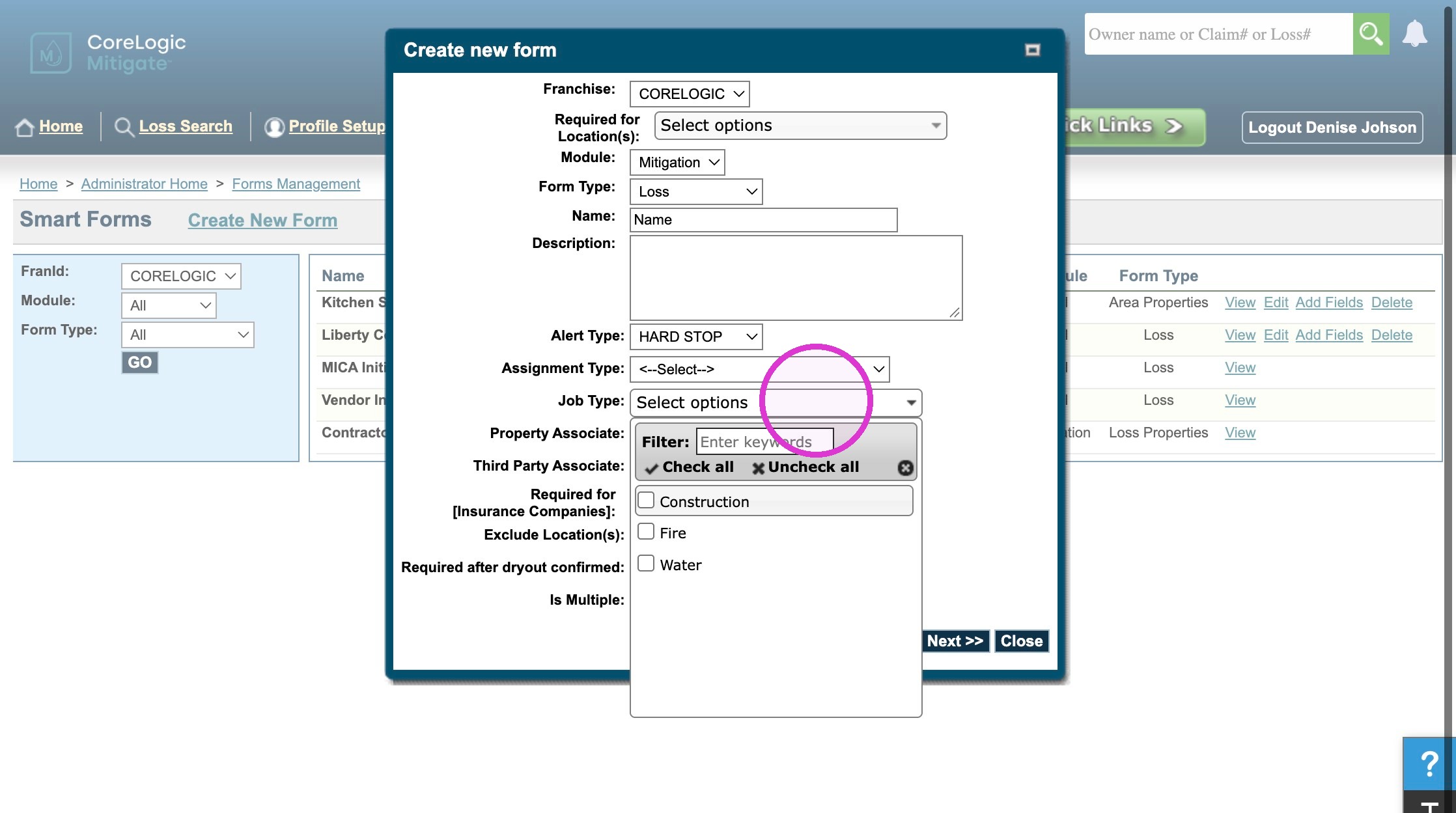
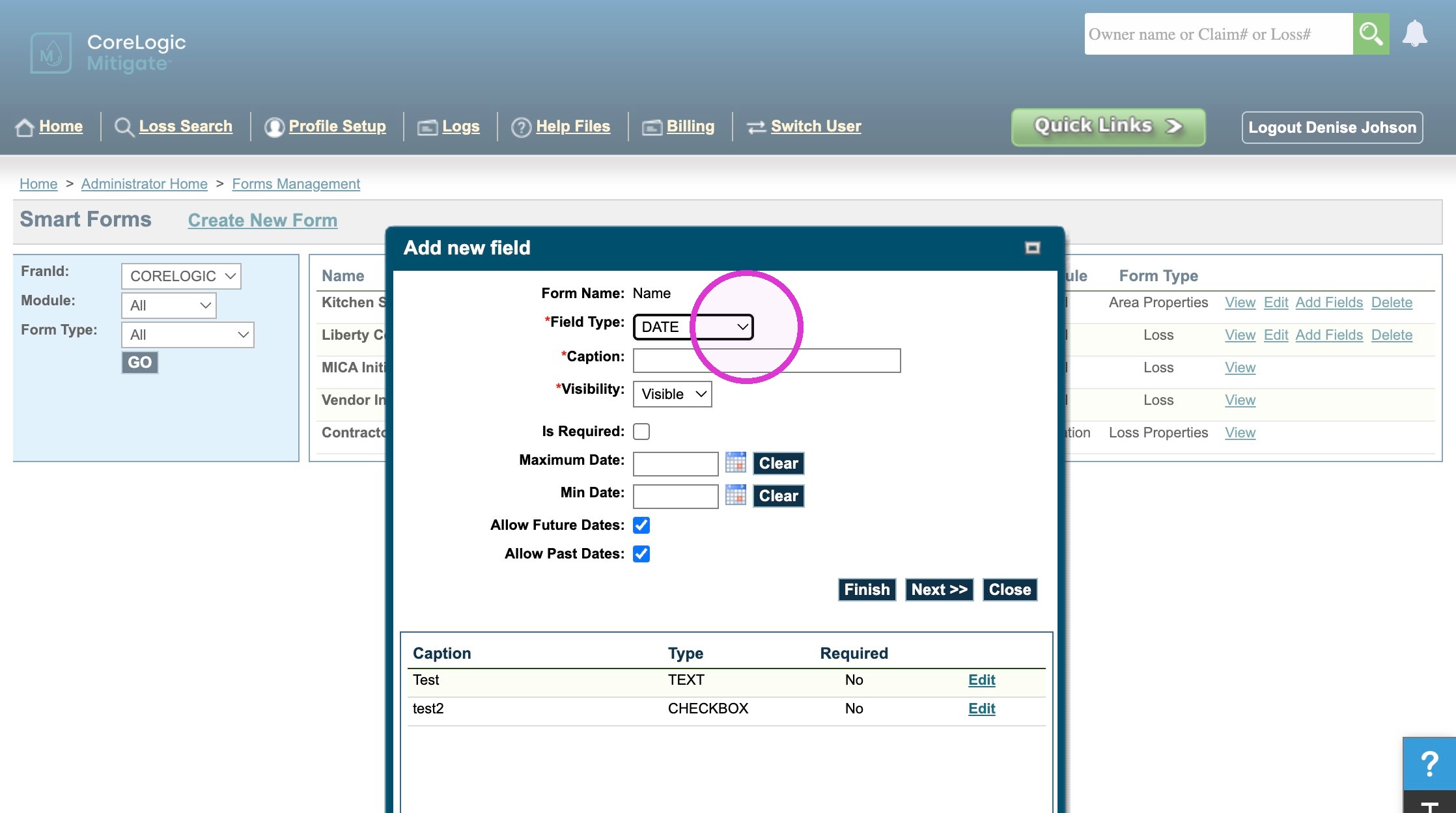
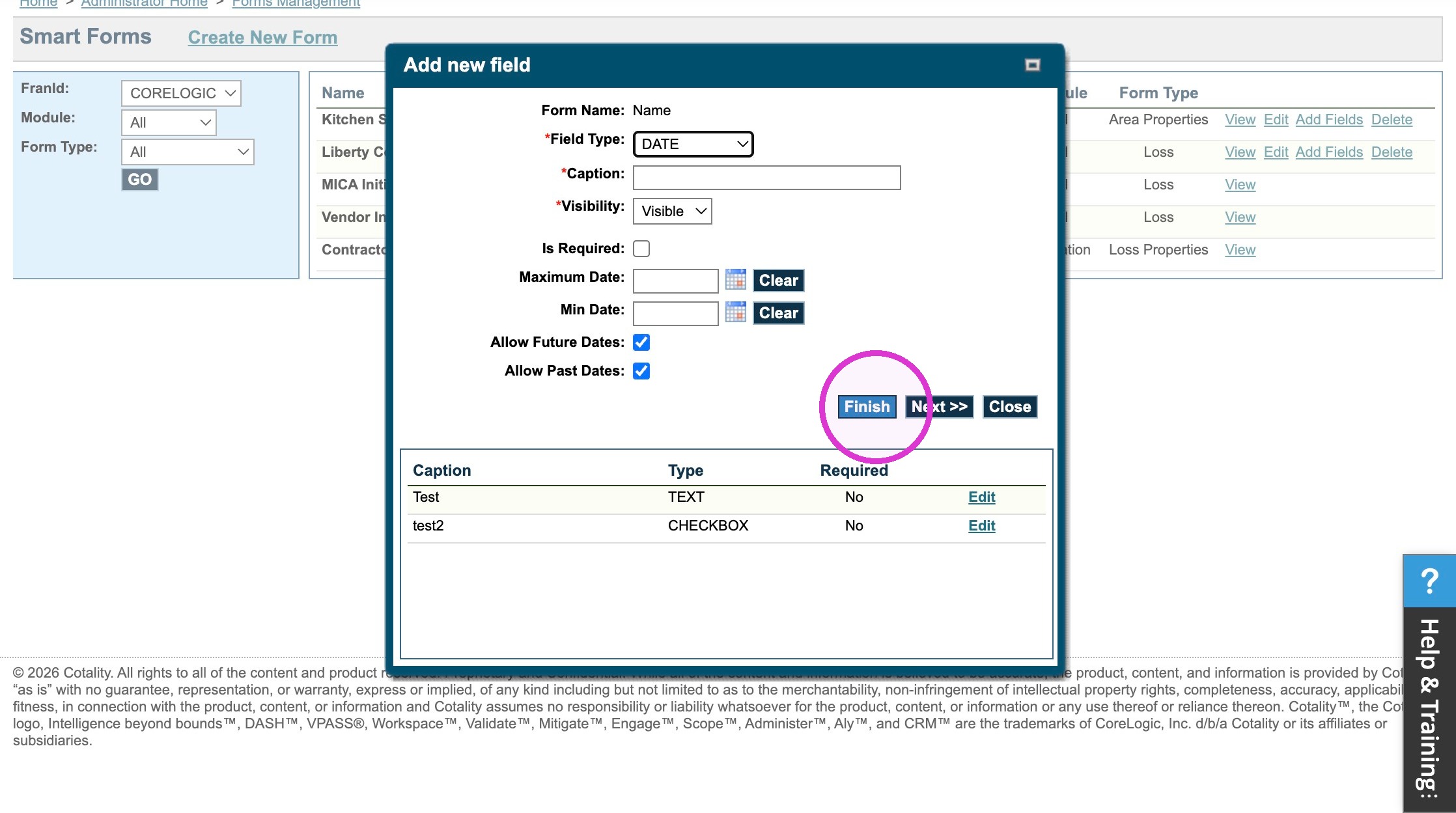
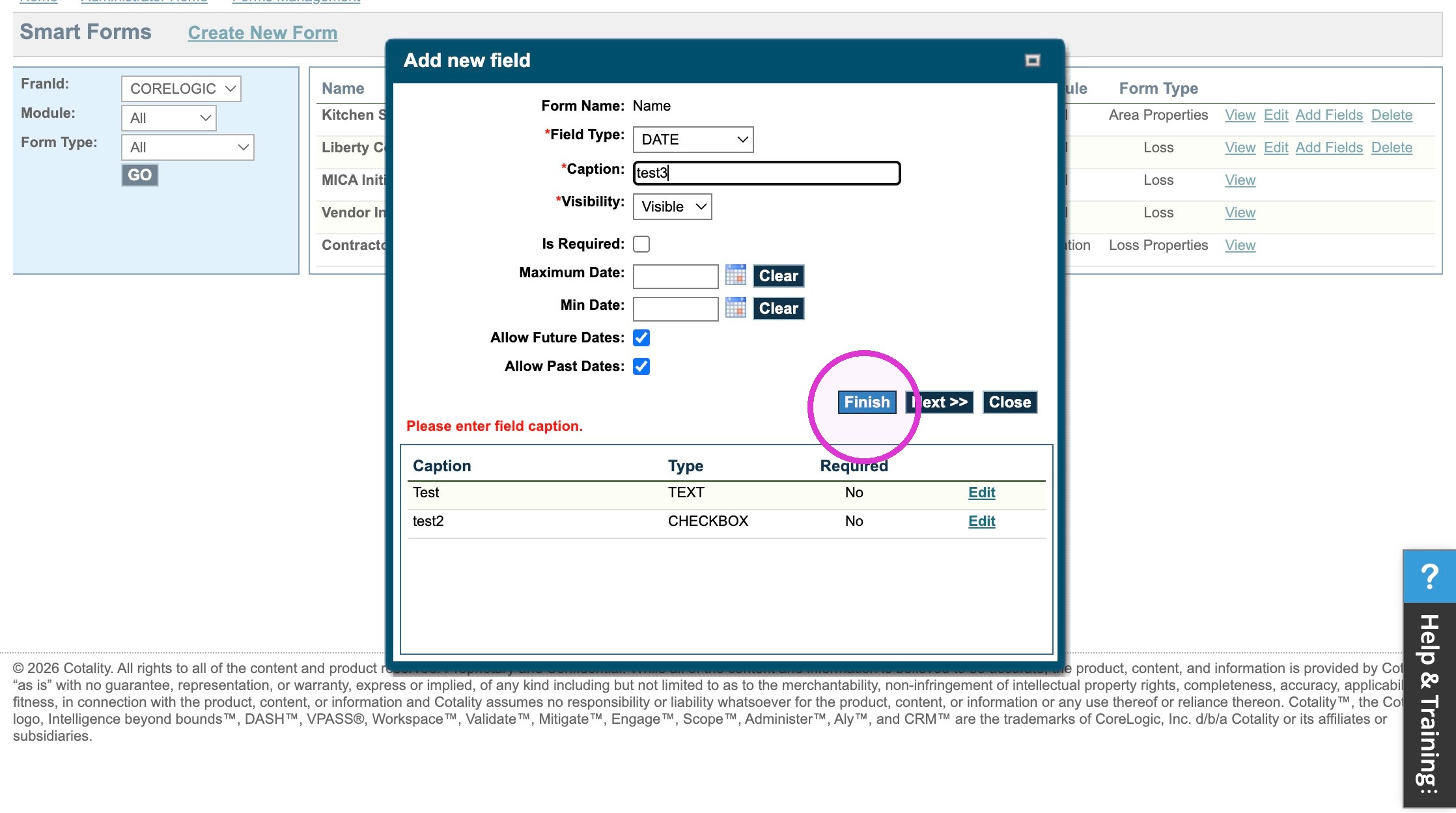
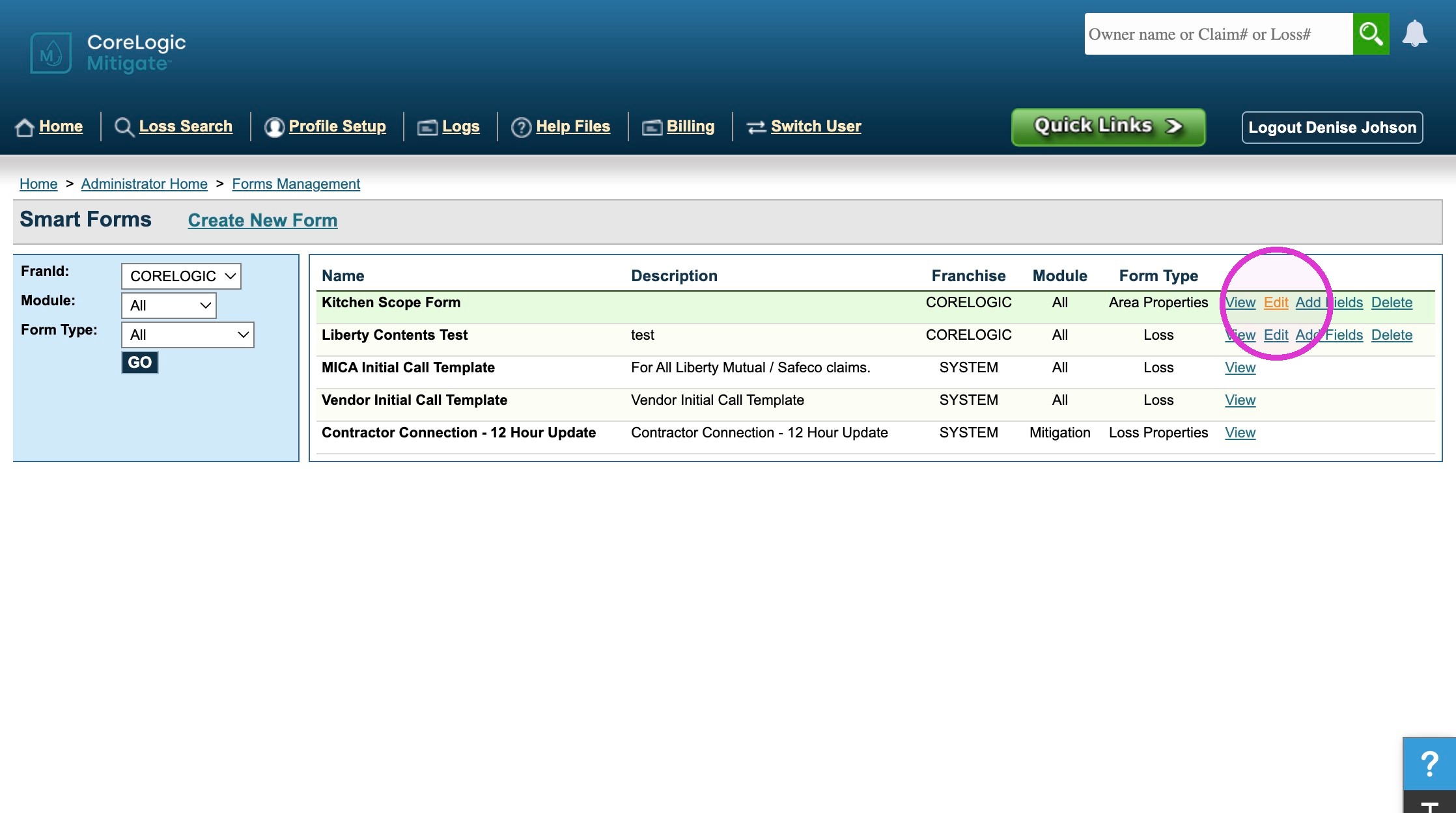
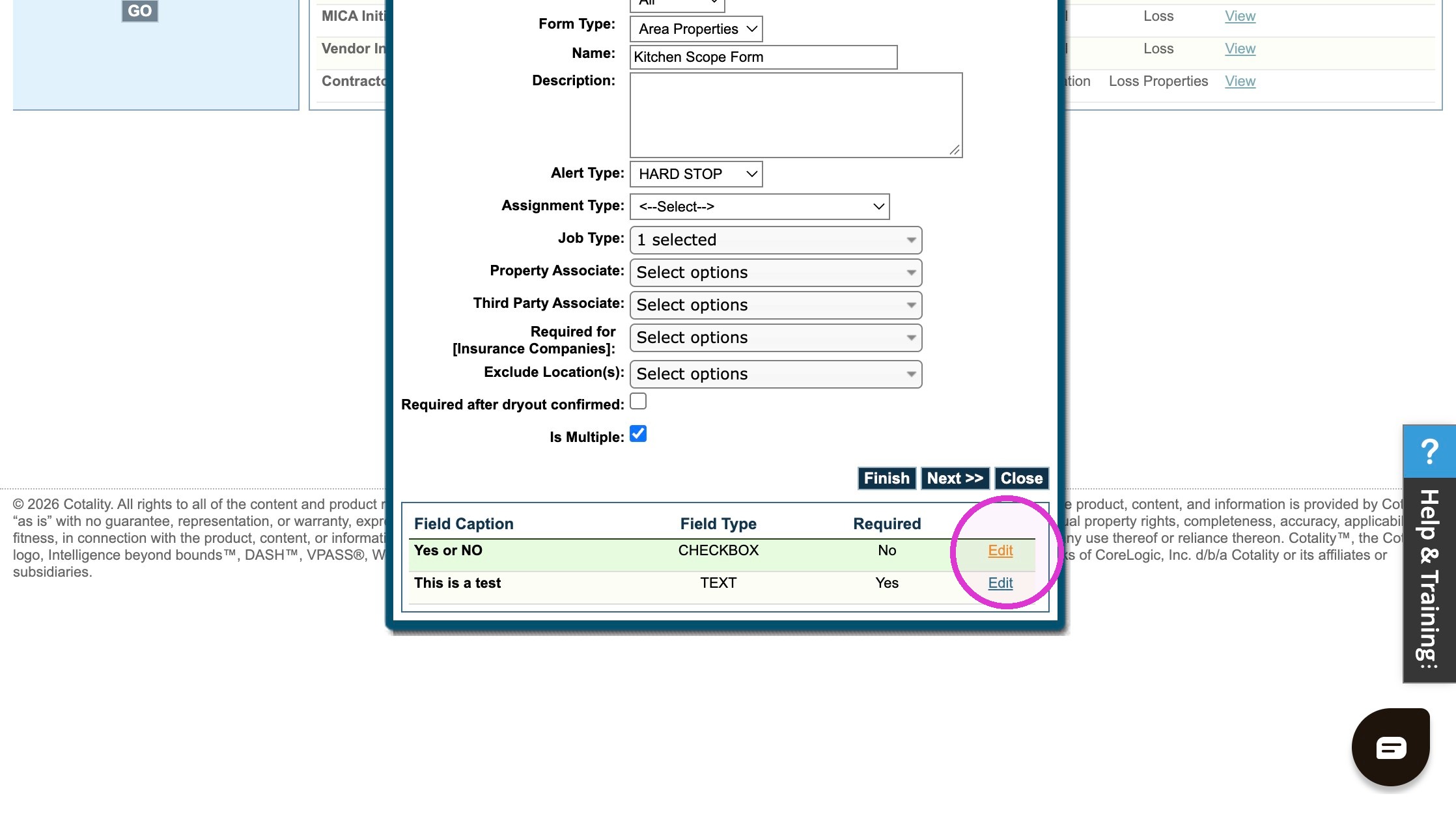
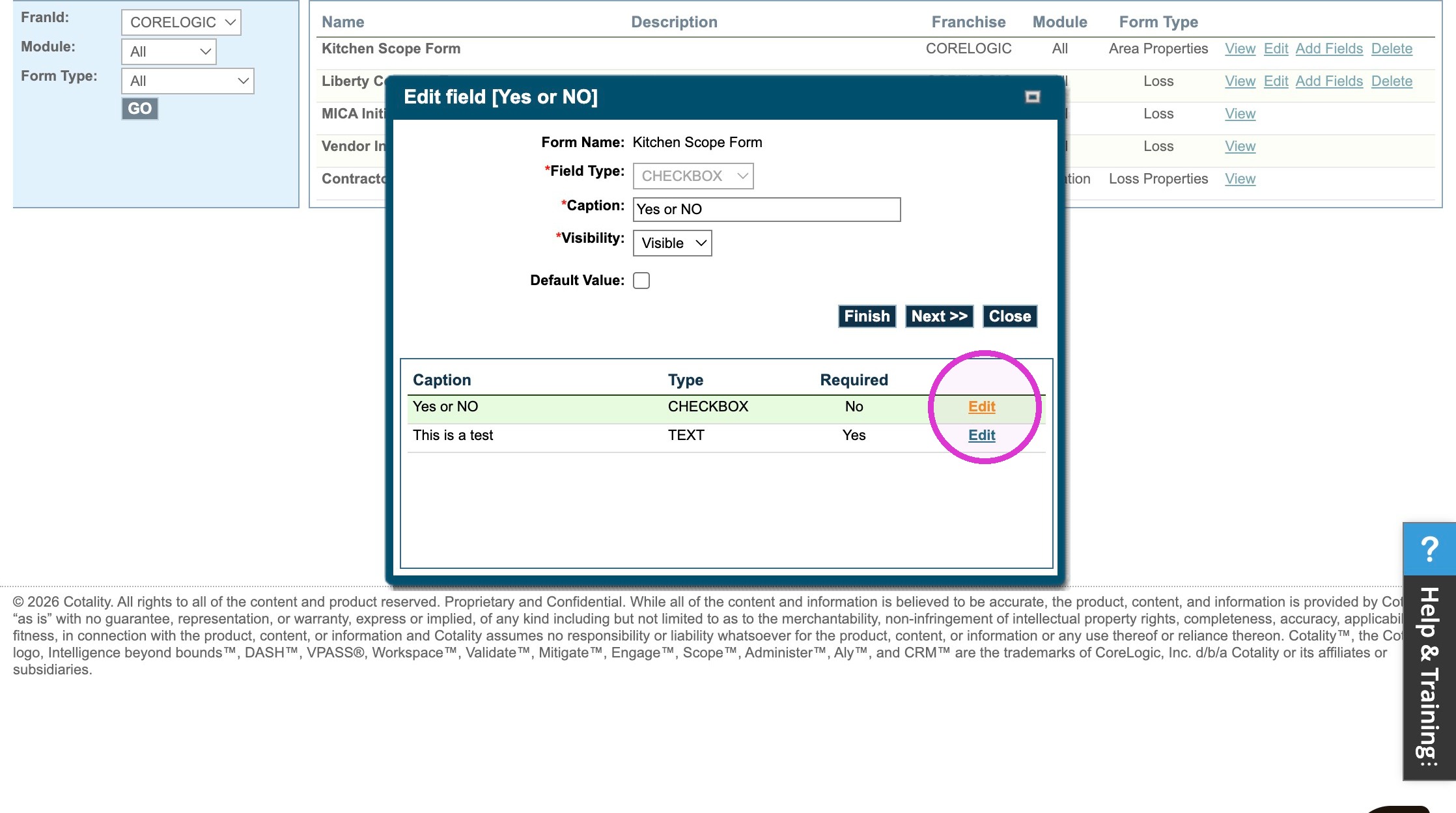
Mitigate Web: Dynamic Forms Modified on: Wed, 11 Nov, 2026 at 3:53 PM QuestionHow do I make forms in Mitigate™ web?How do I set up form fields in Mitigate™ web?How do I build dynamic forms in Mitigate™?AnswerMitigate Web: Dynamic FormsLearn how to build and configure custom dynamic forms within the Mitigate Web administrative portal. This guide walks you through setting up form fields, defining data types, and managing inputs to streamline your data collection processes.1. Log into your Mitigate Web Account.Open Form Management2. Click Administrative Tasks.3. Click "Dynamic Forms"4. Click "Create New Form"Configure New Form5. Click "Select options"6. Click "Select options"7. Select the "Mitigation" option.8. Select the "Loss" option.9. Type "Name" in the form name field10. Click this field.11. Click "Select options"12. Click "Select options"13. Click this button field.Add Form Fields14. Click this dropdown.15. Type "Test" in the field caption field16. Click this button field.17. Select the "CHECKBOX" option.18. Type "test2" in the field caption field19. Click this button field.20. Click this button field.21. Select the "DATE" option.22. Click this button field.23. Type "test3"24. Click this button field.Edit Existing Fields25. Click "Edit"26. Click "Edit"27. Click "Edit"Questions? Contact Us!