1. Cotality
  2. Solution home
  3. MICA™ Web
  4. Xactware Integration

Sending Xactimate® data to Mitigate™

Question

  • How can I connect MICA™ and X1?
  • Sending a Vendor Request in Xactimate Online
  • How to sync Xactimate data to Mitigate / MICA


Answer

Check out these resources as well:


Cotality™ Mitigate™: Setup Xactimate® Integration

Use this guide to set up your integration between your Xactimate and MICA/Mitigate™ accounts.


Summary

Tip: - Any scope data that you collect in MICA can be transferred to Xactimate

  • Includes sketches, line items, and pictures
  • Works even for claims that didn’t originate in XactAnalysis, so this integration works for self-pay or non-program jobs
  • Eliminates double entries

1. Confirm MICA is set up for Vendor Exchange

1. Log into your Xactimate® account.

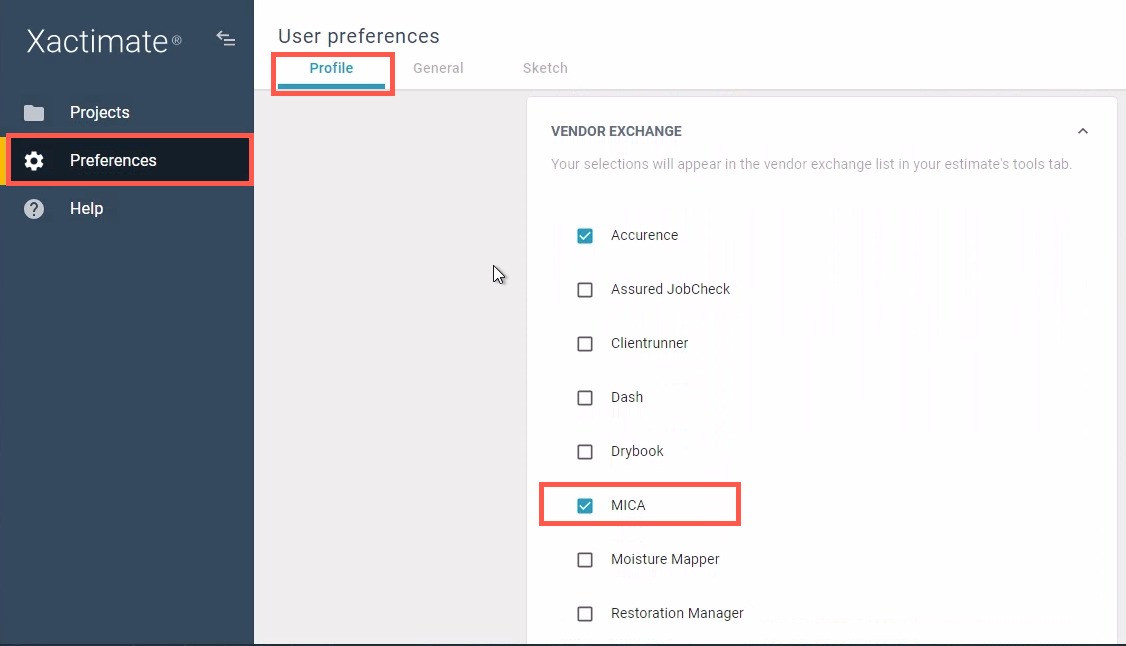
Go to Preferences. Under Profile, ensure MICA is selected to display in Vendor Exchange. [[(Preferences > Profile > MICA)]]

2. Set up a Vendor Exchange Request from Xactimate

2. Locate and open the claim in Xactimate.

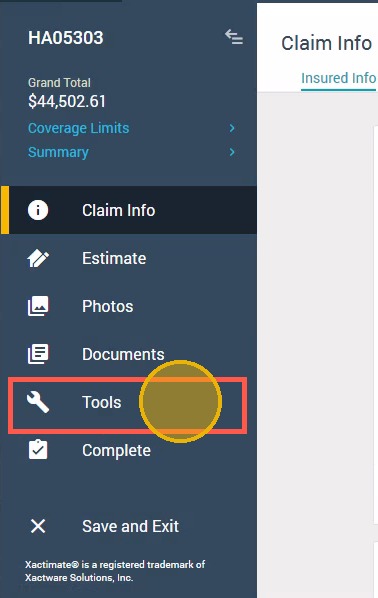
Click Tools located in the menu to the left.

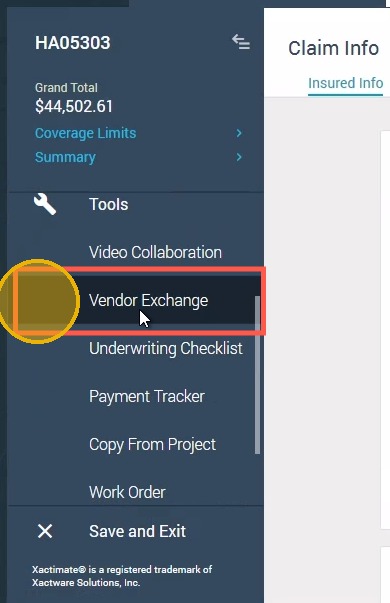
3. Click Vendor Exchange from the options that appear in the menu to the left.

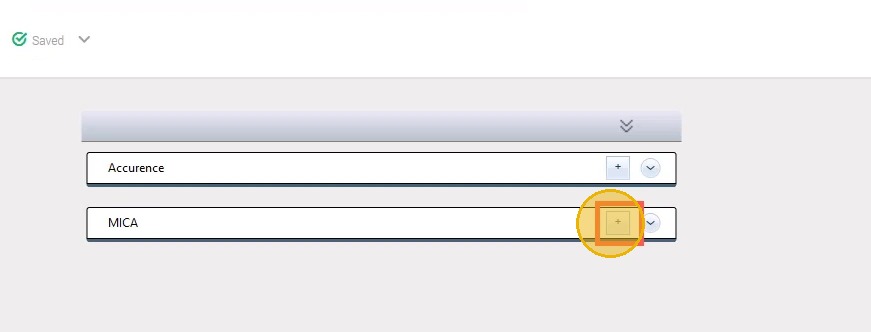
4. Click the + for MICA.

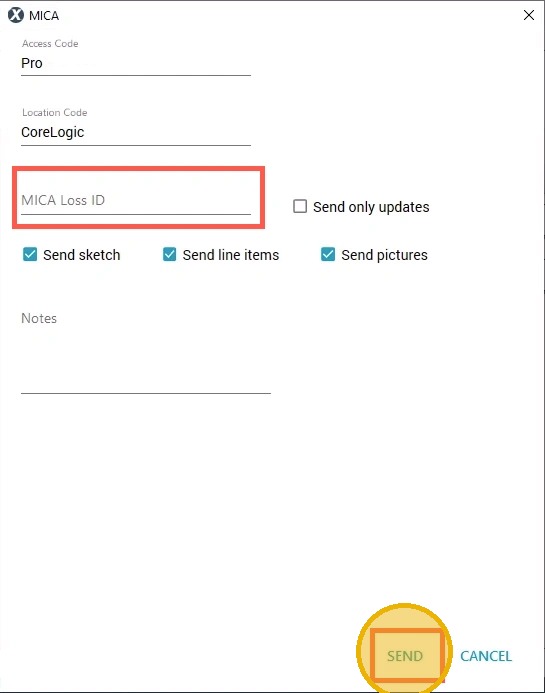
5. Enter the MICA Loss ID. Click SEND,

For instructions on locating the MICA Loss ID, review the next section of this guide.

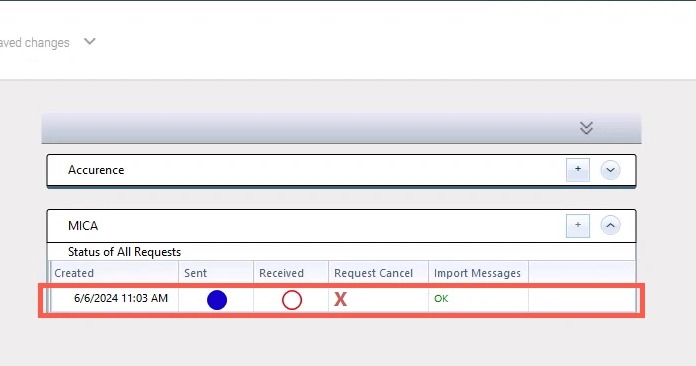
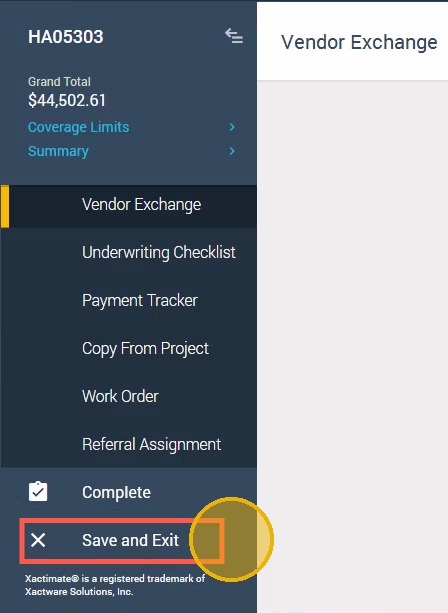
Alert: The screen below indicates success and appears after clicking send from the Vendor Exchange Window. You still have to click Save and Exit to complete the connection. Note: The sketch and other items can take up to 10 minutes to transfer from Mitigate into Xactimate.

6. Click Save and Exit from Xactimate.

2a. Locate MICA Loss ID

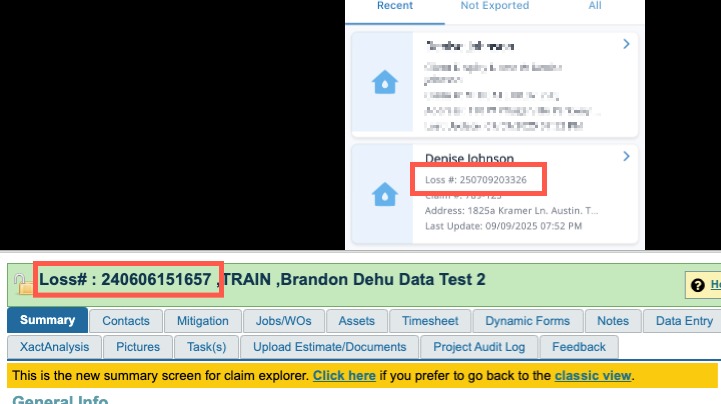
7. Open MICA web application or the MITIGATE Mobile application.

Locate the Loss ID and copy it to paste in the step above.


Questions? Contact Us!


Was this article helpful?

That’s Great!

Thank you for your feedback

Sorry! We couldn't be helpful

Thank you for your feedback

Let us know how can we improve this article!

Select at least one of the reasons
CAPTCHA verification is required.

Feedback sent

We appreciate your effort and will try to fix the article