
Overview
Dashboards provide a visual report on various data in your CRM (fka Luxor) system. Dashboards are built using individual components called "Dashlets," which are like small, focused reports or widgets.
While some CRM user accounts are set up with a default dashboard during a company's onboarding, all new users must create their own. You can create multiple dashboards, each with a different combination of dashlets, to track different activities.
Creating a Dashboard
- Select your username in the top right-hand corner > choose User Settings from the drop-down
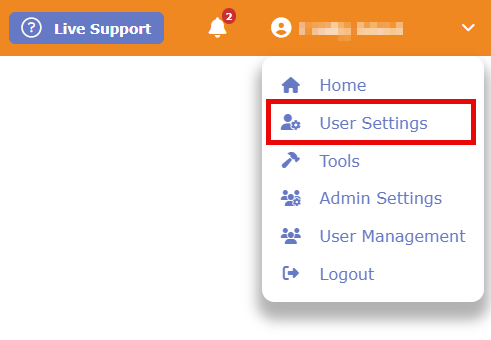
- Select Dashboard
- Click the Add New button

- Enter a name for your new Dashboard.
- From the dropdown menu, select "Stacked" and click "Save." (Note: You should always choose the "Stacked" option).
- Once you are done, you should see your new Dashboard in the list.
Adding Dashlets
Your new Dashboard is currently empty. To make it useful, you need to add Dashlets.
- Click on the Dashboard you just created from within the Dashboard list.

- Click the "Add New" button at the top of the page.
- Choose the type of Dashlet you want to add, give it a name, and click "Save."
- For instructions on changing individual Dashlet settings, please see this article How to adjust Dashlet settings

Suggested Dashboards
To get you started, we have articles on several recommended Dashboards. These are designed to provide the best reporting experience for the "Strategic Sales Through Classification" standard.
Feel free to customize them to fit your needs. You can mix and match Dashlets and adjust their settings at any time. However, it's a good idea to check with your Sales/Marketing team to ensure your settings are consistent with theirs.
- Business Development Dashboard
- Closing Ratios Dashboard
- KPI Dashboard
- Referral Sources Dashboard
- Sales Performance Dashboard
Questions? Contact Us
This article is meant to serve as a reference only and is not a substitute for training. If you are interested, feel free to check out our weekly Q&A sessions hosted by our CRM experts.